---
title: "Lazy Loading"
description: "Control lazy loading for background images and videos, individual images, or an entire Bricks page or site."
canonical: "https://academy.bricksbuilder.io/builder/features/lazy-loading/"
markdownUrl: "https://academy.bricksbuilder.io/builder/features/lazy-loading.md"
pageType: "article"
section: "builder"
category: "features"
lastmod: "2026-11-17T10:56:20.000Z"
---
Lazy loading delays loading media until it is needed near the visible part of the page. For a hero background that visitors see as soon as the page opens, disable lazy loading on that element so Bricks does not wait for it to enter the viewport.
Bricks 2.5 adds **Disable lazy load** to the background controls of Section, Container, Block, and Div elements. The setting applies to both background images and background videos. Global and page-level lazy-loading opt-outs also cover background videos in Bricks 2.5.
## Native image loading in Bricks 2.5
On WordPress 6.4 or newer, Bricks 2.5 uses the browser's native image lazy loading by default. Images keep their real `src` and `srcset`; the browser decides when images with `loading="lazy"` are fetched. Bricks preserves explicit loading and fetch-priority decisions, and does not force every leading image to load lazily.
If custom code depends on the previous placeholder images or `data-src` attributes, enable **Bricks > Settings > Performance > Use JavaScript lazy loading for images**. WordPress versions earlier than 6.4 continue using the JavaScript loader automatically. Background images, background videos, and iframes still use JavaScript loading.
**Lazy load offset** applies to HTML images only when the JavaScript image loader is active. It does not change the browser's native loading distance.
## Disable lazy loading for one background
1. Select the **Section**, **Container**, **Block**, or **Div** that has the background.
2. Open **Style > Background**.
3. Enable **Disable lazy load**.
4. Save and check the page on the frontend.

The checkbox is off by default. Enabling it bypasses Bricks' lazy loading for that element's background images and starts its background video initialization without waiting for the element to become visible. This includes file-based videos and YouTube or Vimeo backgrounds. Video playback still depends on the browser's autoplay rules and the video provider.
For example, enable it on a hero Section with a background image, while leaving it off on Sections further down the page. Apply the setting to the element that owns the background. It does not disable lazy loading for every image or video inside that element.
### Why is the checkbox missing?
Bricks hides the background checkbox when lazy loading is already disabled globally or for the current page. In that case, the background already bypasses Bricks' lazy loading. Check the settings below before looking for the element control.
## Disable lazy loading for a page or site
| Scope | Setting |
| --- | --- |
| Current page | In the builder, open **Page Settings > General > Disable lazy load**. |
| Entire site | In WordPress, open **Bricks > Settings > Performance > Disable lazy loading**. |
These settings disable Bricks' built-in lazy loading for images, videos, background images, and background videos in their scope. Use the element control when only one background needs to load immediately.
See [Page Settings](/builder/interface/page-settings/#general-settings) and [Bricks Settings](/builder/setup/settings/#disable-lazy-loading) for the wider settings context.
## Image and Logo elements
The [Image](/builder/elements/basic/image/) and [Logo](/builder/elements/media/logo/) elements have a separate **Loading** control with `lazy` and `eager` options. Choose `eager` when the image should load without native lazy loading.
These controls set the HTML image's `loading` attribute and remain available when Bricks' global or page-level lazy loading is disabled. CSS background images do not support that native attribute; use **Style > Background > Disable lazy load** for them.
## Preload a background image
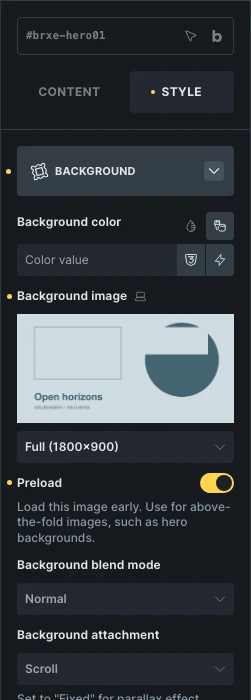
Since Bricks 2.5, enable **Preload** beside the selected image under **Style > Background** when an important background is visible as soon as the page opens, such as a hero image. Bricks adds an image preload hint with high fetch priority and uses responsive media conditions for breakpoint-specific backgrounds.
Dynamic background images inside query loops are not preloaded. Use this selectively. Preloading below-the-fold backgrounds competes with resources needed for the initial view. The control is unavailable for pseudo-class states and background contexts that are hidden on initial load, such as popup backgrounds. A viewport background configured for preloading bypasses Bricks' background lazy loader.
## Check loading on the frontend
Test on the frontend rather than relying on the builder preview. In your browser's developer tools, open the Network panel, disable the cache, and reload at the top of the page. Compare media requests before and after scrolling to the background.
The **Lazy load offset** in **Bricks > Settings > Performance** controls how early Bricks' JavaScript lazy loader starts loading images and background images. Its default is **300px**. This offset does not control native browser image loading or when background videos load.
If a background image loads before you scroll to it, also check its **Preload** option. A background image configured for viewport preloading bypasses background lazy loading. Disabling lazy loading alone does not add an image preload hint.