---
title: "Structure Panel Search and Filters"
description: "Find elements in the Bricks Structure panel by name, text, ID, class, HTML tag, attribute, or dynamic data, and narrow results with filters."
canonical: "https://academy.bricksbuilder.io/builder/interface/structure-panel-search/"
markdownUrl: "https://academy.bricksbuilder.io/builder/interface/structure-panel-search.md"
pageType: "article"
section: "builder"
category: "interface"
lastmod: "2026-11-17T10:56:20.000Z"
---
In Bricks 2.5, search and filters help you find elements in the Structure panel without opening every branch of a large layout. Search for a button's text, find elements using a class, or show elements with conditions or interactions.
## Open the search
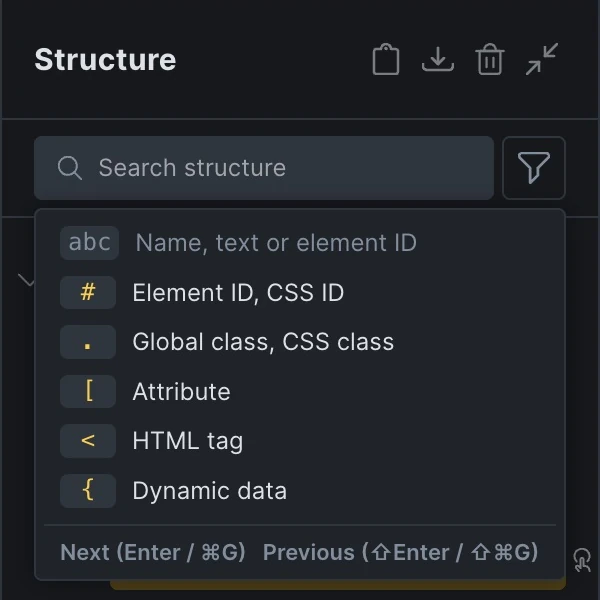
Use the **Search structure** field at the top of the Structure panel. It appears when the current editing context contains elements.
The default shortcut is `CMD / CTRL + F`. It opens the panel if hidden or minimized and focuses the search. While typing in a field, including the Structure search itself, the same shortcut keeps the browser's normal Find behavior. It also keeps browser Find on an empty page.
You can change or disable **Search structure** under **Manage > Keyboard shortcuts**. See [Keyboard Shortcuts](/builder/interface/keyboard-shortcuts/).
## Search by name or text
Type an element label, element type, or text from its content. Searches ignore capitalization and match part of the text. For example:
- `hero` finds elements labelled Hero.
- `heading` finds Heading elements, including ones you have renamed.
- `get started` finds that text in a button or another supported text field.
Text search includes fields such as accordion and tab titles, list items, pricing features, and form labels and placeholders. It searches stored text settings, not the resolved output of dynamic data or the contents of code and custom CSS.
Paste a complete Bricks element ID, such as `brxe-abc123` or `abc123`, to find that element. Use the `#` prefix for a partial ID or a custom CSS ID.
## Search prefixes
Start a search with one of these prefixes to choose what to search. These are search shortcuts, not full CSS selectors.
| Prefix | Searches | Example |
| --- | --- | --- |
| `#` | Bricks element IDs and custom CSS IDs | `#hero` or `#brxe-abc` |
| `.` | Assigned global classes and custom CSS classes | `.btn--primary` |
| `[` | Custom attribute names or values | `[aria-label` or `[data-track=signup` |
| `<` | HTML tags | ``, or `}` is optional for attribute, HTML tag, and dynamic data searches.
Use `{post_title` to find an element using that dynamic data tag, regardless of the title it currently displays. Tags inside code or custom CSS are excluded.
Focus the empty search field to see a prefix cheat sheet. Click a prefix to insert it, or use the arrow keys or Tab to reach a prefix button and Enter to activate it.
Classes and attributes require their prefix. If a plain search finds nothing, **Search instead for** may suggest a prefixed search that has results. Click the suggestion to apply it.
## Read and navigate results
Matching elements are highlighted. Their parents stay visible, dimmed and expanded, so you can see where each match sits in the layout. Other branches are hidden from the Structure panel. This does not hide elements on the frontend.
When a match comes from text, an ID, a class, a tag, or an attribute, an excerpt or value appears below the row. Hover over it to see the match type, such as **Global class**.
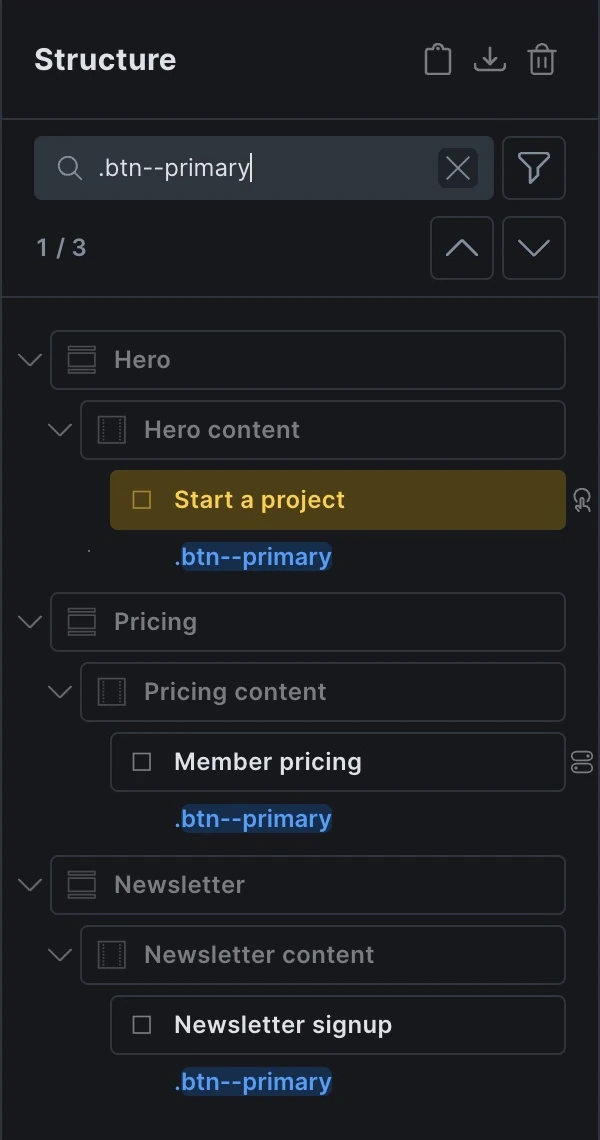
Use the previous and next buttons beside the result counter to select matches. While the search input has focus:
| Keys | Action |
| --- | --- |
| `Enter` or `CMD / CTRL + G` | Select the next match |
| `Shift + Enter` or `CMD / CTRL + Shift + G` | Select the previous match |
| `Esc` | Clear the search text, or dismiss the open cheat sheet |
Navigation wraps from the last match to the first and keeps focus in the search input. The selected element and its parent path stay visible even if it does not match, so a visible row is not necessarily counted as a result.
## Filter elements
Click the funnel button beside the search field to show the filters.
| Filter | Finds |
| --- | --- |
| Query loop | Elements with a query loop enabled |
| Conditions | Elements with display conditions |
| Interactions | Elements with interactions |
| Custom CSS | Elements with custom CSS in their element settings, including breakpoint or pseudo-class variants |
| Hidden | Elements hidden in the builder or on the frontend, or with an element Display setting of `none` at any breakpoint or pseudo-class |
| Components | Component instances |
| Dynamic data | Elements with dynamic data tags in their settings, excluding code and custom CSS |
| Attributes | Elements with custom attributes |
| Code | Code elements and elements flagged as containing unsigned code |
These filters inspect element settings. **Hidden** does not test computed visibility, and **Custom CSS** does not find every element styled by a global class or stylesheet.
Select multiple filters to find elements matching **any** of them. When you also enter search text, an element must match the text **and** at least one selected filter.
For example, search `.btn--primary` and select **Conditions** and **Interactions** to find buttons using that class that have either conditions or interactions. This helps you locate buttons with behavior to review.
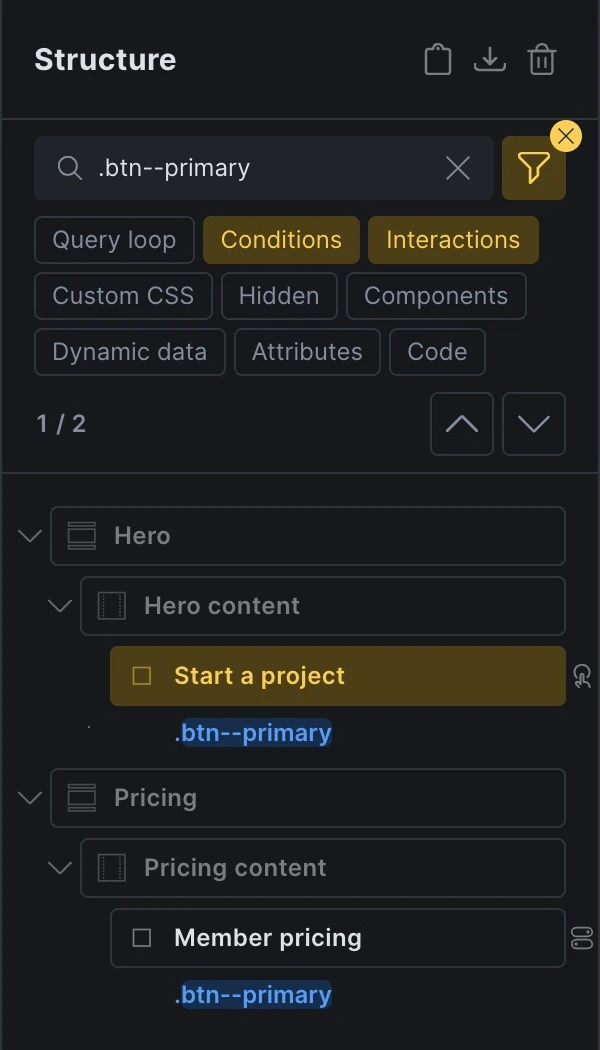
Click a selected filter to turn it off. The **×** badge on the funnel button clears all filters and keeps the search text. Clearing only the text keeps your filters active. If nothing matches, the **Clear search** button in the empty state clears both.
## Return to the full structure
Clear the search text and all filters to restore the full tree and its previous expanded and collapsed branches. Drag and drop and **Expand/collapse all** are unavailable while search or filters are active.
Search follows the tree for the current editing context. On a page, component instances expose their slots and assigned slot content; open the main component to search its internal elements. Search and filters reset when you enter or leave component editing or navigate to another page in the builder.