---
title: "Undo, Redo & History"
description: "Preview changes, undo or redo several steps at once, and navigate the History panel in Bricks."
canonical: "https://academy.bricksbuilder.io/builder/interface/undo-redo-history/"
markdownUrl: "https://academy.bricksbuilder.io/builder/interface/undo-redo-history.md"
pageType: "article"
section: "builder"
category: "interface"
lastmod: "2026-11-17T10:56:20.000Z"
---
Use undo and redo to reverse recent edits while working in the builder. The toolbar history menus let you review several changes before applying them. The History panel shows all available steps.
The history menus, feedback messages, and redesigned History panel described here are available in **Bricks 2.5**.
## Undo or redo one change
Click **Undo** or **Redo** in the builder toolbar. Hover over either button to see the next change it will apply, including the element name and action. If no step is available, the tooltip shows **Nothing to undo** or **Nothing to redo**.
The default [keyboard shortcuts](/builder/interface/keyboard-shortcuts/) are:
| Action | macOS | Windows / Linux |
| ------------ | ----------------- | ------------------ |
| Undo | `Cmd + Z` | `Ctrl + Z` |
| Redo | `Cmd + Shift + Z` | `Ctrl + Shift + Z` |
| Open History | `Cmd + Shift + H` | `Ctrl + Shift + H` |
While typing in a field or editing text inline, undo and redo use the text editor's history. Leave the field or finish inline editing to navigate builder history with these shortcuts.
### Feedback after a change
A brief message identifies the change you undid or redid. Repeated actions in the same direction add to a counter, such as **×3**. The message stays visible while you hover over it and otherwise closes after 2.5 seconds.
The message includes a **Redo** or **Undo** button to reverse one step. This button reverses only one step, even when the counter shows several. Use a history menu to reverse a whole range.
When the affected element is still present, Bricks briefly highlights it on the canvas and in the open Structure panel. An element outside the visible canvas scrolls into view. If the action removed the element, there is no element left to highlight.
## Undo or redo several changes
Click the chevron beside **Undo** or **Redo** to open its history menu. Each menu lists up to 10 available steps in the order they will be applied. Rows show the element or item name, the change, and the elapsed time.
1. Hover over a row to highlight that step and every step above it.
2. Check **Steps to undo** or **Steps to redo** at the bottom of the menu.
3. Click the row to apply the entire highlighted range.
For example, click the third row in the Undo menu to undo your three most recent recorded changes. You cannot undo just the third change while keeping the two changes after it.
Hovering over a row outlines its affected element when it is present on the canvas. It does not apply the change.
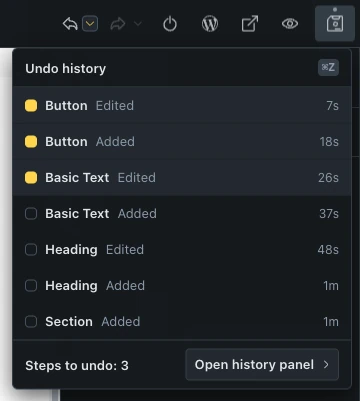
To use the menu with a keyboard, focus the toolbar's Undo or Redo item and press `Arrow Down`. The first row receives focus. Use `Arrow Up` and `Arrow Down` to change the range, then `Enter` to apply it. Press `Escape` to close the menu and return focus to the toolbar item.
## Use the History panel
Choose **Open history panel** at the bottom of either history menu, or use the Open History shortcut above.
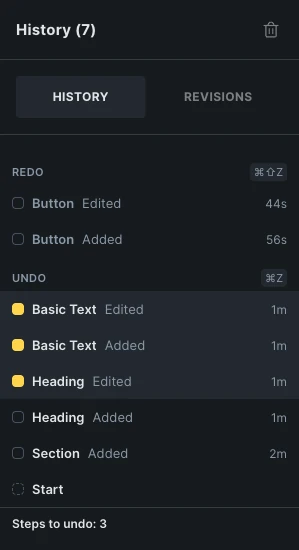
The panel separates available steps into **Redo** and **Undo** sections, with the newest changes at the top of each section. Hover over a row to check the highlighted range and step count before clicking:
- **Undo:** Reverses the selected change and every newer applied change.
- **Redo:** Reapplies the selected change and every earlier change needed to reach it.
- **Start:** Undoes all currently available undo steps.
Clicking an Undo row reverses that row's change too. It does not restore the state after that change. In the Redo section, the range extends through the older redo steps below the selected row.
### Make a new edit after undoing
If you undo changes and then make a new recorded edit, Bricks discards the redo steps ahead of your current position. You can undo the new edit, but you cannot use Redo to recover the discarded sequence.
## History and saved revisions
History is for recent editing steps. It is limited, and older steps drop out as you continue editing. **Start** means the earliest state still available in history, which may no longer be the state from when you opened the builder.
Reloading the builder or switching to another document resets editing history. Use [Save & Publish](/builder/interface/save-publish/) to save your work and [Revisions](/builder/interface/revisions/) to restore a saved version or an available autosave.
The History panel's **Delete** action clears the available undo and redo steps after confirmation. It keeps the current design in place; it does not undo the edits or delete saved revisions.