
Custom Authentication Pages
Since Bricks 1.9.2, you can assign custom Bricks-built pages for WordPress authentication flows. This lets you replace the default WordPress screens for login, registration, lost password, and reset password with pages that match your site design.
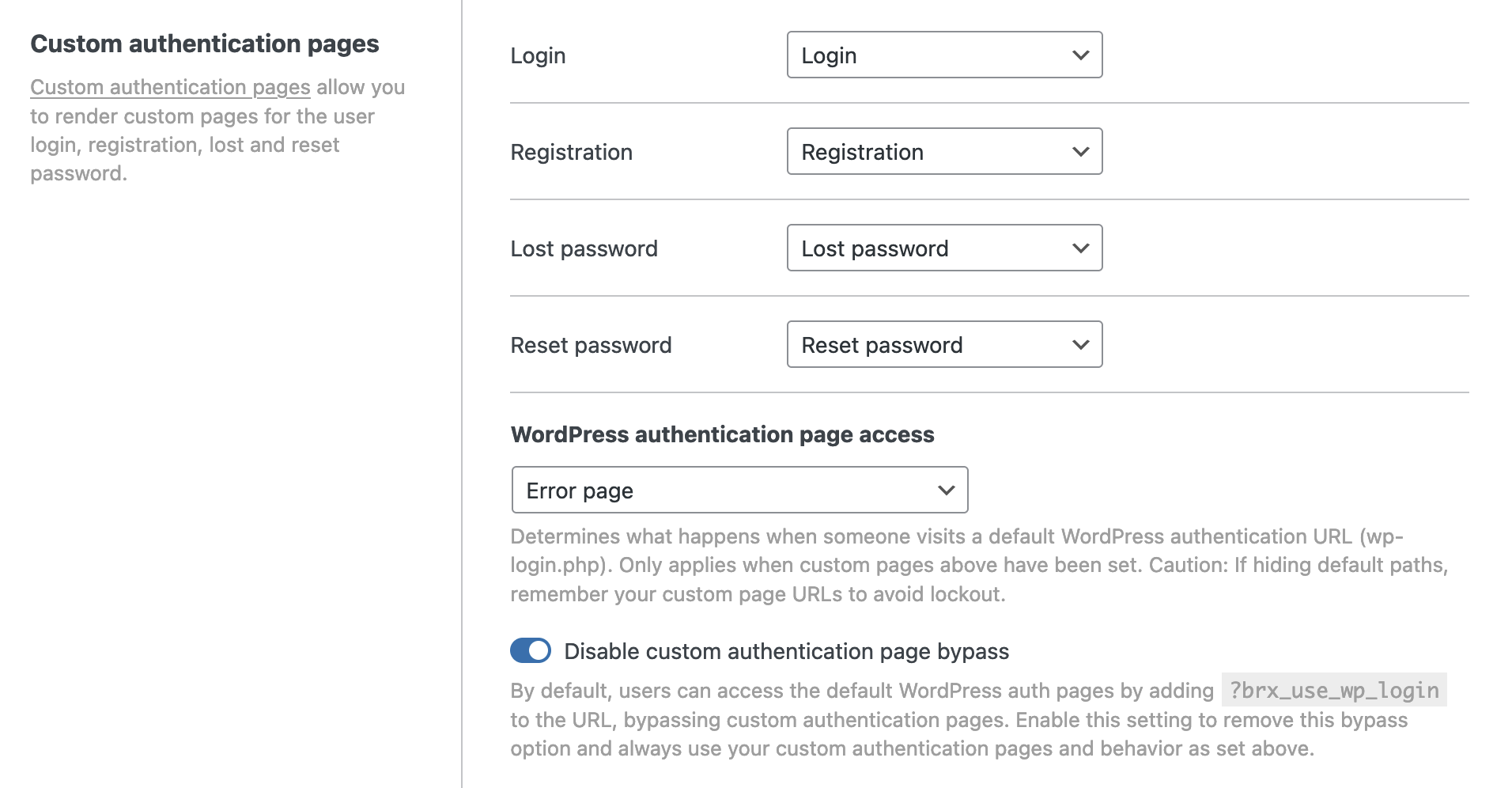
How to set custom authentication pages
Section titled “How to set custom authentication pages”- Navigate to the WordPress dashboard
- Navigate to Bricks > Settings > General
- Scroll down to Custom authentication pages
Here, you can choose a custom page for the following processes:
- Login
- Registration
- Lost Password
- Reset Password
If WooCommerce handles the current authentication page, Bricks leaves that page to WooCommerce and skips its custom authentication redirect handling.
Setting up your custom pages
Section titled “Setting up your custom pages”Each custom page should contain a Form element with the matching authentication action selected under the Form element’s Actions control group.
| Page | Required form action | Typical fields |
|---|---|---|
| Login | User login | Login, password, optional remember me |
| Registration | User registration | Email, optional username, optional password, optional first/last name |
| Lost password | Lost password | Email or username |
| Reset password | Reset password | New password |
Login page
Section titled “Login page”Add a form with the User login action. Map the login field, password field, and optional remember-me field in the User Login control group.
If your custom login URL receives a redirect_to query parameter, Bricks adds it as a hidden field and redirects there after successful login when your form does not already use an explicit Redirect action.
For better privacy and security, set a generic login error message. Otherwise, the default WordPress login error can reveal why the login failed.
Registration page
Section titled “Registration page”Add a form with the User registration action. Map at least the email field. Username and password can be auto-generated if they are not mapped or submitted.
The Role setting cannot be set to Administrator or Super Admin. If either is selected by data manipulation, Bricks falls back to the site’s default role.
If User activation is enabled, the Form element’s Auto log in user setting is hidden and registration does not auto-login immediately. Activation controls the post-registration login flow instead.
Lost password page
Section titled “Lost password page”Add a form with the Lost password action and map the Email or username field.
For privacy, Bricks returns a success response even when the submitted account does not exist. If the account exists, WordPress sends the password reset email.
Reset password page
Section titled “Reset password page”Add a form with the Reset password action and map the new password field.
When a user clicks a WordPress reset link, Bricks redirects the reset URL to your custom reset password page and preserves the reset query parameters. The Form element then renders hidden key and login fields from the URL so WordPress can validate the reset key on submission.
WordPress authentication page access
Section titled “WordPress authentication page access”As of Bricks 1.11, you have control over what happens when someone visits a default WordPress authentication URL (such as wp-login.php), provided custom authentication pages are set.
To manage this:
- Navigate to Bricks > Settings > General > Custom authentication pages.
- Under WordPress authentication page access, select one of the following options:
- Redirect to custom authentication page (default): The user will be redirected to the corresponding custom authentication page you have set.
- Error page: Bricks returns the site’s 404 error page for matching default auth URLs.
- Home URL: Redirects visitors to the homepage.
- Redirect to specific page: Allows you to choose a specific page on your site to redirect visitors to.
This setting only changes behavior for a default auth URL when the corresponding custom page has been set. For example, the login behavior applies when a custom login page is selected.
If Redirect to specific page is selected and no valid published page is selected, Bricks falls back to the home URL.
Bricks preserves query parameters when redirecting from the default auth URL to a custom auth page. This is important for reset-password keys and login redirects.
Logout behavior
Section titled “Logout behavior”For logged-in users, Bricks lets WordPress process logout first. If WordPress would send the user back to the default login page after logout and you have a valid custom login page, Bricks redirects to the custom login page with ?logged_out=true.
Bypassing custom login (since 1.9.4):
Section titled “Bypassing custom login (since 1.9.4):”By default, when visiting any authentication page on your site, you can access the default WordPress login page by adding brx_use_wp_login as a URL parameter, for example:
https://example.com/wp-login.php?brx_use_wp_login=1This feature allows site owners to bypass the custom login page if needed.
Adding this parameter sets a bypass cookie for 5 minutes. During that window, Bricks lets the default WordPress authentication page load instead of redirecting to the custom page.
In Bricks settings, you can disable this feature:
- Navigate to Bricks > Settings > General > Custom authentication pages.
- Enable Disable custom authentication page bypass.
When disabled, the brx_use_wp_login URL parameter no longer sets the bypass cookie.
Developer filters
Section titled “Developer filters”Bricks exposes filters for custom redirect logic:
bricks/auth/custom_redirect_url: Override the redirect URL based on the current auth URL path.bricks/auth/custom_login_redirect: Change the selected custom login page.bricks/auth/custom_registration_redirect: Change the selected custom registration page.bricks/auth/custom_lost_password_redirect: Change the selected custom lost password page.bricks/auth/custom_reset_password_redirect: Change the selected custom reset password page.
Use these filters when a multilingual, membership, or custom routing setup needs more control than the global page selectors provide.
Was this helpful?
A quick vote and short notes help us improve these docs faster.
Leave a note for us
Please do not include passwords, license keys, or personal data. We store submitted notes to improve the docs.
Thanks for sharing feedback. We're using it to improve these docs.