
Revisions
When you save builder data changes, Bricks creates a revision/snapshot of the relevant Bricks data and page settings (template, page, etc.) using the official WordPress Revisions API.
Bricks also stores autosaves separately. Autosaves are backup copies from the autosave process, while regular revisions are created when Bricks element data or page settings are included in a manual save. After a regular revision is created, Bricks clears the related autosave.
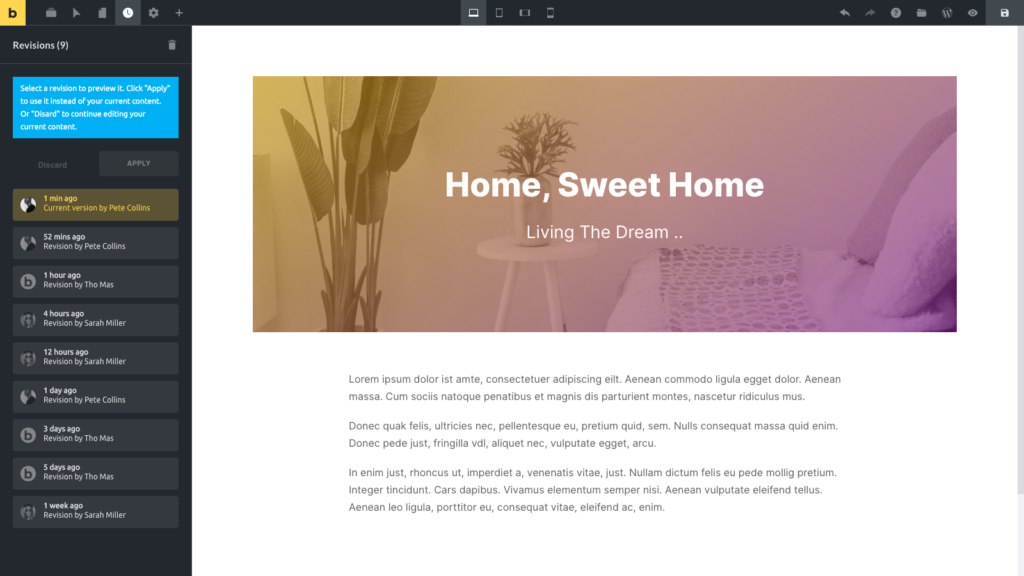
You can browse, preview, and apply your revisions inside the builder by clicking the Revisions (clock) icon in the builder toolbar, then going to the “Revisions” tab.
Select any revision in this list to preview it. The canvas should automatically update showing you the selected revision.
Click Apply to continue editing the selected revision. Click Discard to continue editing your current version.
If your builder capability includes Delete revisions, you can delete individual revisions or delete all revisions from the Revisions panel.
Manage the number of Bricks revisions
Section titled “Manage the number of Bricks revisions”In order to limit the number of Bricks revisions, you may define the constant BRICKS_MAX_REVISIONS_TO_KEEP like so (insert this code in the Bricks child theme):
if ( ! defined( 'BRICKS_MAX_REVISIONS_TO_KEEP' ) ) { define( 'BRICKS_MAX_REVISIONS_TO_KEEP', 10 );}By default, Bricks sets the maximum to 100 revisions per post for the Bricks templates and enabled post types.
You may set the following values:
- true: unlimited revisions
- false or 0: do not store any Bricks’ revisions
- value above 0: store up to this number of revisions per post. Old revisions are automatically deleted.
Was this helpful?
A quick vote and short notes help us improve these docs faster.
Leave a note for us
Please do not include passwords, license keys, or personal data. We store submitted notes to improve the docs.
Thanks for sharing feedback. We're using it to improve these docs.