
Filter datepicker
Use Filter - Datepicker to filter a Query Loop by post dates, user registration dates, or custom date fields. Visitors can select a single date or a date range, with optional time selection.
Enable Query Filters, add the element, and select its Target query. Starting with Bricks 2.5, date ranges can use separate start and end custom fields on posts, terms, or users, including supported ACF, Meta Box, and JetEngine fields.
Settings
Section titled “Settings”- Target query (query-list) - Select the Posts, Terms, or Users query this filter should target.
- URL parameter (text) - Define a unique, more readable URL parameter name for this filter.
- Apply on (select) - Choose when to apply the filter. Options: Input (immediate), Submit (requires button click). Default: Input.
- Source (select) - Data source for filter options. Options: WordPress field, Custom field.
- Field type (select) - Type of field when using WordPress field or custom field source. Options: Post, Term, User.
- Field (select) - Specific date field to filter by (post date, modified date, user registered date).
- Provider (select) - Custom field provider for integration (ACF, Meta Box, etc.).
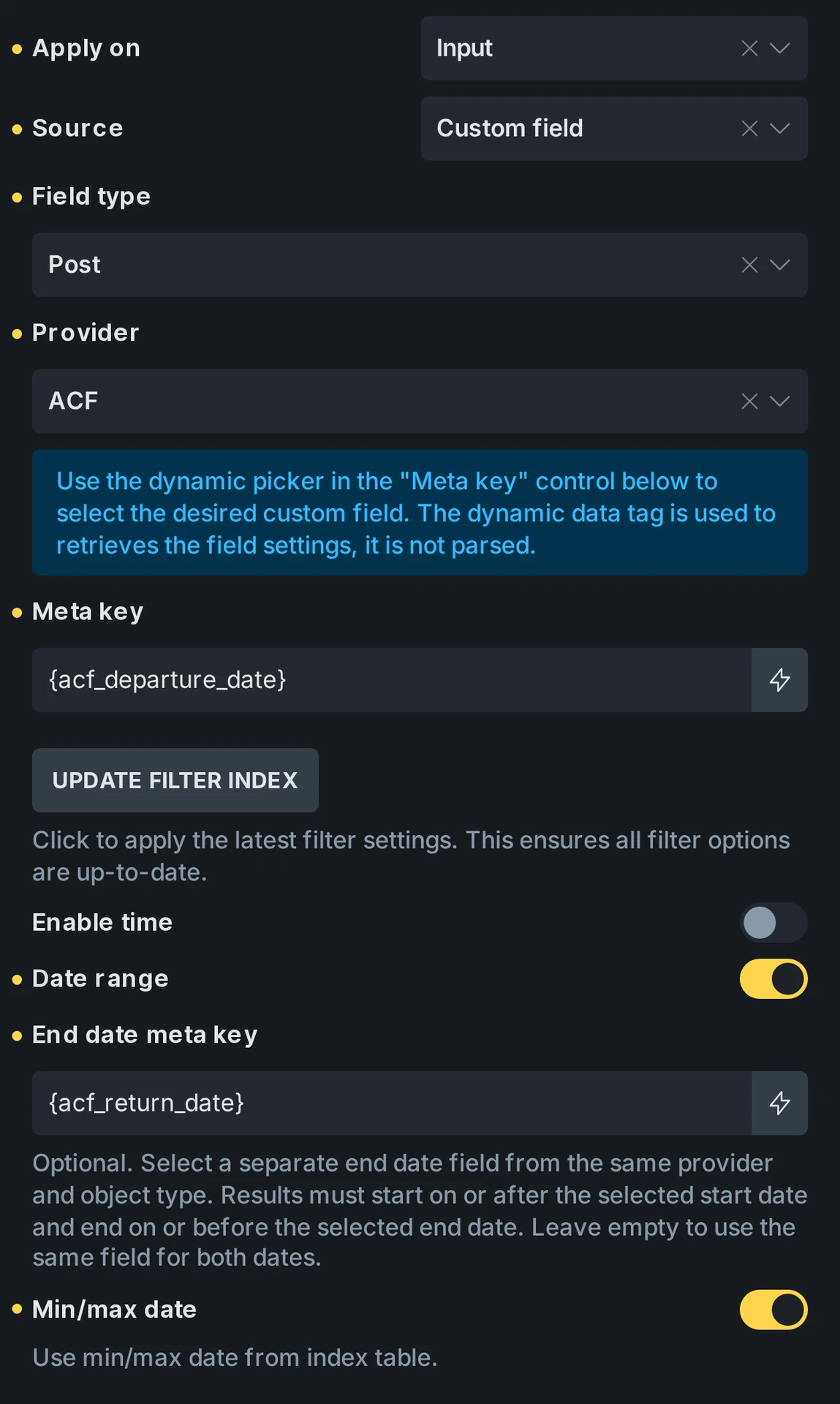
- Meta key (text) - Custom field containing date values. For separate start and end fields, this is the start field. Enter a native meta key or use the selected provider’s field picker.
- End date meta key (text, Bricks 2.5) - Optional separate end-date field from the same provider and object type as Meta key. Leave empty to compare both selected dates against Meta key. See separate start and end fields.
- Enable time (checkbox) - Add time selection capability to the date picker.
- Date range (checkbox) - Enable selection of date ranges instead of single dates.
- Min/max date (checkbox) - Use minimum and maximum dates from the index table for date picker limits.
- Compare (select) - Comparison operator for single-date filtering. Options: == (is), < (before), > (after).
- Input - Settings for the date input field.
- Placeholder (text) - Placeholder text for the input field. Default: Date.
- Placeholder typography (typography) - Typography for placeholder text.
- Language (text) - Language code for date picker localization (de, es, fr, etc.).
- Datepicker format (text) - Display format, defaulting to
Y-m-d. Enable time appendsH:i. This does not change how dates are stored in the database.
- Active filter - Settings for active filter display.
- Prefix (text) - Text to display before filter value.
- Suffix (text) - Text to display after filter value.
- Title (text) - Custom title attribute for filter links.
Separate start and end fields
Section titled “Separate start and end fields”Use End date meta key when each item in a Posts, Terms, or Users query stores its start and end dates in separate custom fields.
- Set Target query to the results loop.
- Set Source to Custom field and Field type to the objects in that loop: Post, Term, or User.
- For native metadata, leave Provider at WordPress. For ACF, Meta Box, or JetEngine, enable Custom fields integration and select the provider.
- In Meta key, enter the native start field’s key, such as
event_start, or select the provider field using the dynamic data picker. - Enable Date range.
- In End date meta key, enter the native end field’s key, such as
event_end, or use its picker to select the provider field. - Optionally enable Min/max date to limit the calendar to the indexed date bounds.
- Save the builder and allow indexing to finish before testing the frontend.
For native metadata, enter literal keys without dynamic data braces. For provider fields, use the picker on each control. Bricks reads the selected field’s definition; these references are not frontend dynamic data output. Both fields must belong to the same provider and object type, with compatible post type or taxonomy locations.
Supported fields and storage
Section titled “Supported fields and storage”Each field must store one date or datetime value per object. These sources support field pairs on posts, terms, and users:
| Source | Supported date fields |
|---|---|
| WordPress metadata | Date strings such as 2027-03-09 or 20270309, and ISO datetime strings such as 2027-03-09 10:00:00. |
| ACF | Date Picker and Date Time Picker, including scalar fields inside ordinary Group fields. |
| Meta Box | Date and Datetime fields stored in native WordPress metadata, including numeric save formats such as d/m/Y H:i:s and timestamp storage. User and term fields require the corresponding Meta Box extensions. |
| JetEngine | Date and Datetime fields stored in native WordPress metadata, as strings or timestamps. |
Bricks resolves each field’s storage separately. The start and end fields can use different supported formats or timestamp settings. ACF’s Date Picker stores Ymd values; changing its return format or Datepicker format does not change how Bricks compares the stored dates.
Time-only fields, repeating or cloneable fields, serialized groups, and custom-table storage are not supported for separate start and end fields. The provider pickers limit choices to compatible date fields. ACF Group fields are supported only where each date is stored as its own metadata value, rather than inside a repeated or serialized structure.
If a provider is unavailable or a selected field is deleted or incompatible, Bricks reports a configuration error. Select a compatible replacement or clear End date meta key to return to one-field behavior. An invalid pair does not silently compare the start field twice.
Example: ACF dates on taxonomy terms
Section titled “Example: ACF dates on taxonomy terms”If each term in an event taxonomy has ACF event_start and event_end Date Picker fields, target the Terms loop and set Field type to Term and Provider to ACF. Select event_start in Meta key, enable Date range, and select event_end in End date meta key. Both ACF fields must be available on the taxonomy being queried.
Which events match?
Section titled “Which events match?”Both conditions must be met:
- The event starts on or after the selected start date.
- The event ends on or before the selected end date.
For a selected range of March 8–10, 2027, with Enable time off:
| Event dates | Included? |
|---|---|
| March 8–10 | Yes, both boundaries are included. |
| March 9 | Yes, the event fits within the range. |
| March 9–12 | No, it ends after March 10. |
| March 7–9 | No, it starts before March 8. |
An event must fit entirely within the selection. An event that overlaps only part of the range is excluded. Both date fields must contain valid values, and the stored start must not be later than the stored end. Items with missing, empty, invalid, or reversed dates are excluded from filtered results and calendar bounds.
With Enable time off, the selection covers complete days, including the whole final day. With it on, the selected hours and minutes are part of the comparisons, and the final minute includes seconds through :59. A stored end field containing only a date represents the end of that day.
Select both endpoints to apply a range; selecting only the first date does not filter the query. Choose the same day for both endpoints to filter a single day. The range narrows the query’s existing restrictions, including groups of conditions joined by OR.
Leave End date meta key empty to filter one field between the selected dates. Turning off Date range uses Meta key and the Compare setting; the separate end field is ignored.
Changing Source, Provider, or Field type clears the retained end-field selection. Select a compatible end field again after the change. The WordPress field source, such as Post date or User registered date, keeps its existing single-field behavior.
Calendar limits and indexing
Section titled “Calendar limits and indexing”With a separate end field configured, Bricks indexes both dates from complete, valid intervals. Min/max date uses those indexed values, so a multi-day event’s end date can extend the calendar’s upper limit. It does not disable individual days without events inside those limits or select a particular opening month.
Adding, updating, or deleting either date field refreshes the affected post, term, or user’s complete interval through the normal queue. If either value is removed or becomes invalid, neither date from that item contributes to the bounds. Upgrades and changes to the selected field definitions can queue an index rebuild. If the calendar limits appear stale, check the filter indexing tools and allow pending jobs to finish.
Shared Datepicker settings
Section titled “Shared Datepicker settings”When using a Global Filter, the provider, field type, and both field selections belong to the shared configuration. Linked Datepickers use those fields and one shared index while keeping their own target queries and styling. Linking to a global filter without an end key uses one-field behavior, even if the element previously had a local end key.
Default selection
Section titled “Default selection”Starting with Bricks 2.5, this filter can apply a selection before the first query runs. For a single date, enter Default value in YYYY-MM-DD format. With Date range enabled, provide both Start date and End date in that format, with the start no later than the end. These fields support dynamic data, which must return the same format regardless of the display or stored field format.
The default applies even with Apply on set to Submit. Filter URL selections take precedence, and Reset clears the selection instead of restoring the default. A fresh visit or reload without filter parameters applies it again. See default filter values for shared defaults, validation, and URL behavior.
Was this helpful?
A quick vote and short notes help us improve these docs faster.
Leave a note for us
Please do not include passwords, license keys, or personal data. We store submitted notes to improve the docs.
Thanks for sharing feedback. We're using it to improve these docs.