
Command Palette
Bricks 2.0 introduces the Command Palette, a powerful new feature that gives you instant keyboard-driven access to core functionality inside the builder.
How to launch it
Section titled “How to launch it”Click the command ⌘ icon in the builder toolbar or use the CMD/CTRL + K keyboard shortcut to open the Command Palette, which appears as an overlay, allowing you to type and filter commands across three distinct scopes.
Scope: Builder
Section titled “Scope: Builder”Navigate to key parts of the builder from a growing list of targets such as classes, variables, templates, theme styles, settings, etc.
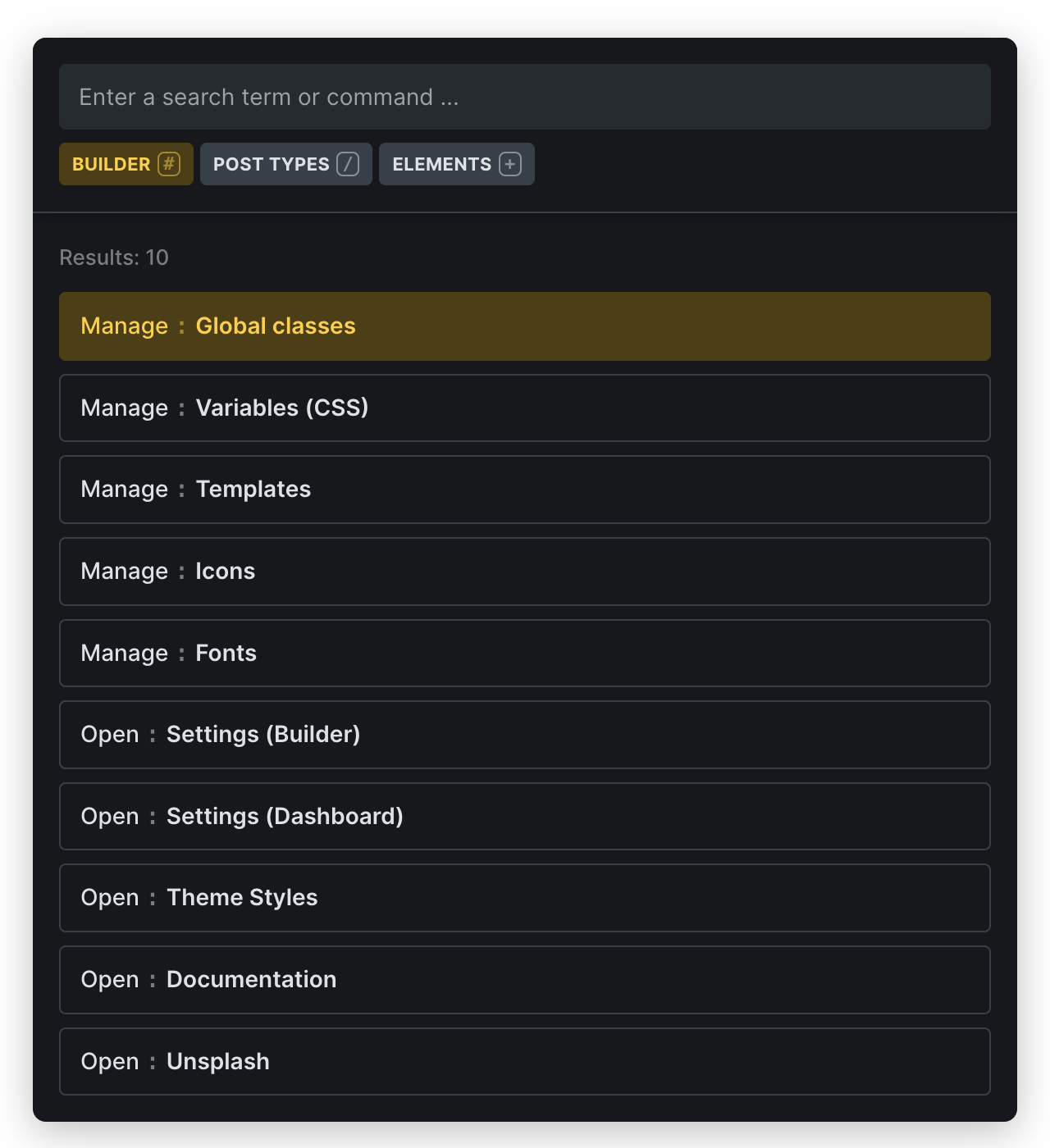
Scope: Post Types
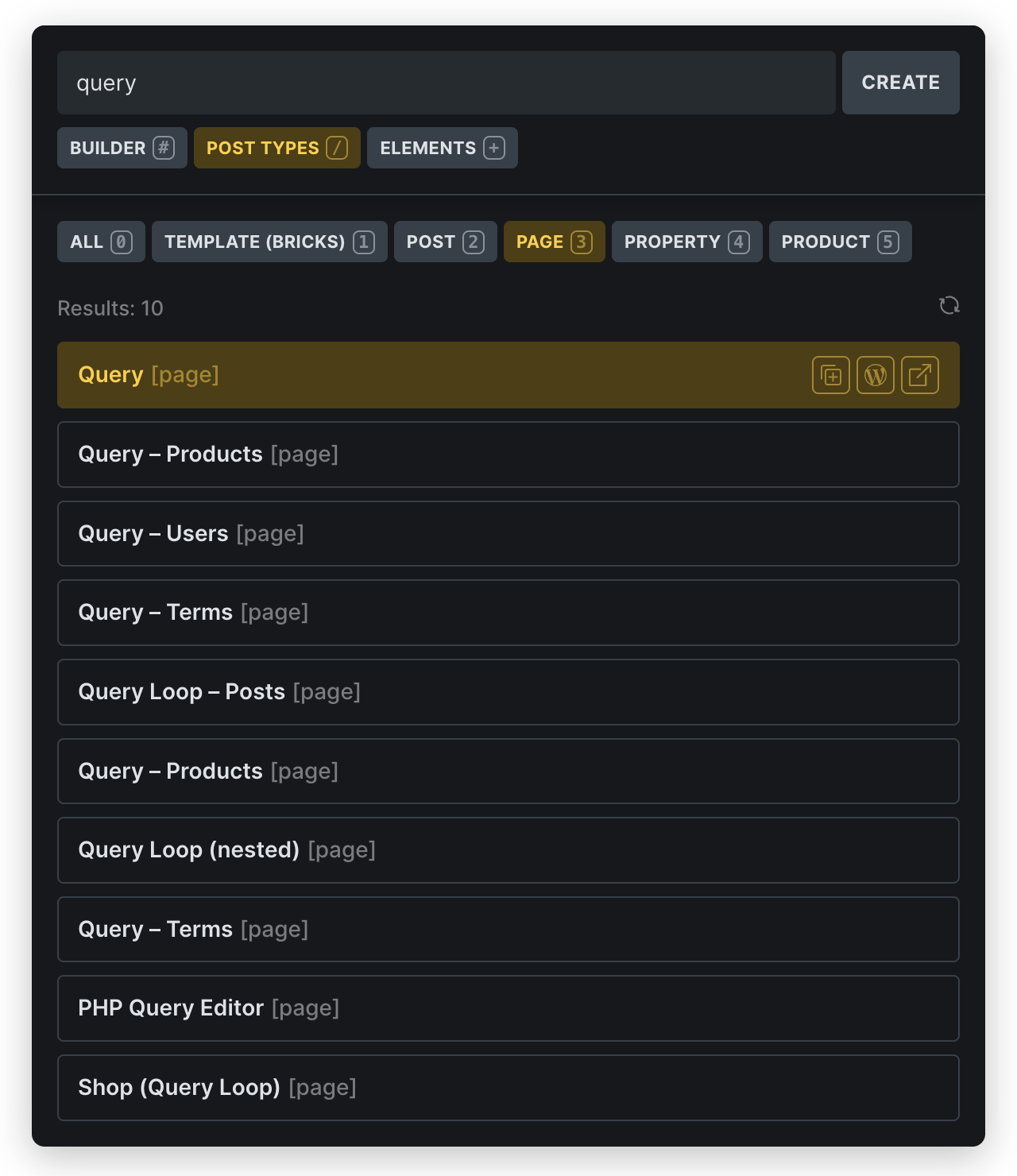
Section titled “Scope: Post Types”This scope lets you browse the registered post types your builder capability can access, create new posts when your user can edit posts, or duplicate existing posts.
The scope auto-selects the post type that you are currently editing. So if you are editing a Bricks template the “Template (Bricks)” post type will be selected. If you edit a “Page”, then “Page” is selected and so on.
Scope: Elements
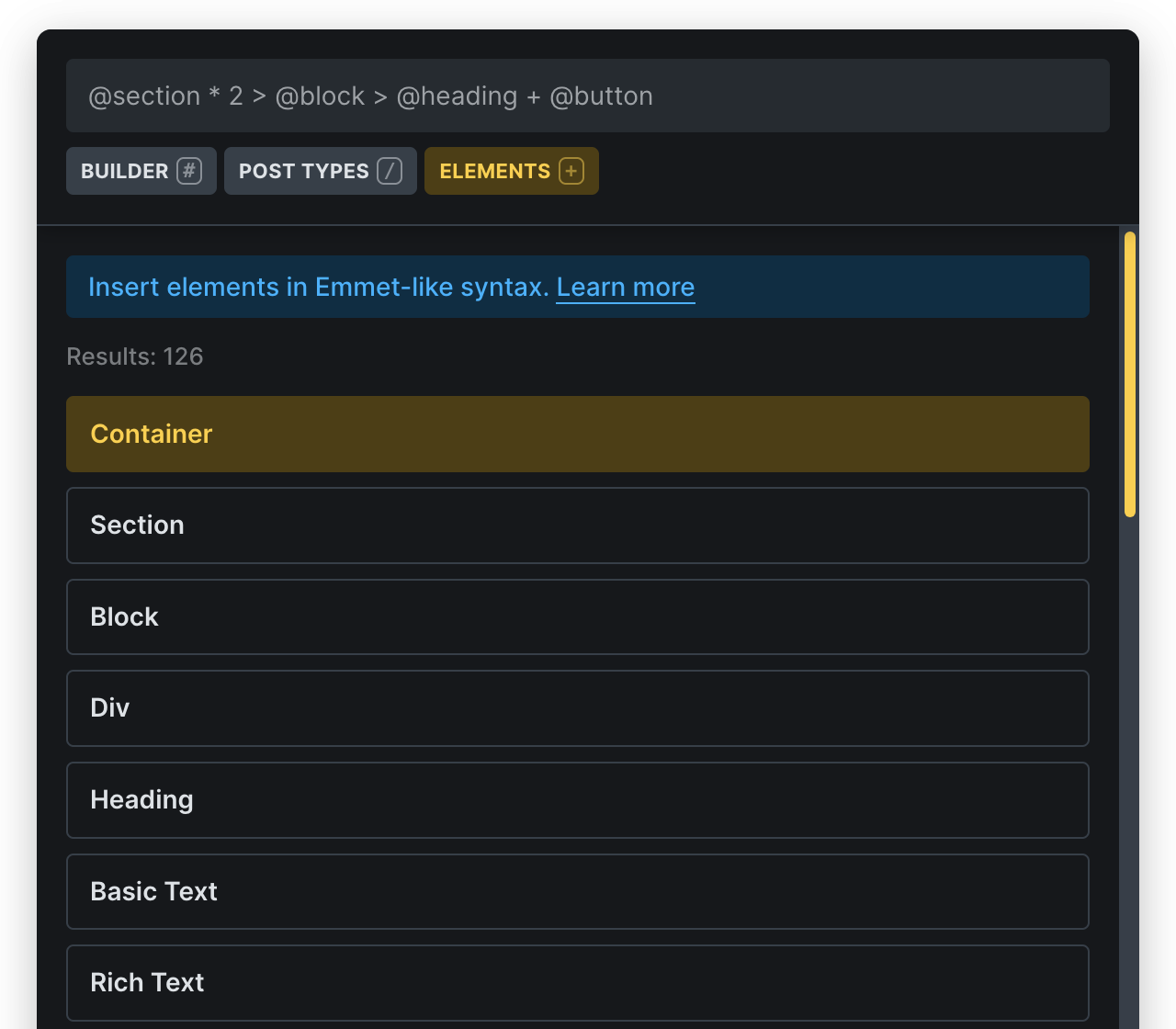
Section titled “Scope: Elements”The “Elements” scope will dramatically speed up your workflow by allowing you to insert multiple elements with specific structure in a single action.
By mastering the Emmet-like syntax, you can create complex layouts in seconds rather than minutes, making your design process significantly more efficient.
With practice, this feature becomes second nature and an essential part of your Bricks Builder toolkit, especially for quickly creating common page structures and element combinations that you use frequently, which you can also save for instant access to use whenever needed.
Insert single element
Section titled “Insert single element”To insert a single element simply type its name, such as “Section”, then ARROW-navigate to it in the elements list, and insert it by pressing ENTER or just click on the element name.
Insert element structure
Section titled “Insert element structure”Each element starts with an @ symbol.
The element name that the command bar requires is displayed in square brackets in the results list:
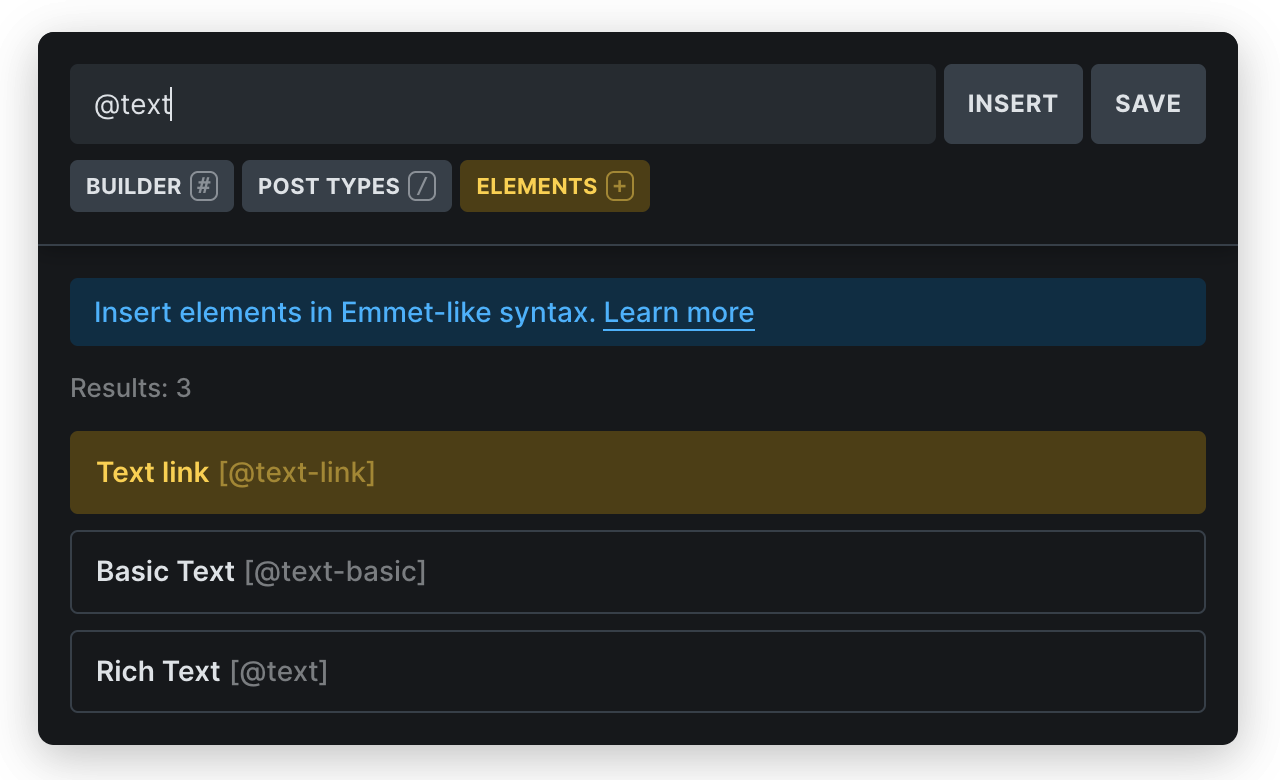
Text link element command: @text-link
Supported operators
Section titled “Supported operators”Use the following operators to define nested structure, siblings, a multiplier, or to move back up one nesting level.
| Symbol | Meaning |
|---|---|
@ | Bricks element name (e.g. @heading) |
> | Nest inside |
+ | Insert element as sibling |
* | How often to insert the element |
^ | Move one level up before inserting the next element |
Element structure example
Section titled “Element structure example”@section * 2 > @heading + @text + @button
This creates the following structure (two times because of the multiplier: * 2):
Section└Container├Heading├Text└Button
Quick element insertion
Section titled “Quick element insertion”- Type
@to activate insertion mode - Select an element (e.g., “section”)
- Type
>for a child element - Continue building your structure
- Click your element structture
- Click the “Insert” button that appears next to your query
- Press
CMD/CTRL + ENTER
Save element structures
Section titled “Save element structures”Instead of typing out your favorite structures by hand every time can just save them by clicking the “Save” button next to the command bar. Your structures are stored in this browser’s localStorage, so they are local to that browser/profile and are not synced between users or devices.
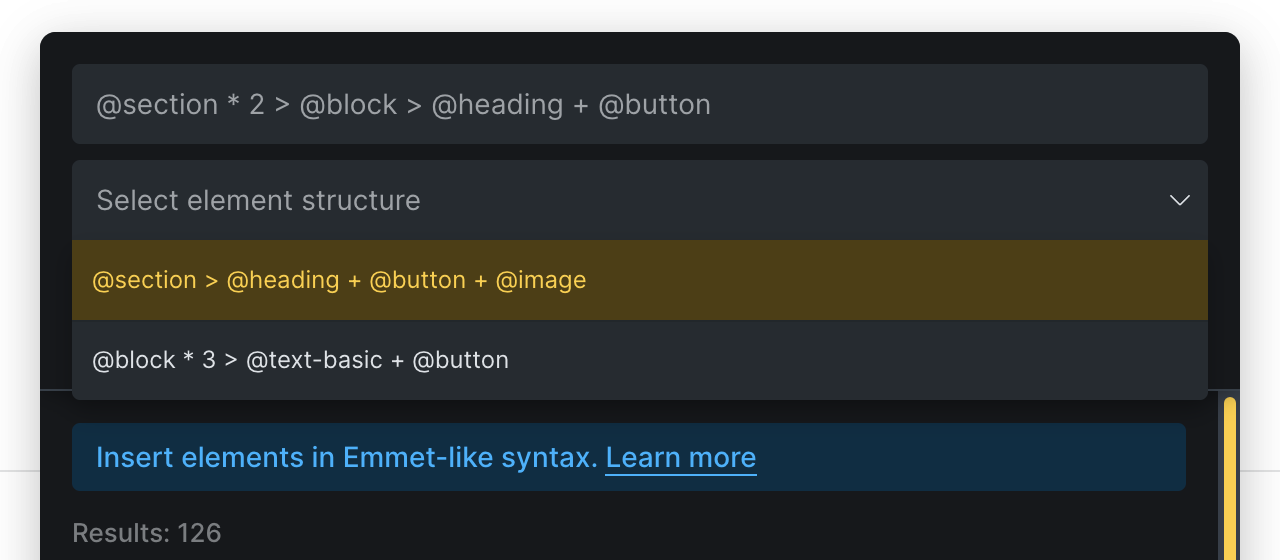
List of saved element structures
To delete a structure, mouseover the structure item in the list, and click the “Delete” icon.
Keyboard shortcuts
Section titled “Keyboard shortcuts”| Keyboard shortcut | Action |
|---|---|
CMD/CTRL + K | Open/close the command palette |
ESC | Close the command palette |
TAB > ENTER (to enter selected scope) | Navigate between search and scopes |
# (as the first character in the search input) | Enter scope “Builder” |
/ (as the first character in the search input) | Enter scope “Post Types” |
+ or @ (as the first character in the search input) | Enter scope “Elements” |
/0-9 (forward slash followed by number) | Navigate to a specific post type |
ARROW UP/DOWN + ENTER | Navigate to a search result and open it |
Bricks remembers your last selected scope, even after builder reload (stored in your localStorage).
The “Pages” panel remains available from the builder toolbar. The Command Palette is an additional fast way to browse, create, duplicate, and open posts.
The docs entry is also accessible from the “Builder” scope.
Was this helpful?
A quick vote and short notes help us improve these docs faster.
Leave a note for us
Please do not include passwords, license keys, or personal data. We store submitted notes to improve the docs.
Thanks for sharing feedback. We're using it to improve these docs.