
Asset Loading Optimization
“Performance” being one of Bricks’ three pillars, Bricks only loads many frontend assets when they are needed on the current page.
Bricks always enqueues the main frontend stylesheet through the bricks-frontend handle and the main frontend script through the bricks-scripts handle. Additional libraries such as sliders, lightboxes, maps, animations, icon fonts, and date pickers are registered and loaded only when needed.
By default, Bricks uses the cascade-layer frontend stylesheet (frontend-layer.min.css). If cascade layers are disabled, Bricks falls back to frontend.min.css. When the CSS loading method is set to “External Files”, Bricks uses the lighter frontend stylesheet (frontend-light-layer.min.css, or frontend-light.min.css when cascade layers are disabled) and loads the generated CSS files for the current page.
How To Reduce Asset Loading Even Further through “External Files”
Section titled “How To Reduce Asset Loading Even Further through “External Files””By default, generated styles such as page settings, template settings, element styles, global custom CSS, theme styles, color palettes, global class CSS, and other Bricks data are output inline.
To further optimize & minimize the loaded styles you can set the “CSS Loading Method” under “Bricks - Settings - Performance” to “External Files”.
To regenerate all CSS files in one go, click Regenerate CSS files under Bricks > Settings > Performance > CSS loading method. This action is available after setting CSS loading method to External Files.
Please click the “Regenerate CSS files” button once you’ve changed the CSS loading method to “External Files”, so Bricks can create the required directory and CSS files.
This generates minified CSS files for your Bricks data within the wp-content/uploads/bricks/css directory (or whatever you’ve set as your WordPress “uploads” directory) and serves them as needed according to the requested page.
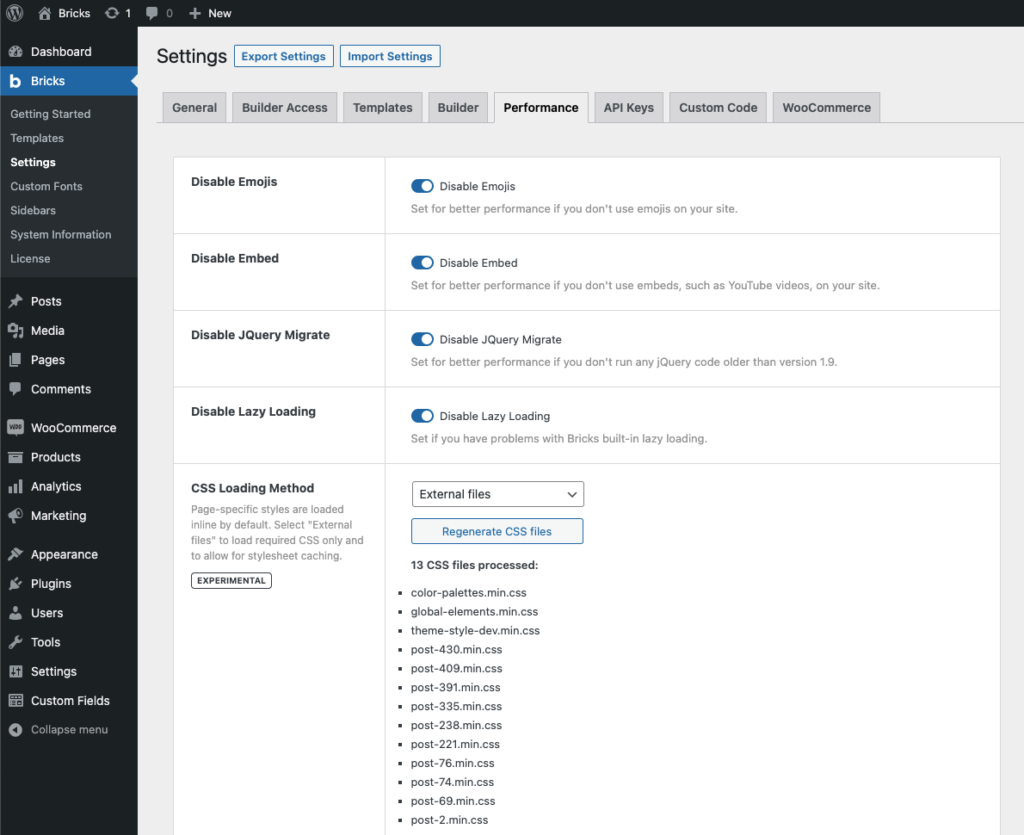
CSS Loading Method: “External Files”
How To Enqueue Individual Styles & Scripts
Section titled “How To Enqueue Individual Styles & Scripts”If you are working with a third-party Bricks plugin or if for some reason a certain style/script is not being loaded as needed, you can always load/enqueue those individually to your own needs by following the instructions below.
What follows is a list of Bricks style & script names which you can enqueue on any of your pages as needed through your child theme’s functions.php by hooking into the wp_enqueue_scripts WordPress action or inside the enqueue_scripts function in case your custom Bricks element depends on any of those styles and/or scripts.
add_action( 'wp_enqueue_scripts', function() {  // isotopeJS (e.g. metro & masonry layouts)  wp_enqueue_script( 'bricks-isotope' );  wp_enqueue_style( 'bricks-isotope' );
  // Icon font files  wp_enqueue_style( 'bricks-font-awesome-6' );  wp_enqueue_style( 'bricks-font-awesome-6-brands' );  wp_enqueue_style( 'bricks-ionicons' );  wp_enqueue_style( 'bricks-themify-icons' );
  // Animations  wp_enqueue_style( 'bricks-animate' );
  // Tooltips  wp_enqueue_style( 'bricks-tooltips' );
  // Datepicker  wp_enqueue_script( 'bricks-flatpickr' );  wp_enqueue_style( 'bricks-flatpickr' );
  // swiperJS (e.g. slider, carousel)  wp_enqueue_script( 'bricks-swiper' );  wp_enqueue_style( 'bricks-swiper' );
  // splideJS (e.g. nestable slider, carousel)  wp_enqueue_script( 'bricks-splide' );  wp_enqueue_style( 'bricks-splide' );
  // Lightbox  wp_enqueue_script( 'bricks-photoswipe' );  wp_enqueue_script( 'bricks-photoswipe-lightbox' );  wp_enqueue_script( 'bricks-photoswipe-caption' );  wp_enqueue_style( 'bricks-photoswipe' );
  // Leaflet map  wp_enqueue_script( 'bricks-leaflet' );  wp_enqueue_style( 'bricks-leaflet' );
  // Code prettifier  wp_enqueue_script( 'bricks-prettify' );  wp_enqueue_style( 'bricks-prettify' );
  // Choices.js  wp_enqueue_script( 'bricks-choices-lib' );  wp_enqueue_script( 'bricks-choices-js' );  wp_enqueue_style( 'bricks-choices' );}, 11 );
Was this helpful?
A quick vote and short notes help us improve these docs faster.
Leave a note for us
Please do not include passwords, license keys, or personal data. We store submitted notes to improve the docs.
Thanks for sharing feedback. We're using it to improve these docs.