
Query Sort, Filter & Live Search
Query Sort, Filter & Live Search lets visitors change a Bricks Query Loop without a full page reload. You can add search inputs, checkboxes, radio buttons, selects, range sliders, date pickers, geolocation searches, submit/reset buttons, active-filter displays, and AJAX pagination.
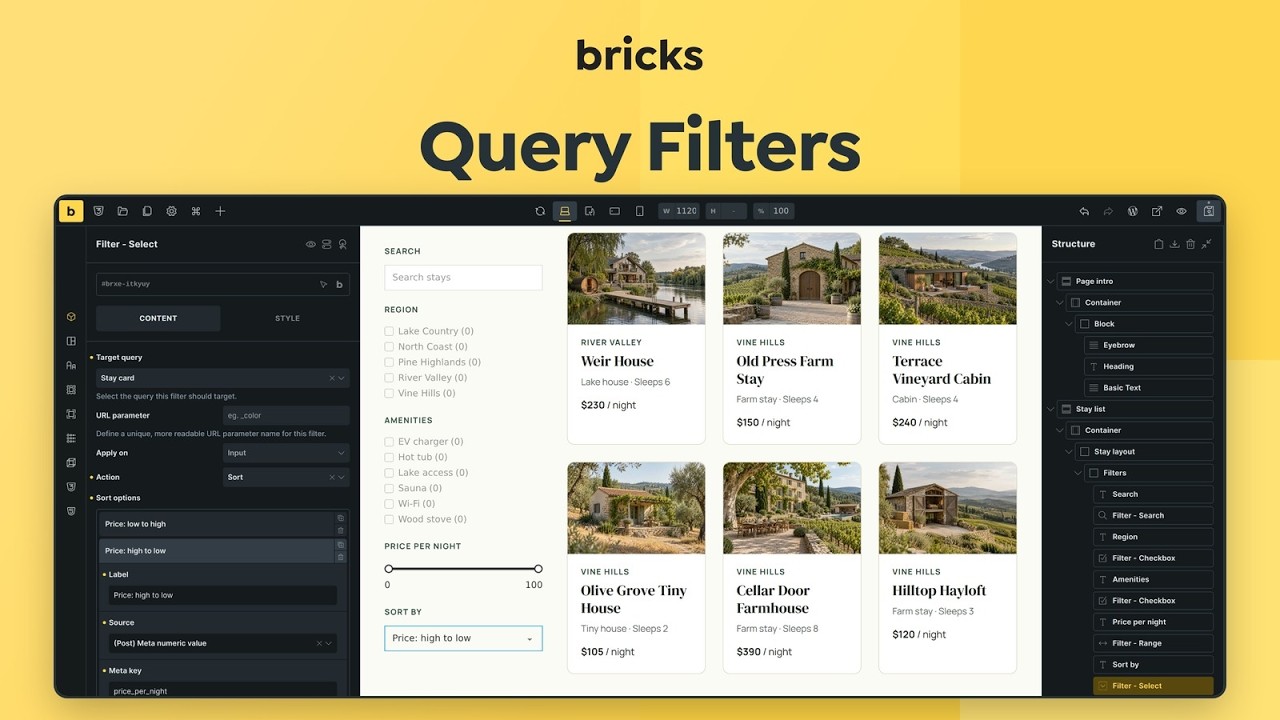
Use Query Filters for interactive listings such as:
- Blog archive filters
- Product filters
- Directory search
- Team/member filters
- Taxonomy, custom-field, and WordPress-field filters
- Sort controls
- Per-page controls
- Live search boxes
Query Filters target a specific Query Loop. The filter elements can live anywhere on the page as long as each filter points to the correct target query.
Enable Query Filters
Section titled “Enable Query Filters”- Go to Bricks > Settings > General and find the Query filters setting.
- Turn on Enable query sort / filter / live search.
- Save settings.
- Open the builder.
- Add elements from the Filter element group.

When the feature is enabled, Bricks also checks and maintains the custom database tables used for filter elements, filter values, and background indexing jobs.
Mental Model
Section titled “Mental Model”Query Filters are a three-part system:
- Filter elements collect visitor input.
- A target query loop receives the filter state.
- Bricks converts filter state into query vars and refreshes the target loop.
On the initial page load, Bricks can read filter values from URL parameters or apply configured defaults. During interaction, JavaScript stores the selected filter state, updates the browser URL when needed, sends an AJAX request, receives updated loop HTML, updates dynamic filter elements, and restores focus.
On the server, Bricks sanitizes the selected values, builds query vars for the target query type, merges those vars into the original query, and renders the target query again.
Supported Query Types
Section titled “Supported Query Types”Query Filters support these Query Loop types:
- Posts
- Terms
- Users
They do not support:
- API query loops
- Array query loops
- Deeply nested query targets
To filter a map alongside a listing, target a supported results loop containing Map Connectors and select that loop under the map’s Sync with query setting. See map queries and interactive listings.
In nested query scenarios, filters target the outer supported query layer. Do not expect a filter outside the loop to target a deeply nested child query.

Component Limitation
Section titled “Component Limitation”Filter elements should not be placed inside a Bricks component.
Starting with Bricks 2.5, filters outside a component can target query loops inside it, including supported component-slot queries. Select the intended loop instance under Target query. Bricks uses the rendered query identity to distinguish repeated component instances. This does not enable Filter elements inside components or deeply nested query targets.
Basic Setup
Section titled “Basic Setup”- Create a Query Loop. Give the loop element a label, such as “Stay card”, so it is easy to find in the next step.
- Add one or more Filter elements.
- On each filter element, select the loop in the Target query dropdown. The dropdown lists the query loops on the page by their element label.
- Add a Pagination element if the listing should paginate.
- Enable AJAX on Pagination if it should work together with filters.
- Save the page so Bricks builds the filter index.
- Test the initial page load, AJAX update, browser back button, and direct URL parameter load.

Filters do not need to be inside the same wrapper as the query loop. You can place filters in a sidebar, header, offcanvas, or above the listing.

Apply On Input Or Submit
Section titled “Apply On Input Or Submit”Filter elements can apply immediately or wait for a submit button.
- Input: The query refreshes as soon as the visitor changes the filter.
- Submit: The filter value is stored, but the query refresh waits until the visitor clicks a Filter - Submit element that targets the same query.

Use Input for lightweight listings and search. Use Submit when the page has many filters, expensive queries, or a mobile/offcanvas filter UI.
The Geolocation filter uses Immediately and On submit labels and has its own Search/Enter behavior. See Geolocation apply modes.
Global Filters and Filter Manager
Section titled “Global Filters and Filter Manager”Starting with Bricks 2.5, select a Global filter to share settings across multiple elements of the same filter type. For example, link a desktop Checkbox filter and a mobile Offcanvas Checkbox filter to one global filter and target the same product query. Their selections synchronize, and Bricks applies the shared filter once.
See Global Filters & Filter Manager for setup steps, shared and local settings, and import/export behavior.
Create a global filter from a configured element using the save icon beside Global filter, or open Browser > Filter manager to create and organize definitions. Set Target query on every linked element, then save the builder.
- Controls marked with a globe icon are shared. Editing them changes every linked element, including elements on other pages.
- Target query, styling, placeholders, icons, and show-more presentation remain local.
- Apply on is shared, so linked desktop and mobile copies use the same Input or Submit behavior.
- Linked elements targeting different queries share settings but keep independent selections and results.
- A Checkbox global filter works with Checkbox elements, not Radio or Select elements. Matching settings or URL parameters alone do not link filters.
Clear Global filter to unlink an element. Bricks copies the current shared settings into it. Save affected elements before deleting their global filter or changing its type. Existing unlinked filters remain independent.
Creating or editing global filters requires Access filter manager. Users without this permission can select existing compatible global filters. The manager supports categories and JSON import/export; Global Import / Export also transfers global filter definitions. Cross-site transfers of elements that still link to definitions are blocked. Unlink and save on the source site first.
Filter Elements
Section titled “Filter Elements”Filter - Search
Section titled “Filter - Search”The Search filter sends a text value to the target query.
For post queries, the default search uses the s query var. For term and user queries, it uses the query type’s search parameter. You can also configure custom search criteria for posts, terms, and users.
Important controls:
- Target query: The query loop to refresh.
- URL parameter: The frontend parameter name. Use
swhen the filter should integrate with native WordPress search. - Debounce: Delay before running the search after typing.
- Min. characters: Minimum input length before the search runs.
- Search Criteria: Custom fields, post fields, term fields, user fields, taxonomies, and weighting options where supported.
- Clear icon: Lets visitors clear the search value.
- Enter action (Bricks 2.4): Run an AJAX search (default) or redirect to a URL with the current query’s filter parameters. A target query is required.
- Trigger Filter Submit interactions (Bricks 2.4): Optionally run submit start/end interactions for an Enter-key AJAX search. Ordinary typing and redirects do not run these interactions.
Pressing Enter submits immediately, including with Apply on: Submit, without waiting for the typing debounce or minimum character threshold. See Filter Search for redirect and interaction setup.

When the URL parameter is s on the main search query, Bricks can use the active Search template’s search criteria instead of only the individual filter element settings.
Filter - Checkbox
Section titled “Filter - Checkbox”Use Checkbox filters when visitors can select multiple values.
Supported sources:
- Taxonomy
- WordPress field
- Custom field
Checkbox filters support hierarchical taxonomy display, include/exclude term options, top-level terms only, count display, child-term auto toggle, and button-style display.
From Bricks 2.5, hierarchical Checkbox filters can show expand/collapse buttons for child branches. See Collapsible Taxonomy Branches for setup and Show more/less behavior.
For multiple selected taxonomy or custom-field values, Bricks can combine values with OR or AND logic depending on the filter settings.

Filter - Radio
Section titled “Filter - Radio”Use Radio filters when visitors should choose one value.
Radio filters can act as:
- A filter
- A sort control
- A per-page control
They support taxonomy, WordPress-field, and custom-field sources, plus button-style display.
Filter - Select
Section titled “Filter - Select”Use Select filters for compact dropdown filtering, sorting, or per-page controls.
Select filters can be single-value or multi-value when Choices.js and multiple selection are enabled. Multi-value filtering uses the same source rules as checkbox filters.
Filter - Range
Section titled “Filter - Range”Use Range filters for numeric custom fields such as price, area, rating, or score.
Range filters use custom-field source data and build a numeric BETWEEN query. Bricks can use indexed min/max values to set the slider range automatically.
Set decimal places when the values contain decimals. Without the right decimal setting, values can compare incorrectly.

Filter - Datepicker
Section titled “Filter - Datepicker”Use Filter - Datepicker for single dates or date ranges, with optional time selection. In range mode, both endpoints must be selected before the filter applies.
Starting with Bricks 2.5, a Datepicker using Custom field can use separate start and end fields on posts, terms, or users. This supports native WordPress metadata and compatible ACF, Meta Box, and JetEngine date fields. Set Field type to match the query. Enter native keys, or select each provider field using the picker in Meta key and End date meta key.
Meta key supplies the start date. Results must start on or after the selected start date and end on or before the selected end date. Items that only partly overlap the selection, have invalid or missing dates, or end before they start are excluded. Leave the end key empty to compare both boundaries against one field.
With separate fields, Min/max date uses both dates from valid intervals to set the calendar limits. It does not disable individual days without events. See separate start and end fields for setup, supported storage, and an ACF Terms-loop example.
Filter - Geolocation
Section titled “Filter - Geolocation”Starting with Bricks 2.5, use Geolocation to find Posts, Terms, or Users within a radius of an address, device location, or connected map center. A map is optional. Distance is straight-line distance along the earth’s surface, not driving distance.
- Add Filter - Geolocation and set Target query to the results loop.
- Under Data source, set Object type to match the query. For WordPress metadata, select Separate fields and enter the latitude and longitude meta keys, or Combined field and enter the key storing
latitude,longitude. - For an ACF Google Map or Meta Box Map field, enable Custom fields integration in the Query filters settings, choose the provider, and select the field using the Location field dynamic picker.
- Enable Search by address, Search by device location, or both. Both are off by default.
- Set Default radius and Distance unit. The defaults are 5 and kilometres. Enable Radius dropdown to offer selectable presets, initially 5, 10, 25, and 50.
- Save and let the filter index finish. Stored locations need valid coordinates; Bricks does not geocode saved address text during indexing.
Sort results by distance is on by default and orders nearby results nearest first. A Select or Radio Sort filter takes precedence: choose Distance for nearest-first or farthest-first ordering, or another source for a different order within the same radius. See Distance sorting. Existing query restrictions and pagination still apply. Activating another independent Geolocation filter for the same query replaces the previous location constraint.
Enable Use default location to start with a radius search before the visitor chooses a location. Enter latitude, longitude, and an optional label. See Geolocation defaults.
Device location is requested only when the visitor activates its button. It needs browser permission and normally HTTPS, but no Google API key. Address search requires the configured Google key to permit Maps JavaScript API and Geocoding API. Address autocomplete additionally needs Places API (New). Manual Search remains available when suggestions fail. See Google API setup.
Geolocation apply modes
Section titled “Geolocation apply modes”- Immediately (default) applies resolved locations, radius changes, and enabled map-drag searches.
- On submit stages those changes. The address Search button or Enter resolves and applies this location alongside already applied filters. A Filter - Submit targeting the same query applies all pending filters. Device-only setups in this mode need a Filter Submit.
Enter used to select an autocomplete suggestion only selects it. Press Enter again to search. In Immediately mode, selecting the suggestion can already apply it.
Pending locations do not replace the visible results, distance values, active-filter item, or map radius until matching results arrive. A failed lookup or request preserves the previous applied search. Under Status, customize messages or enable Hide status messages to hide them visually while retaining screen reader announcements. Keep them visible in On submit mode so visitors know when a location is pending.
Geolocation maps and state
Section titled “Geolocation maps and state”To show the search area on a Google or Leaflet map, place Map Connectors inside the results loop and set the map’s Sync with query to that loop. Use saved coordinates matching the filter’s data source. A map’s internal query and static markers are not supported filter targets.
One matching filter and map connect automatically. If several use the same query, select Map (Optional) on the filter. Each filter connects to at most one map, and each map to at most one filter. The applied origin and radius remain visible even when no results match.
Enable Search on map drag to use the map center after the visitor stops panning. Visitor controlled displays a Search as I move the map checkbox; Automatic searches after every qualifying drag. Map dragging must be enabled. Zooming alone does not search, and On submit mode still waits for submission. See the Google Map and Leaflet setup guides.
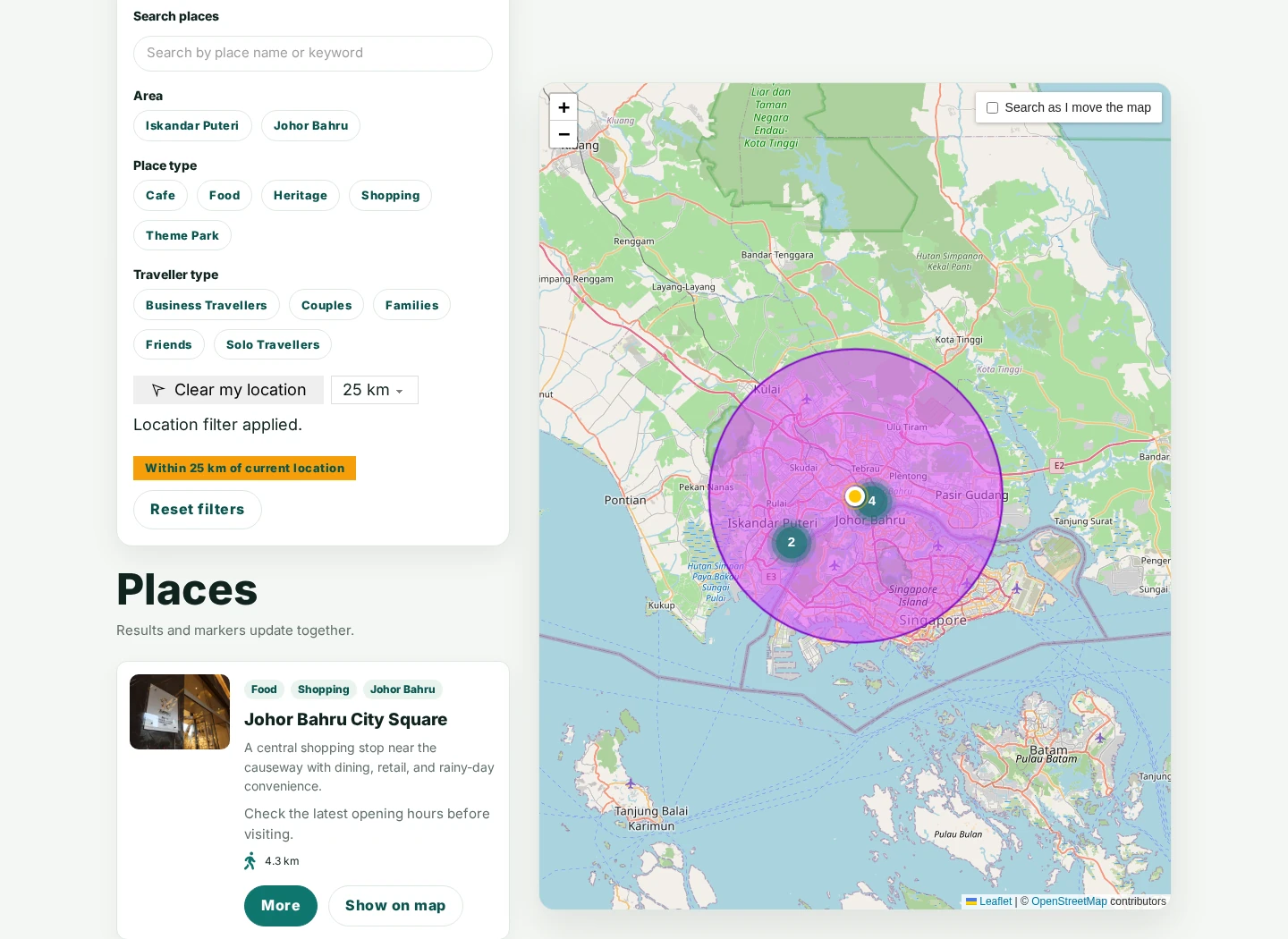
Active Filters shows the location and radius as one removable item. Save location in URL is off by default. Enable it to store coordinates in the URL and browser history for reloads and shareable searches. Use URL parameter to customize its name.
Place {filter_geo_distance} inside each result to show its distance from the applied origin. See distance dynamic data.
Filter - Active Filters
Section titled “Filter - Active Filters”The Active Filters element displays selected filters and lets visitors remove them.
Options include:
- Excluding specific filter IDs from the active filter list
- Prefix, suffix, and title labels configured on individual filters
- Styling active-filter labels and remove buttons
Filter - Submit / Reset
Section titled “Filter - Submit / Reset”Use Submit when filters should wait before refreshing the query. Use Reset to clear active filters for the target query.
Submit can redirect to another URL while preserving current filter values. This is useful for a homepage live-search input that sends visitors to a search results page.
Since Bricks 2.4, Exclude filter IDs lets a Reset button preserve selected filters. Enter their Bricks element IDs, separated by commas. From Bricks 2.5, you can also enter a global filter ID. A linked element ID resolves to its global filter, preserving that shared selection for the target query. For example, exclude a Search filter to keep the search term while clearing category and price refinements. This is separate from the Active Filters element’s display exclusions.
With Hide if no active filter enabled, Reset hides when no non-excluded filters are active. An excluded search term can remain active while the reset button is hidden. Bricks adds the brx-no-active-filter class to this button. See Filter Submit / Reset.

Since Bricks 2.4, the Submit element also emits dedicated submit start/end events for AJAX submissions. Use the Filter Submit interaction triggers when another element should react only to a deliberate submit action, for example closing an Offcanvas after mobile filter results finish loading.
Pagination
Section titled “Pagination”Pagination participates in the filter system when AJAX is enabled and it targets the same query. Bricks treats pagination as filter state during AJAX requests so selected filters and the current page stay together.

If several Pagination elements target the same query, Bricks updates the current page state across those pagination instances.
From Bricks 2.5, Pagination elements targeting different queries on one page keep independent page numbers. Custom queries use query-specific URL parameters, while the main WordPress archive keeps its normal pagination route. See Pagination.
Include Child Terms in Taxonomy Counts
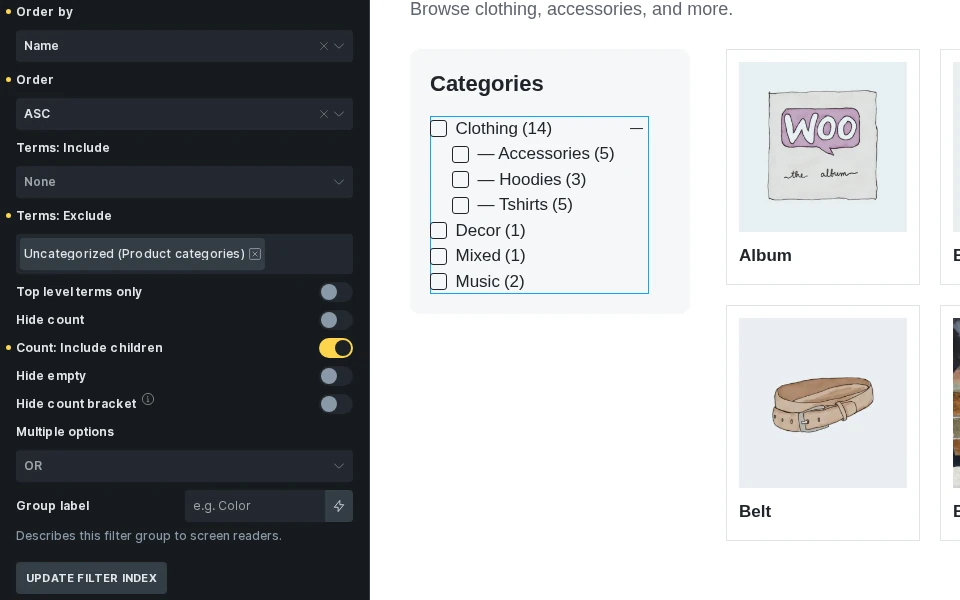
Section titled “Include Child Terms in Taxonomy Counts”Starting with Bricks 2.5, taxonomy Checkbox, Radio, and Select filters have a Count: Include children setting. Enable it when a parent term’s count should include posts assigned to its child terms and deeper descendants. It is off by default, so existing filters continue counting direct assignments only.
- Select the filter element and set its Target query.
- Use the Filter action where an Action control is available.
- Set Source to Taxonomy and choose the taxonomy.
- Enable Count: Include children and save the builder.
- Let indexing finish before checking the counts. If an existing filter still shows stale counts, use Regenerate filter index under Bricks > Settings > Query filters.
For example, if Clothing has two directly assigned products and its child term Shirts has three more, Clothing shows a count of five with this setting enabled. A product assigned to both Clothing and Shirts counts once for Clothing. Counts respect the target query’s restrictions and other active filters.
This setting does not require Hierarchical display or Auto toggle child terms. It changes the count data, not which checkboxes are selected. It also affects whether parent options have results for Hide empty, so a parent with no direct assignments can remain available when its descendants have matching posts.
For a global filter, Count: Include children is shared by every linked element. Bricks updates affected index data when terms are renamed, moved, or deleted.
Default Filter Values
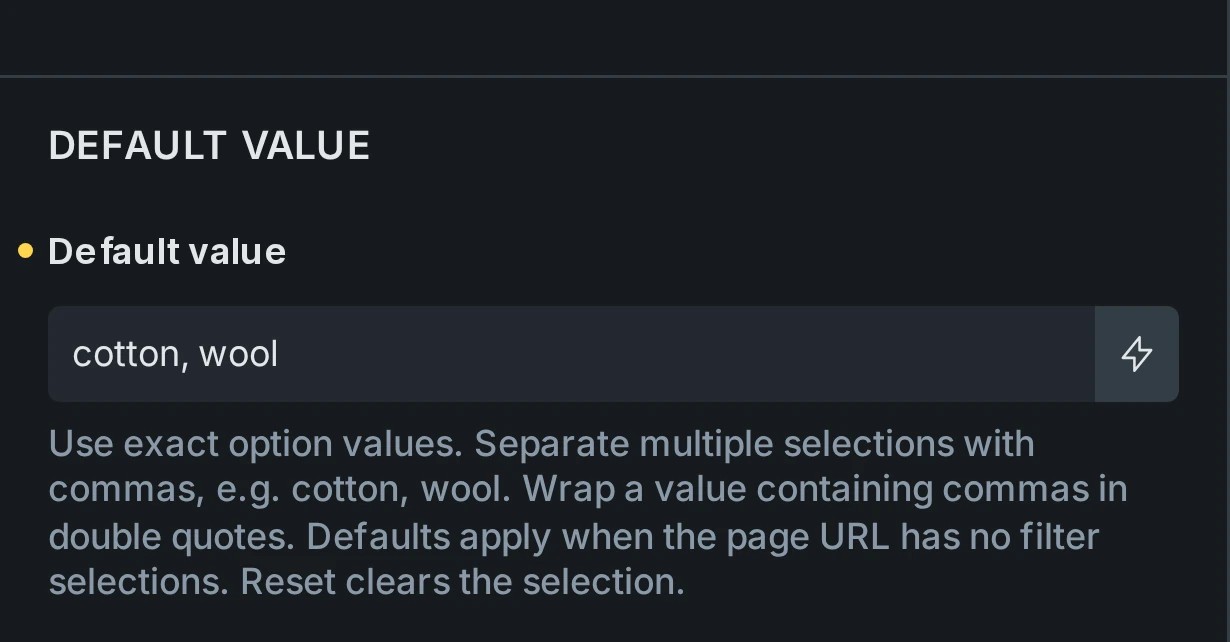
Section titled “Default Filter Values”Starting with Bricks 2.5, filters can start with a selection before the first query runs. The initial results, option counts, controls, and Active Filters display use that selection, including when Apply on is set to Submit. Later visitor changes follow the configured apply mode.
- Select a filter and set Target query.
- Open Default value and enter a value in the format below. For a linked global filter, edit the shared default in Filter manager or through a control marked with the globe icon.
- Save the builder and open the frontend without filter parameters in the URL.
| Filter or action | Setting and format | Example |
|---|---|---|
| Radio or single Select | Default value: one exact option value | cotton |
| Checkbox or multiple Select | Default value: comma-separated option values | cotton, wool |
| Search | Default value: initial search text | design |
| Range | Minimum and Maximum: numeric endpoints | 20 and 100 |
| Single Datepicker | Default value: YYYY-MM-DD | 2026-11-03 |
| Datepicker with Date range enabled | Start date and End date: both in YYYY-MM-DD format | 2026-11-01 and 2026-11-30 |
| Select or Radio: Sort | Default value: a configured sort option’s value | title_ASC or distance_ASC |
| Select or Radio: Results per page | Default value: one configured page size | 20 |
| Geolocation | Use default location, Latitude, Longitude, and optional Location label | See default location setup. |
Use stored option values, such as taxonomy slugs or raw custom-field values, rather than their display labels. A multiple Select needs Choices.js and multiple selection enabled. Wrap a value containing a comma in double quotes, for example "Smith, Jones", other. Single-choice and Search values are treated as literal text.
A Distance sort default such as distance_ASC requires a valid location from a Geolocation filter targeting the same query. To start with Distance sorting, configure a default location too. Without a valid location, Bricks clears the Distance selection and uses the query’s normal ordering.
Leave one numeric Range endpoint empty to use the original range boundary. Numeric defaults are limited to the target query’s original available range. Date ranges require both endpoints, with the start no later than the end. Date defaults use YYYY-MM-DD even when the display or stored field format differs.
Default fields support dynamic data resolved in the original page, product, or archive context. For example, a taxonomy filter on a single product template can use {post_terms_pa_material:plain:slug} to preselect that product’s material. If the product has several materials, use a Checkbox or multiple Select; a Radio or single Select needs one value. On a taxonomy archive, {term_slug} can supply the current term for a slug-based filter.
Defaults narrow the query’s original restrictions. They do not switch archives or remove the archive’s taxonomy condition. A valid default can remain selected even when no results match. Invalid or unavailable defaults are ignored, with a warning in the builder preview. Changing only defaults does not rebuild the filter index.
Developers can supply or disable defaults with the bricks/query_filters/default_value PHP filter.
URLs, Reset, and later updates
Section titled “URLs, Reset, and later updates”When the URL contains a recognized parameter for a rendered filter, those parameters describe the complete selection for all URL-enabled queries on the page. Omitted filters stay clear, including defaults on other queries. An explicitly empty filter parameter also suppresses defaults. Tracking parameters and parameters for filters outside the rendered page do not suppress them.
For example, if category A is the default, a shared URL containing only category B loads B. A shared URL containing only a Search selection leaves the category filter clear.
Applied defaults appear in the address bar without a redirect, extra AJAX request, or new history entry. Geolocation coordinates appear only with Save location in URL enabled. Queries with Disable URL Params Filter enabled still apply defaults, without saving them in the URL.
Reset clears selections and their URL parameters, while respecting Exclude filter IDs. It does not restore configured defaults. Sort and per-page controls return to the original query settings, and numeric ranges return to the original population’s bounds. A fresh visit or reload of a URL without filter parameters applies defaults again.
AJAX updates, pagination, Load more, and browser Back/Forward preserve the current selection without reapplying defaults.
Distance Sorting
Section titled “Distance Sorting”Starting with Bricks 2.5, Select and Radio filters can offer Distance alongside other sort options for native Posts, Terms, and Users queries.
- Configure a Geolocation filter with indexed coordinates and set its Target query to the listing.
- Add a Select or Radio filter targeting the same query, then set Action to Sort.
- Under Sort options, add a row with Source set to Distance, Order set to Ascending, and Label set to “Nearest first”.
- Add a second Distance row with Order set to Descending and Label set to “Farthest first”. Add other sort options as needed.
- Apply a location through address search, device location, map movement, or a configured default location, then switch between the sort options.
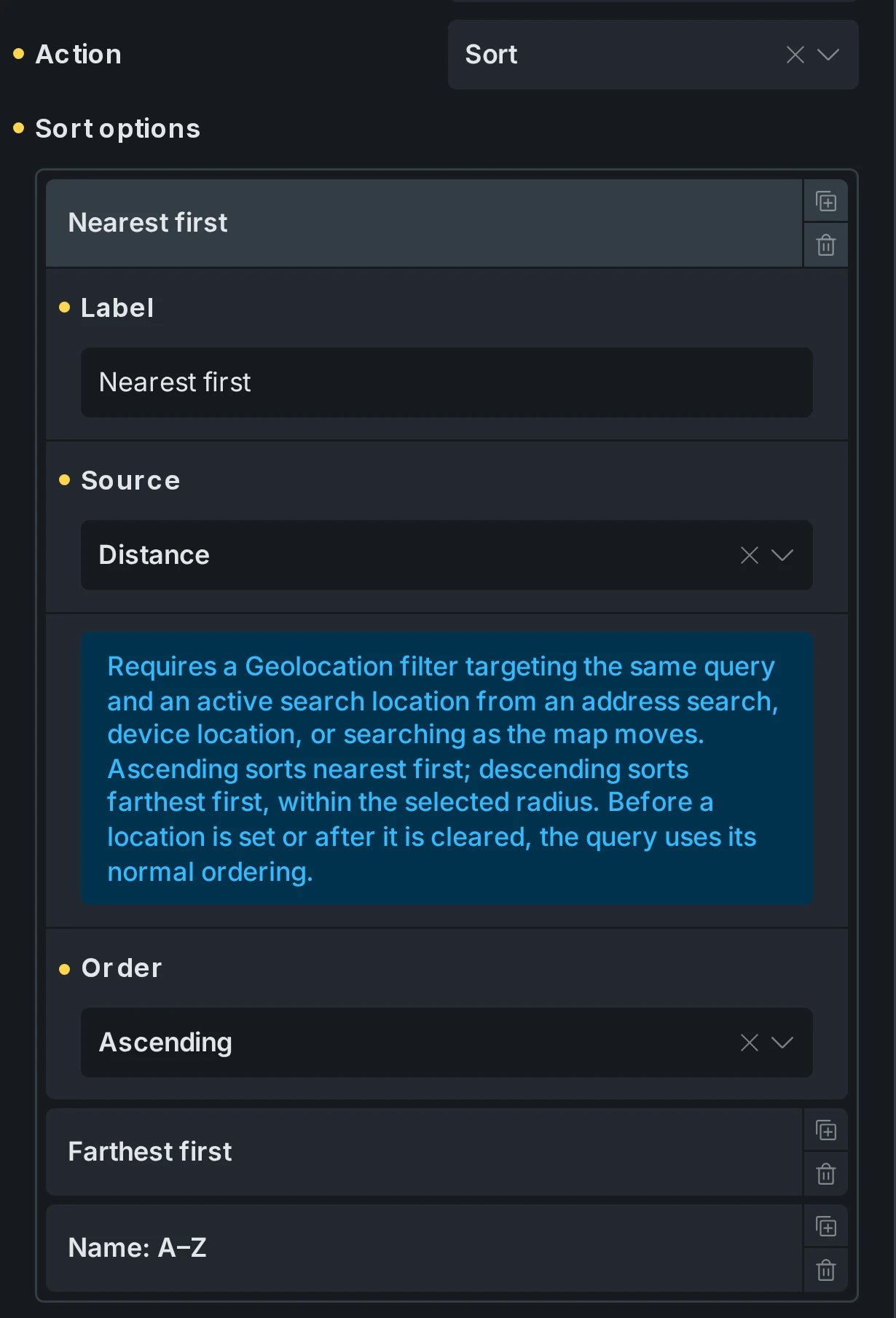
Distance sorting retains the active radius. A 25 km search sorted farthest first still excludes locations beyond 25 km. Choosing another sort source changes the order within that radius. An explicit Distance sort works even if Sort results by distance is off on the Geolocation filter.
Equal distances use the query’s original order to break ties. Sorting does not enable coordinate storage in the URL; that remains controlled by Save location in URL on the Geolocation filter.
When Distance is available
Section titled “When Distance is available”On the frontend, Distance options stay visible but disabled until a Geolocation filter targeting the same query has a valid location. This applies to native Select dropdowns, enhanced Choices.js dropdowns, and Radio controls. Configured default locations enable Distance too, and a valid location keeps it available even when no results match.
Visitors obtain a location through the Geolocation filter. Choosing a sort option never requests device location. Duplicate controls for the same shared filter stay synchronized.
If a default value or shared URL selects Distance without a valid location, Bricks clears that selection. The query uses its normal ordering, and the unavailable Distance selection does not appear in Active Filters or contribute to the active-filter count. Bricks keeps the configured options and labels so the options can be enabled when a location becomes available.
Applying and clearing a location
Section titled “Applying and clearing a location”With immediate filtering, availability follows the applied location. To submit a location and Distance choice together, set the Geolocation filter’s Apply on to On submit and the Select or Radio filter’s Apply on to Submit. Once the pending location is resolved, Distance becomes available before submission. Use a Filter - Submit targeting the same query to apply both.
Clearing the location also clears a selected Distance sort and restores normal query ordering. In Submit mode, clearing the pending location disables Distance and clears the pending sort choice. The displayed results and URL history update together after the request succeeds. Failed or cancelled requests preserve the last applied results; pagination retains their Distance ordering even if a location clear is still pending.
URL Parameters
Section titled “URL Parameters”Query Filters can be loaded from URL parameters.
Bricks supports two parameter styles:
brx_FILTERID=value- A custom nice name configured on the filter, such as
category=shirts
For a linked global filter, FILTERID is the global filter ID. If that definition targets multiple URL-enabled queries on the same page, Bricks adds each query ID: brx_glob01_querya=shirts or category_querya=shirts. Duplicate controls for one query and reuse on different pages keep the unscoped names. Existing unscoped links remain supported; an explicit query-scoped value takes precedence for that query.
When the page loads, Bricks reads URL parameters, finds matching filter elements, sanitizes the values by filter type, sets each filter’s current value, and merges the resulting query vars into the target query.
Use custom nice names when the URL should be human-readable. Use the default brx_ format when you want a low-friction internal parameter.
On the target Query Loop, enable Disable URL Params Filter when the loop should ignore URL parameters even if matching filters exist.
Configured default values apply when there are no recognized filter parameters. A filtered URL restores its complete selection, so omitted defaults remain clear.
Browser History
Section titled “Browser History”When URL parameters are enabled, Bricks tracks filter changes in the browser history. Visitors can use the browser back and forward buttons to move between previous filter states.
Bricks listens for browser navigation, restores the selected filter values for the target query, and refreshes the listing through the same AJAX filter flow. Test this when the page also has custom scripts that update the URL.
Interactions
Section titled “Interactions”Bricks adds interaction triggers for filter state and filter submission:
- Filter: Empty
- Filter: Not empty
- Filter Submit (Start)
- Filter Submit (End)
Use Filter: Empty and Filter: Not empty to show or hide helper UI based on whether a filter element has options or values available.
For example, add a wrapper around an “Active Filters” heading and a Filter - Active Filters element. Then add interactions to that wrapper:
- Filter: Empty: Hide element
- Filter: Not empty: Show element
The trigger checks the selected filter element. When the Active Filters element has nothing to show, the wrapper can stay hidden. When at least one filter is active, the heading and active-filter list appear.

Use Filter Submit (Start) and Filter Submit (End) to run an action only when a Filter - Submit element starts or finishes an AJAX filter submission for the selected query.
See Interactions for filter option triggers and Filter Submit triggers for submit-specific triggers.
How Filter Values Become Query Vars
Section titled “How Filter Values Become Query Vars”Filter values are converted according to their action and source.
| Filter action | Result |
|---|---|
| Filter - taxonomy | Adds a taxonomy query |
| Filter - custom field | Adds a meta query or provider-specific query vars |
| Filter - WordPress field | Adds the relevant post, term, or user query var |
| Search | Adds search vars or a custom search result ID list |
| Sort | Adds orderby/order vars |
| Per page | Sets posts_per_page or number |
| Pagination | Sets paged |
Bricks merges filter vars late so active filters can narrow or override the original query. Page-level route context, such as the current taxonomy archive, can also be preserved and merged unless disabled.
Taxonomy Queries With OR Relations
Section titled “Taxonomy Queries With OR Relations”From Bricks 2.5, Query Filters preserve an original taxonomy query’s OR relation when applying additional taxonomy filters. A loop configured to match category A or category B keeps that group, and an active filter narrows it: (A OR B) AND selected filter.
For example, a product loop might include products with a category or a brand. Selecting Adidas in a brand filter then shows only Adidas products within that original set. Products do not remain visible merely because they match the original category condition.
This grouping applies on the initial page load, including filter URL parameters, and during AJAX updates. Option counts, Hide empty states, range bounds, and WooCommerce filter counts use the same query restrictions. The loop’s Tax Query Relation controls its original taxonomy conditions; it is separate from the logic used to combine several selections within a Checkbox filter.
Custom Fields And Indexing
Section titled “Custom Fields And Indexing”Bricks Query Filters work best with simple values that can be indexed and compared.
By default, simple custom fields are indexed as plain values. Complex provider-specific fields may need Custom fields integration to be indexed correctly. Fields stored as serialized arrays or complex objects are not reliable as default filter sources.
Supported indexed filter element types:
- Checkbox
- Datepicker
- Radio
- Range
- Select
Search, Submit, Active Filters, and Pagination are dynamic filter controls but are not indexed in the same way.
Enable Custom fields integration under Bricks > Settings > General > Query filters when filters should use field settings from supported providers.

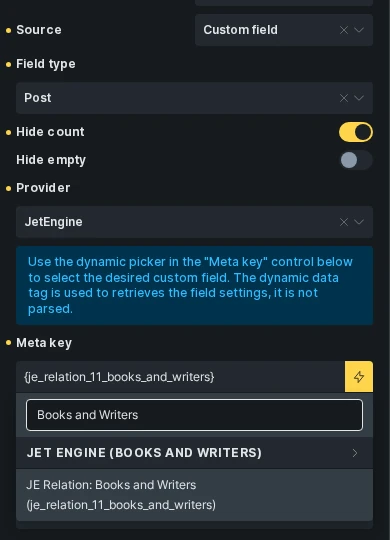
When the filter source is Custom Field, Bricks shows a Provider control if supported providers are active. Choose the provider, then use the dynamic data picker in the Meta key control to select the field. Bricks uses the dynamic tag to read the field settings. It does not parse the tag as frontend dynamic data.
For a Datepicker with Date range enabled, the same picker is available in End date meta key. Select a compatible date field from the same provider and object type. Both fields must be available on the queried post type or taxonomy. See supported date fields.

Built-in integrations are available for Advanced Custom Fields, Meta Box, and, starting with Bricks 2.5, JetEngine. They help Bricks index provider-specific field values, generate filter options from field choices, handle date formats, and build the correct custom-field query for fields that do not behave like plain WordPress meta.
ACF support includes fields such as relationship, post object, user, true/false, choice, date picker, and date time picker fields. Meta Box support includes multiple-choice fields and post, taxonomy, user, and date fields. Bricks 2.5 adds Meta Box relationship fields.
Meta Box custom table fields are not supported by this integration. This limitation does not apply to relationships, which Bricks reads from Meta Box’s separate relationship storage.
Meta Box Relationship Filters
Section titled “Meta Box Relationship Filters”Since Bricks 2.5, you can filter a Posts, Terms, or Users query by connected objects in a Meta Box relationship. For example, visitors can filter a list of books by their related writers.
Use a Filter - Select, Filter - Radio, or Filter - Checkbox element. Range and Datepicker filters do not support relationship matching. Meta Box and its MB Relationships extension must be active, with the relationship already configured.
- Enable Custom fields integration under Bricks > Settings > Query filters.
- Add a supported filter element and set its Target Query to your listing’s query loop.
- Set Source to Custom field.
- Set Field type to match the objects in the listing: Post, Term, or User. This is the type being filtered, not the type of the connected objects shown as filter options.
- Set Provider to Meta Box.
- Use the dynamic data picker in Meta key to select the appropriate MB Relationship field.
- Save the page and let indexing finish. If an existing relationship filter has missing or stale options after upgrading, use Regenerate filter index under Bricks > Settings > Query filters.
Relationship field IDs end in _to or _from. The suffix identifies the side whose connected objects become filter options. If books are the relationship’s from side and writers are its to side, choose the field ending in _to to filter books by writers. For a writer listing filtered by books, choose the field ending in _from.
Filter options use connected object IDs as values and show post titles, term names, or user display names as labels. For Checkbox filters and Select filters with multiple selections, Multiple options controls how selections combine:
- OR (default): Match objects connected to any selected option.
- AND: Match objects connected to every selected option.
Bricks matches these selections through the filter index rather than a standard meta query. Compare and Compare type do not change relationship matching. The matching IDs narrow the target query’s existing include restrictions; if no objects match, the listing returns no results.
Saving relationship fields in the editor or adding and deleting connections through the Meta Box relationship API refreshes the affected filter index entries on both sides, including removed connections.
JetEngine Fields
Section titled “JetEngine Fields”Starting with Bricks 2.5, JetEngine fields can supply options for Checkbox, Radio, and Select filters, numeric values for Range filters, and dates for Datepicker filters. JetEngine must be active, and Custom fields integration must be enabled under Bricks > Settings > Query filters.
- Add a filter element and set its Target query to a Posts, Terms, or Users query loop.
- Select the Filter action if the element has an Action control, then set Source to Custom field.
- Set Field type to match the objects in the listing: Post, Term, or User.
- Set Provider to JetEngine.
- Open the dynamic data picker in Meta key and select the field. The picker excludes unsupported JetEngine fields.
- Save the builder and let indexing finish. For missing or stale options after upgrading, use Regenerate filter index under Bricks > Settings > Query filters.
Select the field’s tag without adding :value, :label, or other output modifiers. The integration reads the field settings and stored values directly.
| JetEngine field | Filter behavior |
|---|---|
| Text, Textarea, WYSIWYG, Colorpicker | Uses the stored value as the option value and label. |
| Select, Radio, Checkbox | Matches stored choice keys and displays the configured labels. Multiple selections are supported for fields that store lists of choices. |
| Switcher | Matches the stored true or false value and displays True or False. |
| Number | Supports numeric comparisons and Range filters. Set Decimal places on the Range filter when values contain decimals. |
| Posts | Matches referenced post IDs and displays post titles. Single and multiple references are supported. |
| Date, Time, Datetime | Supports Datepicker filters, including date ranges and supported timestamp storage. See JetEngine Date Fields. |
| Media, Gallery | Supports fields whose JetEngine value format is Media ID. Options use attachment IDs. |
| Relationships | Matches connected object IDs and displays post titles, term names, or user display names. See JetEngine Relationships. |
For example, if a Select field stores fr with the label “France”, the filter shows France and matches fr. The :label dynamic data modifier controls labels in rendered tags. Query Filters handles its option labels separately.
This integration supports ordinary WordPress post, term, and user metadata. Repeater fields and their subfields, relationship meta fields, options-page fields, Custom Content Types (CCTs), and fields stored in JetEngine custom meta tables are excluded. Media and Gallery fields using URL or ID-and-URL array formats are also excluded. A field can work as dynamic data without being a supported query-filter source.
JetEngine Date Fields
Section titled “JetEngine Date Fields”For a Filter - Datepicker element, select a JetEngine Date, Time, or Datetime field in Meta key. Bricks reads the field settings to handle date strings and timestamp storage. Datepicker format controls what visitors see, not the saved field format.
To use separate start and end fields, enable Date range and select a Date or Datetime field in End date meta key. Both fields must belong to the same object type and compatible locations. Each field can use its own supported string or timestamp storage. Time-only fields cannot be used in a two-field date range.
For Datetime fields, leave Enable time off to select whole calendar days. With Compare set to ==, a selected day includes all times on that day, including when JetEngine stores timestamps. A date range includes the whole final day. Enable Enable time when visitors need to select hours and minutes, including for Time fields.
JetEngine Relationships
Section titled “JetEngine Relationships”Use a Filter - Checkbox, Filter - Radio, or Filter - Select element and select the JE Relation entry in the Meta key picker. Range and Datepicker filters do not support relationship matching. Both ends of the relationship must be WordPress posts, terms, or users.
Set Field type to the objects being filtered. Bricks reads connections from that side of the relationship and shows the connected objects as options. For example, if Books are parents and Writers are children, a Books listing shows writers as filter options. A Writers listing using the same relationship shows books.
If both sides use the same post type, taxonomy, or users, Bricks treats each listed object as a parent and uses its children as options. There is no separate direction control for reversing that case.

For Checkbox filters and Select filters with multiple selection, Multiple options controls how selected connections combine:
- OR (default): Match objects connected to any selected option.
- AND: Match objects connected to every selected option.
Relationship matching uses the filter index. Compare and Compare type do not change it. Matches narrow the target query’s existing restrictions. If no objects match, the listing returns no results.
Metadata changes and relationship updates or deletions through JetEngine refresh the affected index entries, including when the last value or connection is removed. JetEngine fields also work with Global Filters: choose the provider and field in Filter manager or on a linked element. Linked copies use the global filter’s shared index.
Filter Index
Section titled “Filter Index”Bricks stores filter data in custom tables so filter options and counts can be generated efficiently.
The index system tracks:
- Filter elements and their settings
- Whether each filter element is active and indexable
- Indexed values for posts, terms, and users
- Background indexing jobs and progress
The index is built when you save a page with indexable filters, and it updates when relevant Bricks data, posts, terms, users, and metadata change. Until the page is saved and indexed, Checkbox, Radio, and Select options in the builder can show a count of 0 and Range filters can show a default range. Check the counts on the frontend after saving. Large sites can require background jobs to finish before every filter option is accurate.
From Bricks 2.5, indexable global filters own one shared index. Linked elements use that index instead of generating separate copies. Counts still reflect the target query. Source and behavior changes can queue index work; renaming a global filter or changing its category does not rebuild the index.
You can manage indexing under Bricks > Settings > General > Query filters.

Available actions:
- Regenerate filter index: Rebuilds index records for all indexable filter elements.
- Continue index job: Runs pending index jobs immediately instead of waiting for cron.
- Fix corrupted database: Rebuilds stored filter-element metadata when filter elements are missing, stale, or moved.
Starting with Bricks 2.5, a reindex request preserves existing queued work instead of restarting it. A new rebuild clears the filter value index and queues background jobs, so filter options and counts can remain incomplete until those jobs finish.
Reindex from PHP or on a Schedule
Section titled “Reindex from PHP or on a Schedule”From Bricks 2.5, integrations can request a full rebuild after an import or from a custom WP-Cron event:
do_action( 'bricks/query_filters/reindex' );Call the action after Bricks has loaded and the import has saved its content. Query Filters must be enabled. Bricks does not add a daily full-rebuild schedule automatically.
See Programmatic query filter reindexing for a daily schedule, the result-returning PHP method, and background-processing behavior. To process existing jobs without requesting a new rebuild, use bricks_indexer.
Indexing Troubleshooting
Section titled “Indexing Troubleshooting”If your site is protected by HTTP Authentication, background indexing can fail because Bricks cannot reach its own background endpoint. Add authentication headers to Bricks remote requests for the indexing action.
add_filter( 'bricks/remote_post', function( $args, $url ) {  if ( strpos( $url, 'action=bricks_background_index_job' ) === false && strpos( $url, 'action=bricks_system_info_wp_remote_post_test' ) === false ) {    return $args;  }
  $username = 'USERNAME';  $password = 'PASSWORD';
  $args['headers']['Authorization'] = 'Basic ' . base64_encode( $username . ':' . $password );
  return $args;}, 10, 2 );
Live Search
Section titled “Live Search”Live Search shows query results only after a search interaction.
Setup:
- Add a Filter - Search element.
- Create a post, term, or user Query Loop.
- Set the Search filter’s Target query to the loop.
- Enable Live Search in the target query settings.
- Set Live Search Wrapper Selector to the wrapper that should show/hide the result area.

The wrapper selector is usually the parent around the result loop. Bricks uses it to hide empty live-search results, show the loader during AJAX requests, and hide the result box when the visitor clicks outside the search/results area.
Live Search still prepares the query on page load so required scripts, styles, templates, and popup content are available. On the frontend, Bricks suppresses the initial output until the visitor searches.
Dynamic Data Tags
Section titled “Dynamic Data Tags”Query Filters include dynamic tags that update with AJAX.
search_term_filter
Section titled “search_term_filter”Use this to display the current search term for a target query:
{search_term_filter:abc123}Bricks wraps the value in an AJAX-updatable span tied to the target query.
filter_geo_distance
Section titled “filter_geo_distance”From Bricks 2.5, use this tag inside a Posts, Terms, or Users loop with an applied Geolocation filter:
{filter_geo_distance}{filter_geo_distance @to:'mi' @decimals:'2'}{filter_geo_distance @fallback:'Select a location'}It shows the current item’s distance from the applied origin, using the filter’s distance unit and label format with one decimal place by default. It also works in AJAX-rendered map Info Boxes for those results.
Use @to:'km' or @to:'mi' to convert the displayed distance, and @decimals:'0' through @decimals:'6' to set precision. @output:'value' returns only the rounded number; @output:'unit' returns only the unit label. These arguments do not change the search radius.
Without a fallback, the tag returns nothing before a location search is applied or outside a supported filtered loop. API, Array, and provider-specific loops do not support Geolocation filtering or this tag.
query_results_count_filter
Section titled “query_results_count_filter”Use this to display the current result count for a target query:
{query_results_count_filter:abc123}search_term
Section titled “search_term”Use this on a static search results page:
{search_term}{search_term:abc123}For the value from a Filter - Search element, use search_term_filter instead.
active_filters_count
Section titled “active_filters_count”Use this to display the number of active filters for a target query:
{active_filters_count:abc123}{active_filters_count:abc123 @exclude:'filter1,filter2'}From Bricks 2.5, exclusions accept global filter IDs as well as element IDs. A linked element ID excludes its shared filter for that target query. The first argument, abc123, remains the query loop ID.
You can style the generated span:
span[data-brx-af-count] { /* Your styles here */}
Search Criteria
Section titled “Search Criteria”The Search filter can use default search behavior or custom criteria.
For posts, custom criteria can search:
- Post fields
- Post meta keys
- Assigned terms and taxonomies
For terms, custom criteria can search:
- Term fields
- Term meta keys
For users, custom criteria can search:
- User fields
- User meta keys
Weighted search returns IDs in weighted relevance order. An active sort filter can change that order. A Distance sort without a valid location preserves the normal order, including weighted relevance.
Every added field or taxonomy can make the query more expensive. Keep the search surface focused.
Custom Option Labels
Section titled “Custom Option Labels”Custom labels are available for Checkbox, Radio, and Select filters.
Use them when the stored value is not visitor-friendly. For example, map _stock_status values to “In stock” and “Out of stock”.

Results Per Page
Section titled “Results Per Page”Filter - Select and Filter - Radio elements can use the Results per page action for post, term, and user queries.

By default, Bricks offers these values:
10, 20, 50, 100Change the values in Options: Results per page. Enter a comma-separated list of allowed page sizes.

The active value changes the target query page size for the filtered request. It does not rewrite the original query loop setting. If you show an Active Filters element and do not want the per-page filter listed there, exclude the filter element ID in the Active Filters settings. From Bricks 2.5, a global filter ID or any linked element’s ID excludes that shared filter for the target query.
WooCommerce Filter Source
Section titled “WooCommerce Filter Source”When WooCommerce is active, Bricks adds WooCommerce as a source for supported filter elements.

WooCommerce sorting options are also available for supported select and radio filters.

Supported WooCommerce sources depend on the filter element:
| WooCommerce option | Filter - Radio | Filter - Select | Filter - Checkbox | Filter - Range |
|---|---|---|---|---|
| On sale | Yes | Yes | Yes | No |
| In stock | Yes | Yes | Yes | No |
| Featured products | Yes | Yes | Yes | No |
| Product type | Yes | Yes | Yes | No |
| Rating | Yes | Yes | No | No |
| Price | No | No | No | Yes |
| Sort by price | Yes | Yes | No | No |
| Sort by rating | Yes | Yes | No | No |

Use WooCommerce filters on product query loops. Common setups combine product category or attribute filters with stock state, price range, rating, and price sorting.
Practical Patterns
Section titled “Practical Patterns”Archive filter sidebar
Section titled “Archive filter sidebar”Use a Query Loop as the archive main query, add taxonomy filters in a sidebar, and enable AJAX pagination. Keep query merge enabled so the loop still respects the current archive route.
Product filters
Section titled “Product filters”Use taxonomy filters for product categories and attributes, a range filter for price, a checkbox/select for stock state, and a sort select. Regenerate the filter index after adding new product filters.
Search page with native s
Section titled “Search page with native s”Set the Filter - Search URL parameter to s, target the main search query, and configure search criteria on the Search template when the filter is part of the main search experience.
Homepage live search
Section titled “Homepage live search”Use a Filter - Search element with Submit redirect, or use Live Search with a wrapper selector if results should appear inline.
Troubleshooting
Section titled “Troubleshooting”Filters do not affect the listing
Section titled “Filters do not affect the listing”Check that every filter has the correct Target query. Then verify that the target loop is a post, term, or user query.
Filter options are empty or outdated
Section titled “Filter options are empty or outdated”Regenerate the filter index. If the filter element was duplicated, imported, translated, or moved between templates, also fix the filter element DB.
URL parameters load but filters do not appear active
Section titled “URL parameters load but filters do not appear active”Check the filter’s URL parameter/nice name, and make sure the filter element still exists and targets the same query ID.
Search works on input but not on a direct URL
Section titled “Search works on input but not on a direct URL”If you expect native search behavior, use s as the URL parameter and test the Search template settings. Also check whether Disable URL Params Filter is enabled on the query.
AJAX updates the loop but not the filters
Section titled “AJAX updates the loop but not the filters”Only dynamic update elements are refreshed after AJAX. Make sure the filter element type is supported and not hidden by element conditions that fail outside the normal page load.
Filters conflict with another filtering plugin
Section titled “Filters conflict with another filtering plugin”Avoid combining Bricks Query Filters with plugins or custom code that force-reruns or heavily rewrites the same query. Conflicts are especially likely when another plugin overrides query execution for AJAX filtering.
Browser back/forward feels wrong
Section titled “Browser back/forward feels wrong”Test whether filters are updating URL state as expected. Bricks restores selected filter state on browser navigation, but custom scripts that rewrite URLs can interfere.
Was this helpful?
A quick vote and short notes help us improve these docs faster.
Leave a note for us
Please do not include passwords, license keys, or personal data. We store submitted notes to improve the docs.
Thanks for sharing feedback. We're using it to improve these docs.