
License, updates, and your account
For first-time installation and activation, follow Installation and setup.
This article covers automatic updates, staging and safe updates, which URLs count toward your license, and managing activations in your Bricks account.
Your Bricks account and downloads live at my.bricksbuilder.io (same destination the theme uses for remote services).
Define the license key in wp-config.php
Section titled “Define the license key in wp-config.php”Starting with Bricks 2.4, you can define your Bricks license key as a PHP constant in wp-config.php:
define( 'BRICKS_LICENSE_KEY', 'your-license-key' );Add the constant above the line that says /* That's all, stop editing! Happy publishing. */.
Use this when you manage WordPress sites from a blueprint, clone sites for development, or prefer to keep the raw license key out of the WordPress options table.
When BRICKS_LICENSE_KEY is defined, Bricks uses it as the active license key. The license screen at Bricks > License shows that the key is defined by the constant and provides a Re-validate license button.
If a license key is also saved in the database, Bricks keeps using BRICKS_LICENSE_KEY while the constant is active. The license screen shows a notice and a Remove saved database key button. This removes the local bricks_license_key option only. It does not remotely deactivate the license.
To use a different key, update the constant value and re-validate the license. To return to a database-stored key, remove the constant and activate the license from Bricks > License.
How to update Bricks
Section titled “How to update Bricks”If you have activated your Bricks license key on your site, you’ll automatically receive update notifications in your WordPress dashboard. You can then perform the update to the latest version of Bricks with one click from your WordPress dashboard.
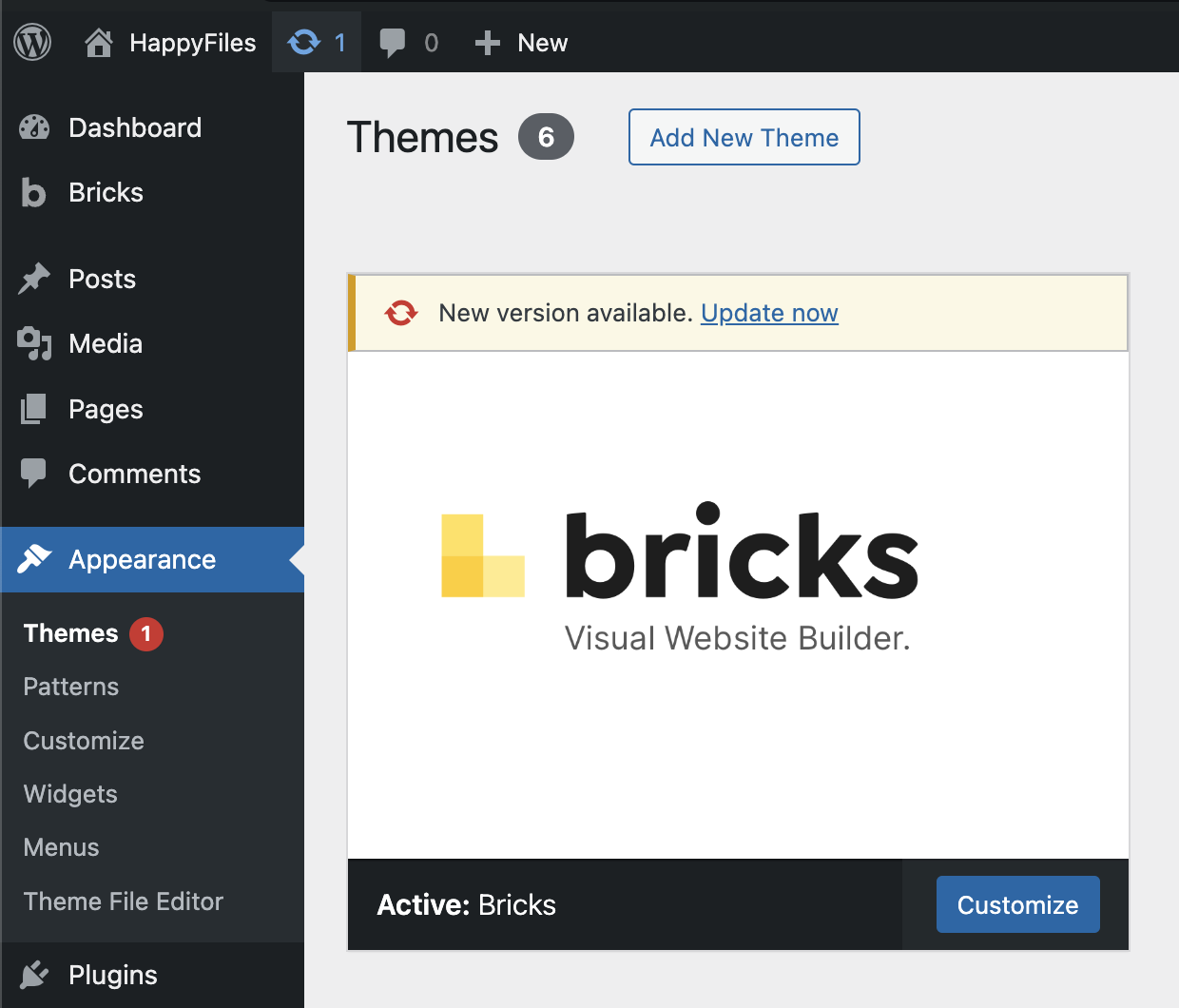
You can also always manually download the latest version from your Bricks account at https://my.bricksbuilder.io/ as a ZIP file.
Test on staging & read the changelog
Section titled “Test on staging & read the changelog”We recommend to perform updating a mission-critical software like Bricks first on a staging server. Especially if your website is live, receives a lot of traffic, you are running marketing campaigns, offers, etc. Once you confirmed that everything is working as expected you can update your live site.
Every noticeable host offers, mostly free of charge, an easy one-click staging solution. Please reach out to your host if you are not sure how this works.
Every update is accompanied by an in-depth release changelog. Please take the time to go over it at https://bricksbuilder.io/changelog/ before you perform the update.
This way you know exactly what changed, if any adjustments or steps need to be performed on your end, which new features are available, and so on.
Local, staging & intranet installations don’t count against your license limit
Section titled “Local, staging & intranet installations don’t count against your license limit”These rules are enforced by the Bricks account/licensing service. During license activation, validation, and update checks, the Bricks theme sends the current site/license data, including the site URL/domain and Bricks version, to the licensing service. The service then decides whether a URL counts toward your license limit.
The following URL structures are treated as local, staging, or intranet sites and do not count against your license limit.
Local URLs:
192.168.x.x127.0.0.1localhost(includes).local(top-level domain).test(top-level domain).wip(top-level domain)
Staging URLs:
- Staging subdomains (dev, staging, test)
dev.yoursite.comstaging.yoursite.comtest.yoursite.com
- Cloudways:
.cloudwaysapps.com - Dreamhost:
.stage.site - Flywheel:
.mysites.io - GoDaddy:
.myftpupload.com - Hostinger:
.hostingersite.com - InstaWP:
.instawp.site&.instawp.xyz&instawp.com - Kinsta:
.kinsta.cloud - Lando Pantheon:
.lndo.site - Plesk:
.plesk.page - Raidboxes:
.myrdbx.io - Runcloud:
.temp-site.link - SiteGround:
.sg-host.com - SpinupWP:
.spinupwp.site - TasteWP:
.tastewp.com - WP Engine:
.wpenginepowered.com - wp-space.de:
.wpspace.partners - xCloud:
1wp.site,.wp1.site,wp1.sh,wp1.host - ZipWP:
.zipwp.link
Intranet (top-level domains):
.intranet.internal.private.corp.home.lan
With a Bricks Starter license (1 active site limit), you can build your site locally with Bricks & use your Starter license on your live site simultaneously.
You can deactivate the license key from your site from your WP dashboard under Bricks > License, and activate it on another site or remove the site from your Bricks account under the “Sites” tab. We monitor any potential misusage (attempts to avoid purchasing a sufficient plan) and reserve the right to limit further license activations.
Was this helpful?
A quick vote and short notes help us improve these docs faster.
Leave a note for us
Please do not include passwords, license keys, or personal data. We store submitted notes to improve the docs.
Thanks for sharing feedback. We're using it to improve these docs.