
Keyboard Shortcuts
Keyboard shortcuts let you save, open panels, edit elements, and move through the builder without reaching for the toolbar. In Bricks 2.5, you can change, remove, restore, import, and export those shortcuts.
CMD means Command on macOS. Use CTRL on Windows and Linux. The shortcuts below show the Bricks defaults; your personal settings or an assigned Builder Interface profile can change them.
Open Keyboard shortcuts
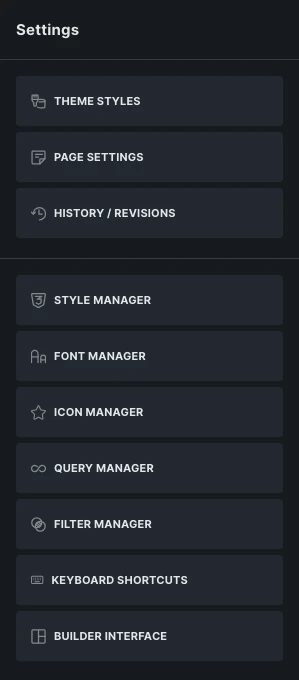
Section titled “Open Keyboard shortcuts”Open Manage in the builder toolbar, then click Keyboard shortcuts. It is also available from the Command Palette.
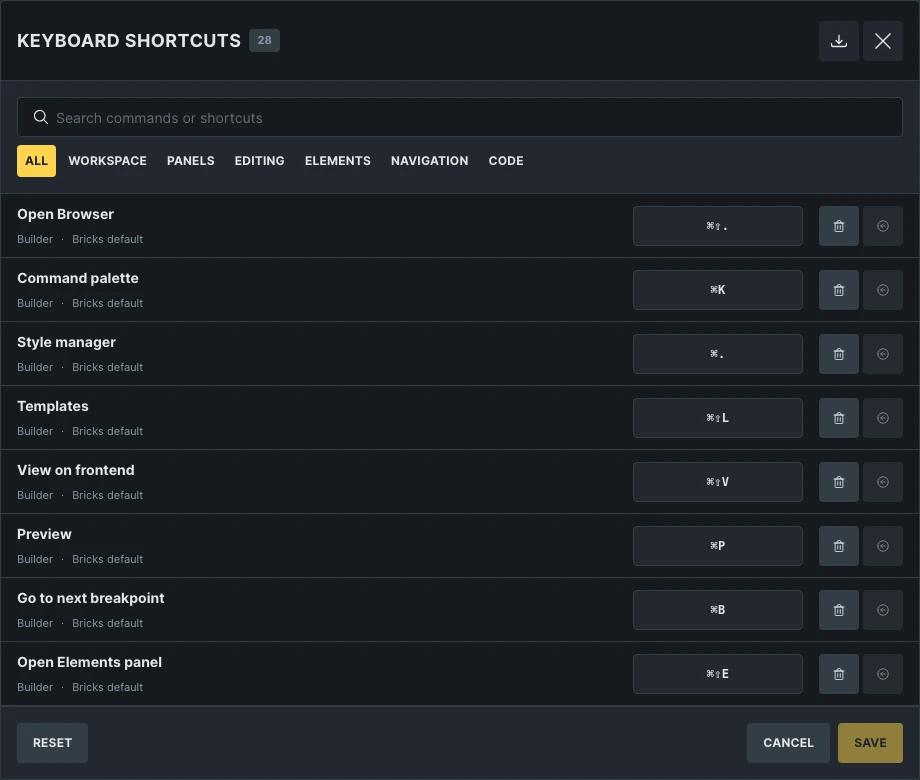
The manager lists commands by category. Search for an action or shortcut, or select a category such as Workspace, Editing, or Elements. Each row shows the action, its context, the source of its shortcut, and the current key combination.
Changing your personal shortcuts requires the Customize builder interface permission. See Builder access for role and user permissions.
Change a shortcut
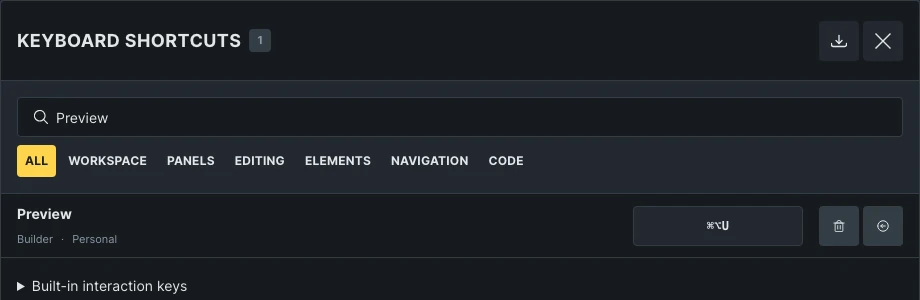
Section titled “Change a shortcut”For example, to change the Preview shortcut:
- Search for Preview.
- Click its current shortcut. The button shows Press shortcut keys.
- Press your preferred combination, such as
CMD / CTRL + ALT + U. - Click Save.
The new shortcut is saved for your WordPress user account on this site. Reload the builder and press the new combination to toggle Preview.
Press ESC to stop recording a combination. TAB also leaves recording and moves focus to the next control. Cancel closes the manager without saving your changes.
Remove or restore a shortcut
Section titled “Remove or restore a shortcut”- Click the Remove (trash) icon to disable that command’s shortcut. The action remains available through its normal builder controls.
- Click the Reset icon beside a command to remove your override and inherit its default again.
- Click Reset in the footer to clear all your shortcut overrides.
Click Save to keep removals or resets. Resetting shortcuts does not reset your toolbar or panel layout. If restoring a default would create a conflict, change the other conflicting shortcut first.
Conflicts and reserved keys
Section titled “Conflicts and reserved keys”Bricks rejects combinations that would trigger conflicting commands. The message names the conflicting command, and the existing shortcut stays unchanged. Choose a different combination or change the other command first.
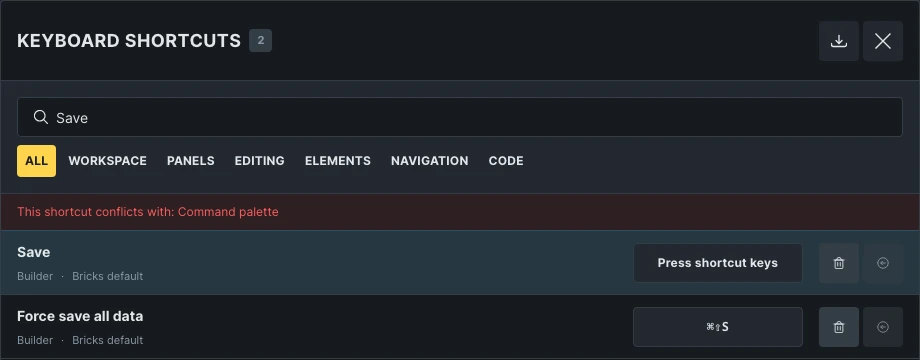
Some combinations are reserved for browser, operating-system, or accessibility behavior. For example, you cannot assign a global command to CMD / CTRL + L, which focuses the browser address bar, or to an unmodified letter. ESC and TAB keep their built-in behavior.
A warning can appear for combinations used by text editing or browser printing. Read the warning before choosing Use anyway. Text and code editors keep their own editing behavior where needed, so a canvas shortcut can behave differently while you are typing in an input or editor. Copy, Paste, Undo, and Redo act on text while a text editor owns the focus.
Shortcut sources and profiles
Section titled “Shortcut sources and profiles”Bricks resolves shortcut settings in this order:
- Bricks defaults.
- Site defaults.
- Your personal preferences.
- An assigned Builder Interface profile.
An assigned profile takes priority for the commands it defines. Those rows show the profile name and are read-only in your personal shortcut manager. Other commands remain customizable when your permissions allow it.
If a profile uses a combination assigned to another command in your preferences, Bricks suppresses the conflicting lower-priority shortcut. Your stored preference is kept. Removing the profile assignment restores it, or you can choose a different personal combination while the profile is assigned.
To include shortcuts in a reusable profile, open Builder interface → Keyboard shortcuts → Manage. Edit the shortcuts and click Save to return to the Builder Interface draft. Then save or overwrite the profile. Saving a profile does not assign it to users automatically. See Builder Interface Customiser and Profiles.
Import and export
Section titled “Import and export”Click the import/export icon in the manager header.
- Export downloads your shortcut customizations as a JSON file, including shortcuts you have disabled. It does not export the full workspace layout or every inherited default.
- Import adds the file’s customizations to your current shortcut settings. Click Save after a successful import to keep them.
If the file contains conflicting, reserved, unsupported, or profile-managed bindings, Bricks rejects the import without applying part of the file. Export and import a full Builder Interface profile when you want to share both the workspace layout and its shortcuts.
Default shortcuts
Section titled “Default shortcuts”These combinations are customizable in Bricks 2.5. Actions still require the relevant builder permissions and selection or editor context.
| Shortcut | Action |
|---|---|
CMD / CTRL + S | Save changes |
CMD / CTRL + SHIFT + S | Force save all data |
CMD / CTRL + K | Open Command palette |
CMD / CTRL + . | Toggle Style Manager |
CMD / CTRL + SHIFT + . | Toggle Builder Browser |
CMD / CTRL + SHIFT + L | Open Templates in the Builder Browser |
CMD / CTRL + P | Toggle Preview |
CMD / CTRL + SHIFT + V | View on frontend |
CMD / CTRL + B | Go to the next breakpoint |
CMD / CTRL + SHIFT + E | Open Elements and focus its search |
CMD / CTRL + SHIFT + C | Open Components |
CMD / CTRL + SHIFT + X | Toggle Structure |
CMD / CTRL + F | Focus Structure search when outside a text field and there are elements to search |
CMD / CTRL + SHIFT + H | Open History |
CMD / CTRL + SHIFT + F | Search element controls |
CMD / CTRL + Z | Undo a builder change |
CMD / CTRL + SHIFT + Z | Redo a builder change |
CMD / CTRL + C | Copy selected elements |
CMD / CTRL + V | Paste copied elements |
CMD / CTRL + SHIFT + D | Duplicate selected elements |
CMD / CTRL + Delete | Delete selected elements and their children |
CMD / CTRL + ENTER | Toggle classes for the selected element |
CMD / CTRL + SHIFT + P | Wrap the selection in the configured wrapper element |
CMD / CTRL + SHIFT + ARROW LEFT | Select the parent element |
CMD / CTRL + SHIFT + ARROW RIGHT | Select the first child element |
CMD / CTRL + SHIFT + ARROW UP | Select the previous element at the same level |
CMD / CTRL + SHIFT + ARROW DOWN | Select the next element at the same level |
CMD / CTRL + ENTER in the media picker | Insert the selected media |
CMD / CTRL + R in a focused Code control | Run code, when code execution is allowed |
The same combination can serve different actions in separate contexts. For example, CMD / CTRL + ENTER inserts selected media while the media picker is open, and opens the classes UI when an element is selected on the canvas.
Built-in interaction keys
Section titled “Built-in interaction keys”These keys belong to focused controls, navigation, or direct manipulation and cannot be remapped. Expand Built-in interaction keys at the bottom of the manager to see the list.
| Keys | Behavior |
|---|---|
ESC | Close or dismiss the current popup or editing state |
TAB / SHIFT + TAB | Move keyboard focus |
ENTER / SPACE | Activate a focused control |
ALT / OPTION + T | Focus the builder toolbar, then use Tab to move through it |
CMD / CTRL + ALT + 1–9 | Open an element-control quick-access group |
| Number keys in Browser or Style Manager | Switch visible sections or tabs when focus is outside a text field |
CMD / CTRL + ENTER in Command palette | Insert the element structure from the focused palette |
ENTER / SHIFT + ENTER in Structure search | Select the next / previous match |
CMD / CTRL + G / CMD / CTRL + SHIFT + G in Structure search | Select the next / previous match |
CMD / CTRL while inserting | Insert outside the active parent element |
SHIFT while editing on the canvas | Use the existing precision, selection, or direct-edit modifier for that action |
Arrow-key navigation, typing, and native editing shortcuts in text fields, rich-text editors, code editors, and picker lists remain owned by those interfaces.
While typing in a field or editing text inline, Undo and Redo use the text editor’s history. Leave the field or finish inline editing to use these shortcuts for builder changes.
Was this helpful?
A quick vote and short notes help us improve these docs faster.
Leave a note for us
Please do not include passwords, license keys, or personal data. We store submitted notes to improve the docs.
Thanks for sharing feedback. We're using it to improve these docs.