
How to set up your Google Maps API key
Save a Google Maps API key in Bricks to use JavaScript maps and address search. This article covers the required services and restrictions for your website.
Prerequisites
Section titled “Prerequisites”Before you start using the Maps JavaScript API, Google Cloud requires a project with a billing account, plus the Maps JavaScript API and Geocoding API enabled. Check out the Google documentation for the current setup requirements.
As soon as you have completed the setup, you will find your API key under Keys and Credentials » API Keys.
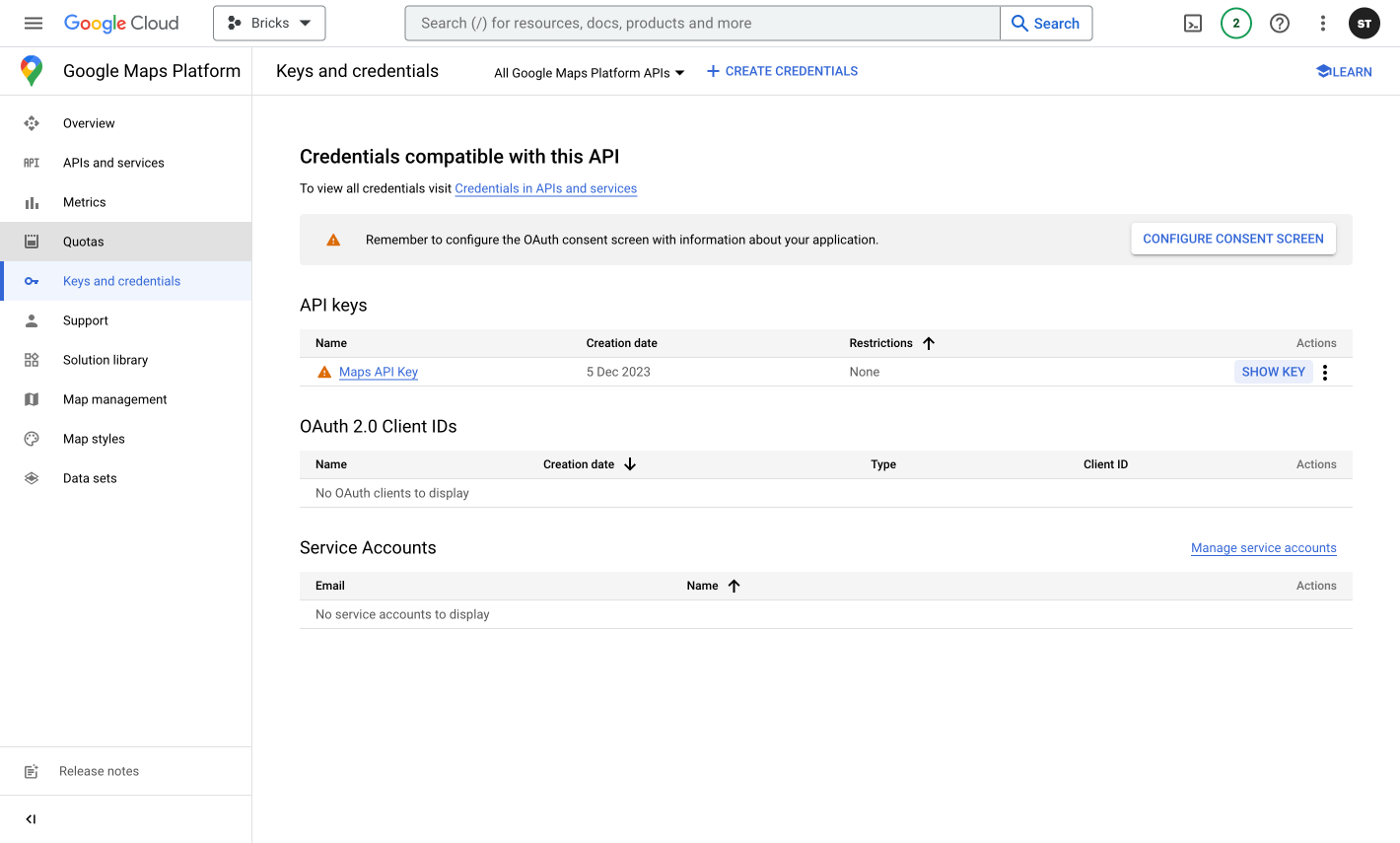
Copy and paste the key into Bricks » Settings » API keys » Google Maps: API key and hit save.

Now, you can use the “Map” element on any page. If your map doesn’t show properly, inspect the developer console for more information.
Geolocation address search
Section titled “Geolocation address search”The Geolocation filter, available in Bricks 2.5, uses the same saved key for address searches, including when the connected map is Leaflet or the listing has no map.
| Feature | Required Google APIs |
|---|---|
| Search by address using Search or Enter | Maps JavaScript API and Geocoding API |
| Address autocomplete suggestions | Maps JavaScript API, Geocoding API, and Places API (New) |
| Device location or map-drag search with Leaflet | No Google APIs required |
Enable Places API (New) in the same Google Cloud project when using Address autocomplete, and allow it in the key’s API restrictions. See Google’s autocomplete prerequisites and Geocoding setup.
Saving the key in Bricks does not verify API access. Test address search and suggestions on the frontend. If suggestions fail, visitors can still type an address and select Search, provided manual geocoding is available.
API and application restrictions
Section titled “API and application restrictions”Google Cloud lets you restrict where and for which APIs the API key can be used to prevent unauthorized use.

Application restrictions
Section titled “Application restrictions”Since you’re running a website, configure the key’s application restriction for websites. Select “Websites” and add your URL by clicking the “Add” button. Here are some examples of URLs that Google Cloud can allow:
- Any URL in a single domain with no subdomains: https://example.com
- Any URL in a single subdomain: https://sub.example.com
- Any subdomain in a single domain, using a wildcard asterisk (): https://.example.com
- A domain and all its subdomains, using a wildcard asterisk (): https://example.com https://.example.com
API Restrictions
Section titled “API Restrictions”Restrict key » Select APIs and allow the Maps JavaScript API and Geocoding API.
Also allow Places API (New) if a Geolocation filter uses address autocomplete.
Save your API key settings.
Common problems
Section titled “Common problems”If the map is not showing, open the developer console. You will receive further information and how to solve your specific issue there. In most cases, no billing account is assigned, the necessary APIs are not activated, or the restrictions are incorrect.

Was this helpful?
A quick vote and short notes help us improve these docs faster.
Leave a note for us
Please do not include passwords, license keys, or personal data. We store submitted notes to improve the docs.
Thanks for sharing feedback. We're using it to improve these docs.