
Context Menu
The Bricks context menu gives you quick access to actions for the selected element. It is especially useful for copying, pasting, duplicating, deleting, hiding, wrapping, converting, and saving reusable layout pieces.
To open it, right-click an element on the canvas or in the Structure panel.
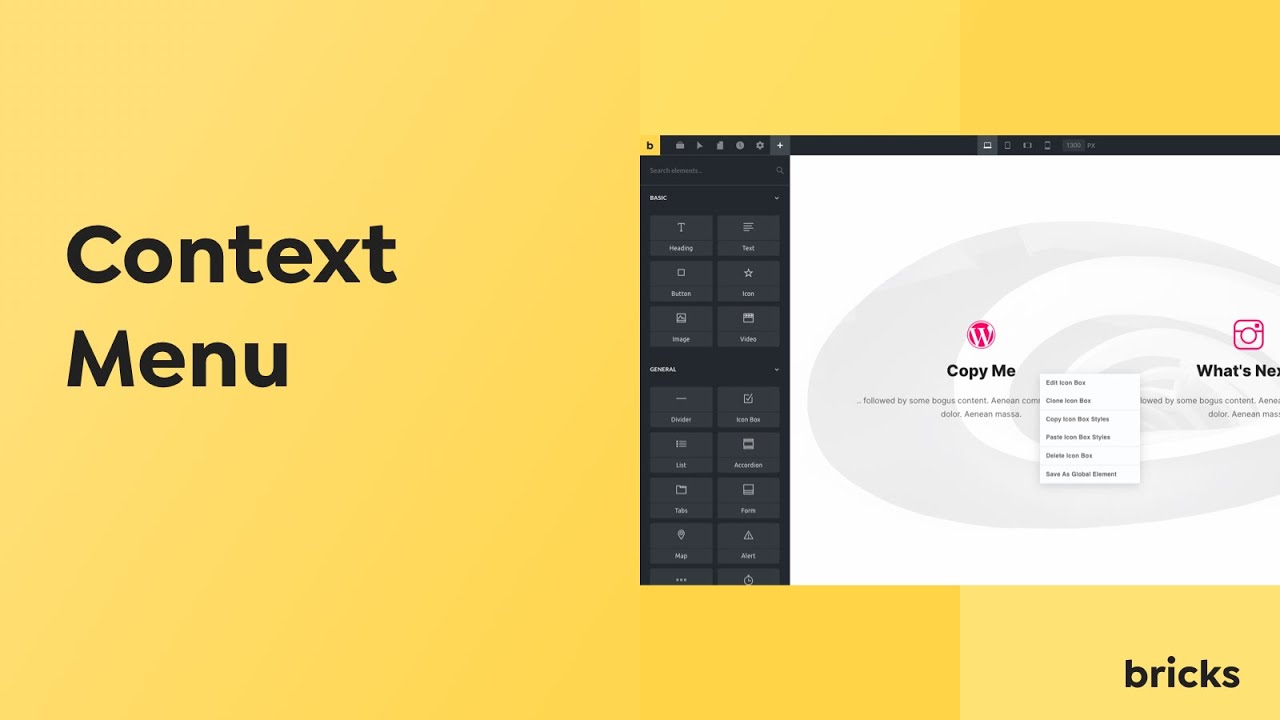
How the context menu selects an element
Section titled “How the context menu selects an element”Right-clicking an element makes that element active and opens the Element panel. If you right-click the same element again while the Bricks menu is already open, Bricks lets the browser show the normal operating system context menu instead.
The Bricks context menu is hidden in Preview mode. It also does not open from the Elements library panel, because that panel is for inserting new elements, not editing existing ones.
Action availability
Section titled “Action availability”The context menu is dynamic. It changes based on:
- The current user’s builder permissions.
- Whether one element or multiple elements are selected.
- Whether the selected element is nestable.
- Whether the selected element is cloneable or deletable.
- Whether the selected element is a Component instance or Component root.
- Whether the selected element is a legacy Global Element.
- Whether the clipboard currently contains Bricks data that can be pasted.
If an action is missing, it is usually because the current selection, permissions, or clipboard state does not support it.
Main actions
Section titled “Main actions”| Action | What it does | Important limits |
|---|---|---|
| Copy | Copies the selected element or selected elements. | Requires copy/paste element permission. |
| Paste | Pastes copied Bricks elements when the clipboard contains element data. | Requires copy/paste element permission. |
| Duplicate | Clones the active element. | Hidden for active Component roots and unavailable for elements marked as not cloneable. |
| Delete | Deletes the active element. In bulk mode, deletes the selected elements. | Hidden for active Component roots and unavailable for elements marked as not deletable. |
| Hide element | Toggles hide settings for builder, frontend, or both. | Requires access to element hide. |
| Insert | Inserts a new layout element near the selected element. | Available when the selected context can accept insertion. |
| Wrap | Wraps the selected element or selected sibling elements in Section, Container, Block, or Div where allowed. | In bulk mode, selected elements must share the same parent. |
| Unwrap | Removes a selected nestable wrapper and moves its children up to the wrapper’s parent. | Requires a nestable element with children. |
| Convert | Converts Section, Container, Block, and Div layout elements to another layout type where allowed. | Only applies to layout elements. |
| Save as Component | Opens the Components workflow for the selected element. | Hidden in bulk mode, while editing Components, or for Component/legacy Global Element selections. Shown but disabled for Template and Filter elements. |
| Save as Template | Saves a nestable element as a Template. | Not available in bulk mode or while editing Components. |
| Edit Component | Opens a Component instance for editing. | Requires Component permissions. |
| Unlink Component | Converts a Component instance into regular local elements after confirmation. | Requires Component permissions. |
| Unlink Global Element | Unlinks a legacy Global Element when one exists. | Requires legacy Global Element access. |
Copy sub-actions
Section titled “Copy sub-actions”The Copy row can show extra icons for more specific data:
| Copy icon/action | Copied data |
|---|---|
| CSS ID | The element’s rendered CSS ID, including #. |
| Bricks ID | The internal Bricks element ID. |
| Query ID | The query ID for a selected query loop element. In Component loop contexts, this can include the instance ID. |
| Styles | Element ID styles, or active global class styles if a class is active. |
| Conditions | Element conditions. |
| Interactions | Element interactions. |
| Classes | Assigned global classes. |
| Attributes | Custom attributes. |
These actions are permission-gated. For example, copying attributes requires copy/paste element attributes permission, while copying conditions requires copy/paste element conditions permission.
Paste sub-actions
Section titled “Paste sub-actions”The Paste row changes based on the clipboard data. Bricks shows only paste actions that match the current clipboard source.
| Paste action | Behavior |
|---|---|
| Styles | Pastes copied element styles or global class styles to the selected target. |
| Conditions | Appends copied conditions to the existing element conditions and generates new condition IDs. |
| Interactions | Appends copied interactions to the existing element interactions and generates new interaction IDs. |
| Attributes | Replaces the target element’s copied custom attributes and generates new attribute IDs. |
| Classes | Merges copied global classes into the target element’s existing classes without duplicates. |
Pasting styles can target one selected element or multiple selected elements. When multiple elements are selected, Bricks applies the paste operation to the selected elements.
Bulk editing behavior
Section titled “Bulk editing behavior”The context menu supports bulk editing, but not every action is available for multiple selected elements.
Bulk editing works best for:
- Copying selected elements.
- Deleting selected elements.
- Hiding selected elements.
- Wrapping selected sibling elements with the same parent.
- Pasting shared styles.
- Applying copied classes, conditions, interactions, or attributes where supported.
Bulk editing has important limits:
- Save as Component and Save as Template are not shown in bulk mode.
- Some copy sub-actions are disabled in bulk mode.
- Wrap requires all selected elements to share the same parent.
- Unwrap only works when the selected nestable elements contain children and the selected set does not include those children.
Insert, wrap, unwrap, and convert
Section titled “Insert, wrap, unwrap, and convert”The context menu can create or reshape layout structure without dragging from the Elements panel.
Insert
Section titled “Insert”Insert adds a new layout element such as Container, Block, or Div near the current selection. The default insert type can be controlled by builder settings.
Wrap places the selected element, or selected sibling elements, inside a new wrapper. Available wrapper types include Section, Container, Block, and Div where the current hierarchy allows them.
Use wrap when you already built content but need an additional layout layer.
Unwrap
Section titled “Unwrap”Unwrap removes a selected nestable wrapper and moves its children to the wrapper’s parent. It preserves child order as much as the current hierarchy allows.
Use unwrap carefully. It changes structure, not only styling.
Convert
Section titled “Convert”Convert changes one layout wrapper type into another, such as Container to Block or Div to Container. It is available for Section, Container, Block, and Div when the selected structure can be converted.
Section conversion is restricted to root-level contexts because sections are top-level layout wrappers.
Components, templates, and legacy Global Elements
Section titled “Components, templates, and legacy Global Elements”Use Save as Component when the selected element should become reusable and editable through the Components system.
Use Save as Template when the selected nestable element should become a reusable template that can be inserted later.
Legacy Global Elements can still be unlinked from the context menu when they exist. For new reusable content, use Components or Templates.
Permission notes
Section titled “Permission notes”Context menu actions follow the same Builder Access permission model as the rest of the builder. A user might be able to open the context menu but not see specific actions.
Common permission-gated actions include:
- Copy/paste elements
- Copy/paste styles
- Copy/paste conditions
- Copy/paste interactions
- Copy/paste attributes
- Hide element
- Duplicate elements
- Delete elements
- Create Components
- Edit Components
- Create Templates
- Manage legacy Global Elements
Review Builder Access when a user reports that a context-menu action is missing.
Troubleshooting
Section titled “Troubleshooting”- The Bricks context menu does not open: Make sure you are not in Preview mode and that you are right-clicking an existing canvas or Structure element.
- The normal browser menu opens: If you right-click the same selected element a second time, Bricks allows the normal browser menu.
- Paste action is missing: Copy the matching Bricks data first. The paste menu only shows actions that match the clipboard data.
- Copy/paste behaves differently in Safari: Safari can be stricter about clipboard access, so perform copy and paste from direct user gestures.
- Save as Component is missing or disabled: Check permissions and make sure you are not bulk editing, editing an active Component, selecting a Component or legacy Global Element, or selecting a Template or Filter element.
- Wrap is missing or disabled: Confirm the selected elements share the same parent and can be wrapped in the current hierarchy.
Was this helpful?
A quick vote and short notes help us improve these docs faster.
Leave a note for us
Please do not include passwords, license keys, or personal data. We store submitted notes to improve the docs.
Thanks for sharing feedback. We're using it to improve these docs.