
Search Criteria
Bricks 2.2 introduces a powerful new way to control how search results are generated, whether the search is triggered by:
- the native WordPress search (via the Search element), or
- the Filter – Search element - Query Filters feature.
With Search Criteria, you can define exactly where Bricks should search: post fields, assigned post terms, term fields, user fields, and custom meta fields. This gives you far more control than the default WordPress "s" search and allows fully customized search behaviour across your site.
Override Native WordPress Search (“s” parameter)
Section titled “Override Native WordPress Search (“s” parameter)”The native WordPress search is usually triggered through the Search element, and the results land on the Search Result template.
By default, WordPress only searches the following post fields:
- post_title
- post_content
- post_excerpt
If you want to override or extend this behaviour for native search results, configure Search Criteria inside your Search Result template.
Search Criteria in the Search Result Template
Section titled “Search Criteria in the Search Result Template”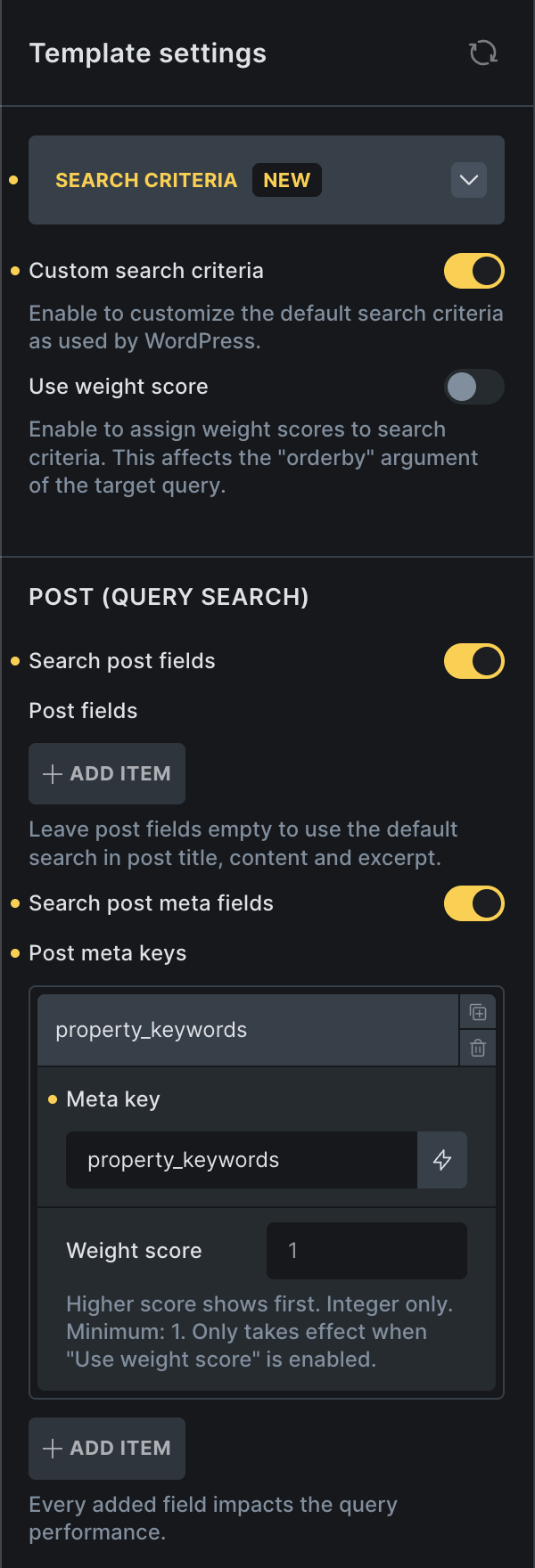
Inside the builder, open your Search Result template → Template Settings → Search Criteria section.
Custom search criteria: This reveals all available search settings for controlling how the native s search behaves.
Use weight score (optional): When enabled, Bricks will calculate a ranking score based on your defined weight values and order the results accordingly. More about weight scoring.
Search Controls
Section titled “Search Controls”Search post fields - Enable to define which standard WordPress post fields should be searched. Available fields are Title, Content, and Excerpt.
Search post meta fields - You can add any meta key here (custom fields) to include them in your search criteria.
Search post terms - Search assigned terms of selected taxonomies by term name, slug, and description.
Search Result templates only provide post-search criteria, because native WordPress search returns posts. Term and user search criteria are available in the Filter – Search element when that filter targets a term or user query.
Once configured, perform a search on the frontend and your results will follow the criteria defined in the Search Result template. If Custom search criteria is enabled but no post fields, meta fields, or taxonomies are enabled, the search has no custom source to search and will return no matches.
Search Criteria in the “Filter – Search” Element
Section titled “Search Criteria in the “Filter – Search” Element”When Query Filters are enabled in Bricks, you can create advanced filtering systems for any Query Loop on any page.
Before Bricks 2.2, the Filter – Search element always used the default WordPress "s" logic. Now, you can define custom search criteria per filter element. Inside the Filter – Search element settings, you will now see a Search Criteria section.
If the Filter – Search element uses the native WordPress search URL parameter s, Bricks expects the search criteria to come from the Search Result template instead of the individual filter element. This keeps the frontend search box, URL parameter, and Search Result template aligned.
Post Query
Section titled “Post Query”Search post fields - Enable to define whether to search in Title, Content, and Excerpt
Search post meta fields - You can add any meta key here (custom fields) to include them in your search criteria.
Search post terms - Search assigned terms of selected taxonomies by term name, slug, and description. Useful for product categories, tags, brands, or other taxonomy-based relationships.
Term Query
Section titled “Term Query”Search term fields - Enable to define whether to search in Name, Slug, and Description.
Search term meta fields - You can add any meta key here (custom fields) to include them in your search criteria.
User Query
Section titled “User Query”Search user fields - Enable to define whether to search in Username, Nicename, Email, URL, and Display name.
Search user meta fields - You can add any meta key here (custom fields) to include them in your search criteria.
How matches are applied
Section titled “How matches are applied”For post queries, Bricks searches the selected sources and sets the matching post IDs on the query. For term and user queries, Bricks sets the matching term or user IDs on the query. If there are no matches, Bricks passes an impossible ID/slug so the target query returns no results.
Search Criteria uses partial LIKE matching. For post terms, Bricks searches the assigned term name, slug, and description for each selected taxonomy. For custom meta fields, it searches the raw stored meta_value.
Every enabled field, meta key, or taxonomy adds work to the database query. Use the smallest set of searchable fields that matches the frontend experience you need.
What is “Use weight score”?
Section titled “What is “Use weight score”?”Weight score lets you control the order of your search results. The higher the weight score for a specific search field, the higher the result will appear if that field matches the search term.
Example: How weight scoring works
Section titled “Example: How weight scoring works”Search Criteria setup:
Search post fields:
- Title → weight 1
- Content → weight 1
Search post meta fields:
- my_field → weight 3
Search term: car
Matched posts:
| Post ID | Found in | Weight |
|---|---|---|
| 1001 | Title | 1 |
| 1002 | Title + Content | 1 + 1 = 2 |
| 1003 | my_field | 3 |
Final result order: 1003, 1002, 1001
Weight scores are integer values with a minimum of 1. Matching scores are added together, so an item that matches multiple low-weight fields can outrank an item that matches one field. Bricks preserves the weighted order by ordering the query by the matched ID list. If a Sort filter is active, that sort order takes precedence.
Was this helpful?
A quick vote and short notes help us improve these docs faster.
Leave a note for us
Please do not include passwords, license keys, or personal data. We store submitted notes to improve the docs.
Thanks for sharing feedback. We're using it to improve these docs.