
Build a Design System in Bricks
A design system is a set of decisions you make once and reuse everywhere: your colors, font sizes, spacing, the default look of plain elements, and the patterns and blocks that repeat. In Bricks, those decisions live in the Style Manager, in a theme style, in global classes, and in components. Once they are in place, a new page needs no new styles, and changing one value updates every page that uses it.
This article builds a design system for a small coffee roaster’s website, starting from a page with content and no styling. It follows the same steps as the video.
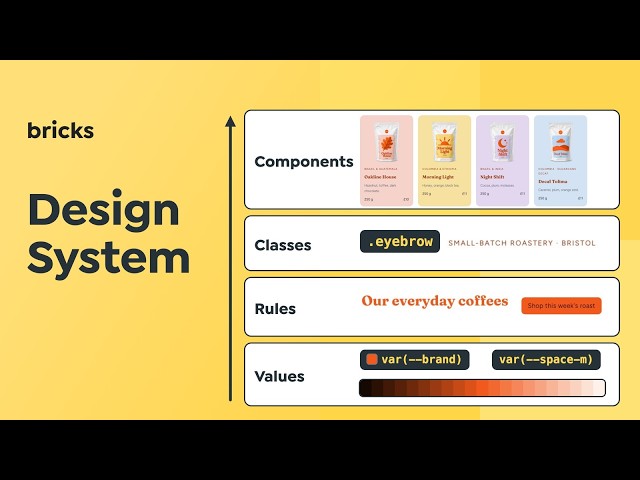
The four layers
Section titled “The four layers”Each layer builds on the one below it:
| Layer | In Bricks | Example |
|---|---|---|
| Values | Colors and variables in the Style Manager | var(--brand), var(--heading-xl), var(--space-m) |
| Rules | A theme style | Body text, headings, buttons, section padding |
| Classes | Global classes | .eyebrow for the small label above a heading |
| Components | Components | A product card |
A component uses classes, and classes use variables. When a value changes, everything above it follows.
Starting point
Section titled “Starting point”The example starts with a header template, a footer template, and a home page with its content in place. Nothing is styled yet: default fonts, default colors, no spacing.
You could style this page element by element. A second page would then mean doing it all again and keeping both pages in sync by hand. The steps below put every decision in one place first.
1. Colors
Section titled “1. Colors”Open the Style Manager and select Colors. See Color Manager for every setting.
- Create a palette for the site.
- Add the brand color and name it
brand, notorange. If the brand color changes later, the name is still correct. - Enable Light shades and Dark shades. Bricks generates ten steps of each from the base color and names them after it:
brand-d-1is one step darker thanbrand,brand-l-9is a soft tint for backgrounds. - Add the neutrals:
inkfor text,ink-mutedfor quieter text, andpaperfor the page background. - Add the colors that only serve one purpose. The example uses six pastels for the product cards (
blush,butter,lilac,mint,sky,clay). - For the pastels, enable the
background-colorutility class. Bricks then creates a global class for each color, such asbg-butter.
Only enable utility classes for colors you will apply as classes. Each one adds a global class per shade.
2. Typography and spacing scales
Section titled “2. Typography and spacing scales”Open Typography in the Style Manager and create a scale for headings:
- Give the scale the prefix
heading-. - Set a base size and a ratio for the minimum (mobile) and another pair for the maximum (desktop). The example uses 20 px at 1.25 for mobile and 24 px at 1.5 for desktop.
- Generate the variables.
Bricks turns every step into a clamp() value, from --heading-2xs to --heading-2xl. A heading grows with the screen instead of jumping at breakpoints. See Fluid Typography for how the values are calculated.
Create a second scale with the prefix text- for body sizes.
Spacing works the same way. Open Spacing and create a scale with the prefix space-, from --space-2xs to --space-2xl.
3. Variables and categories
Section titled “3. Variables and categories”A few values are not part of a scale. Add them in Variables and give each group its own category:
| Category | Variable | Value |
|---|---|---|
| Layout | container | 1240px |
| Shape | radius-s | 10px (buttons) |
| Shape | radius-m | 24px (cards) |
The scales already sit in their own categories, so the variable picker stays readable as the list grows. See Global Variables Manager.
Name variables by role or step, like radius-s and radius-m. A name like radius-24 is wrong the moment you change the value.
Values do nothing until something uses them. The page still looks the same after this step.
4. Theme style
Section titled “4. Theme style”The theme style sets the defaults for every element, so plain headings, text and buttons never need their own settings.
Create a theme style. A new theme style applies to the entire website by default. Then set:
| Group | Setting | Value |
|---|---|---|
| Typography | Body | Figtree, var(--text-m), var(--ink) |
| Typography | Headings | Fraunces, var(--brand) |
| Typography | H1 / H2 / H3 | var(--heading-2xl) / var(--heading-l) / var(--heading-m) |
| Elements > Button | Background, text color, border radius | var(--brand), var(--brand-d-8), var(--radius-s) |
| Elements > Section | Padding | var(--space-2xl) top and bottom, var(--space-m) left and right |
| Elements > Container | Width | var(--container) |
| Elements > Container and Block | Row gap | var(--space-s) |
The row gap on Container and Block gives stacked headings and text even space without a single margin.
Save, and the whole page changes, including the header and footer templates. Switch to the mobile breakpoint: headings and section padding shrink with the screen, without any breakpoint-specific setting.
5. Classes
Section titled “5. Classes”A theme style styles headings, text and buttons. It does not know the small label above a heading or the quieter line under a title. Those are patterns, and patterns need global classes.
- Select the label above the hero heading and add a class named
eyebrow. - Style it once:
var(--text-s), uppercase, a little letter spacing, andvar(--brand-d-4). - Add the same class to the other labels.
- Add
text-lfor intro paragraphs andtext-mutedfor quieter text.
Name classes by purpose, in lowercase with hyphens. text-muted still makes sense when the color changes; grey-text does not.
In the Global Class Manager, put the three classes into a category called Typography. Layout classes such as card-grid (below) go into a second category, Layout.
6. Components
Section titled “6. Components”The coffee card repeats eight times on the home page. That makes it a component.
- Style one card first:
var(--space-m)as padding andvar(--radius-m)as border radius. In the variable picker, open the Shape category to find the radius quickly. - Give the origin the
eyebrowclass, the tasting notestext-muted, and the name a darker brand shade. - Right-click the card in the Structure panel, choose Save as component, and name it
Coffee card. - Add a property for everything that changes from card to card (image, origin, name, notes, price) and connect each one to its element. See Property types.
A component has no color property type, but it has a global classes property. Create one named Color, add an option for each pastel, assign each option its bg-* class, and connect the property to the card’s root element. Each instance now only asks for its content and a color.
Give the row of cards a class too:
/* card-grid: as many columns as fit, four on a desktop */display: grid;grid-template-columns: repeat(auto-fit, minmax(22rem, 1fr));gap: var(--space-m);The numbered section headings and the café panel become components the same way: Section head, and Feature panel with a Style option (global classes property) for a soft or a bold background.
7. Build a new page
Section titled “7. Build a new page”On a new page, the header and footer are already there because they are templates.
- Add a heading and an intro. They pick up the theme style without a single setting.
- Insert a
Section head, then a Block with thecard-gridclass andCoffee cardinstances. Fill in the content and pick a color. - Add a
Feature panelwith its own image and text.
The page has no new styles. Everything on it comes from the system.
Change the brand color
Section titled “Change the brand color”Open the Color Manager and change brand to a new color. Bricks regenerates the shades from it, and headings, buttons, labels and panels follow on every page, in the header and in the footer.
Related
Section titled “Related”Was this helpful?
A quick vote and short notes help us improve these docs faster.
Leave a note for us
Please do not include passwords, license keys, or personal data. We store submitted notes to improve the docs.
Thanks for sharing feedback. We're using it to improve these docs.