
Fluid Spacing
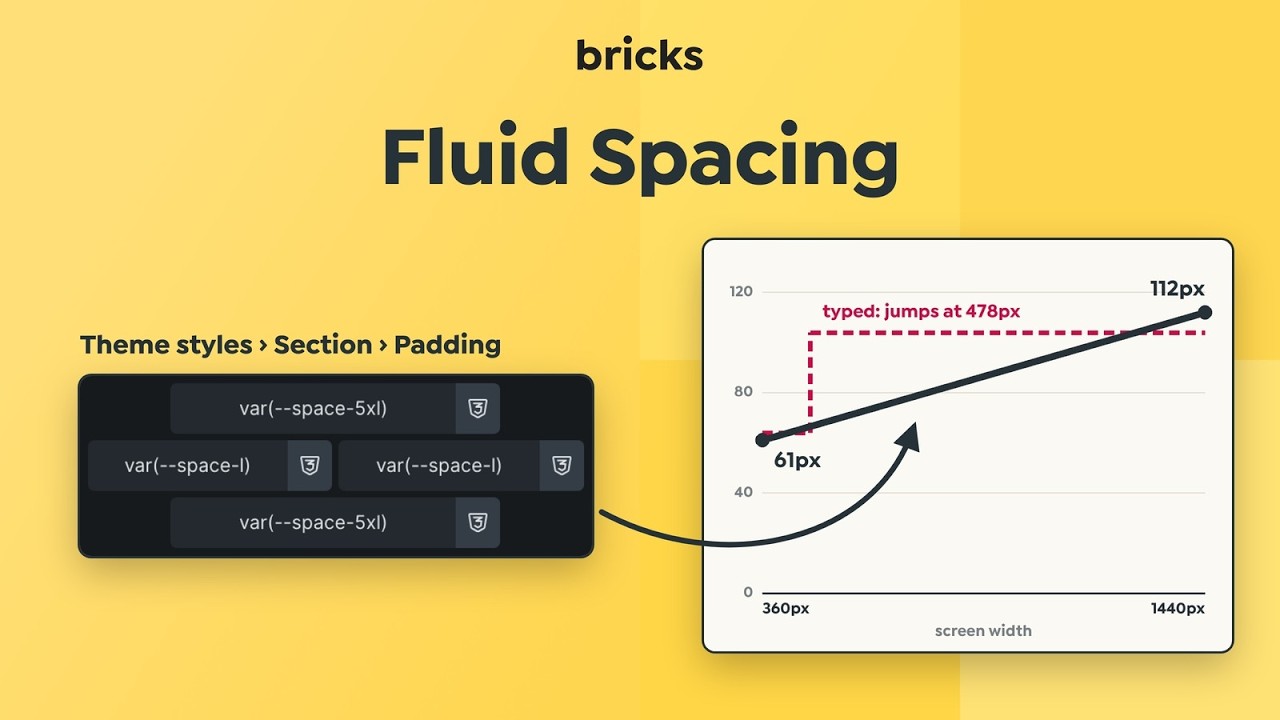
A fluid spacing scale replaces fixed padding, margin and gap values with CSS variables that grow with the screen. Each variable uses a clamp() value: its minimum on small screens, its maximum on large screens, and a smooth transition in between. One spacing variable can replace a padding value and the separate values you would otherwise set on each breakpoint.
Accessing fluid spacing
Section titled “Accessing fluid spacing”Open the Style Manager from the builder toolbar, then select Spacing in the Style Manager sidebar. From there you can create and edit spacing scales.
The minimum and maximum screen widths and the HTML font-size used for rem calculations are set once in the Style Manager settings and apply to all spacing and typography scales (default: 360px and 1440px).
Creating a spacing scale
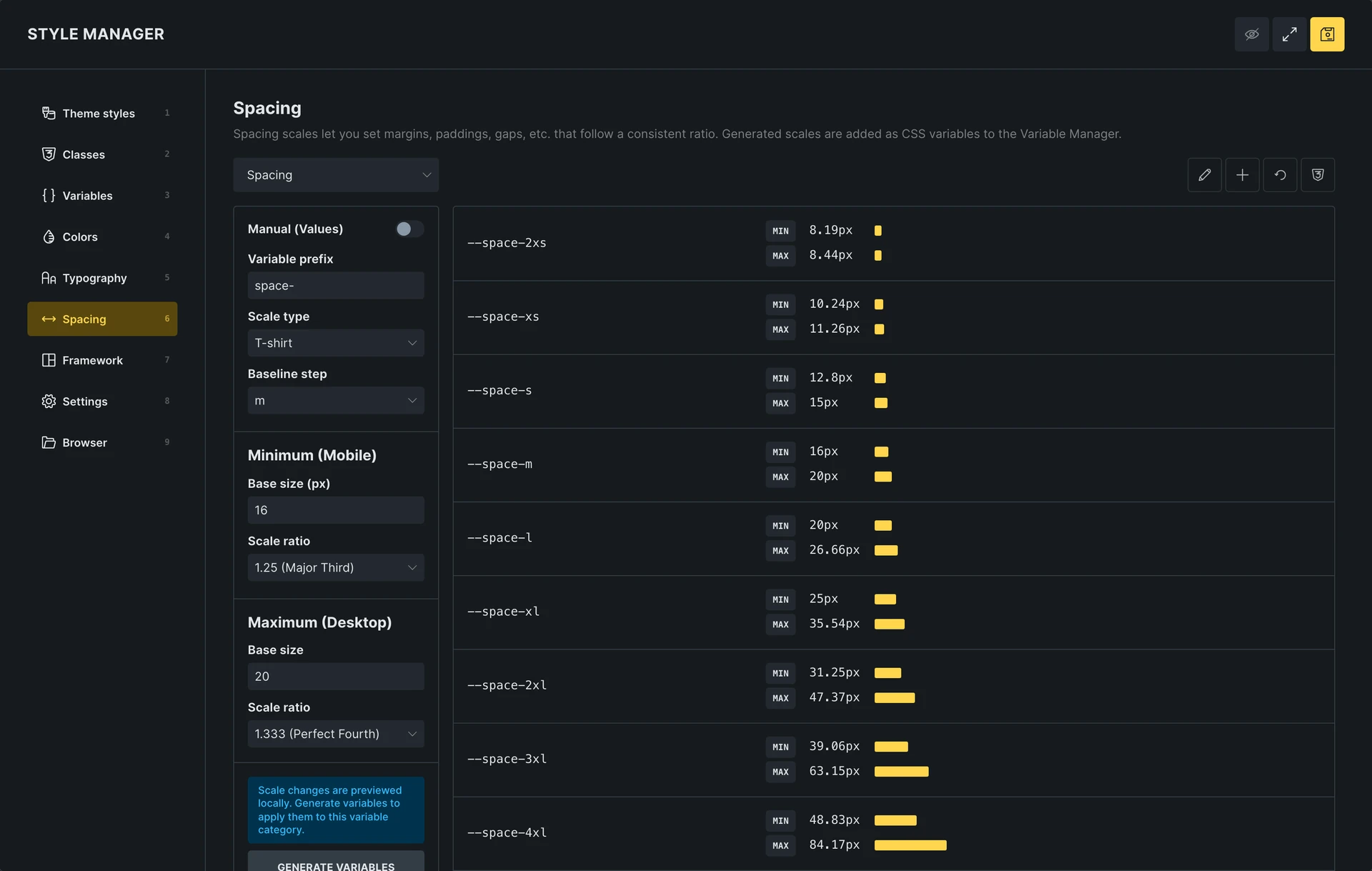
Section titled “Creating a spacing scale”Every spacing scale is a variable category. Enter a scale name, for example Spacing, and click Create. A new scale starts with these settings:
- Variable prefix:
space- - Scale type: T-shirt, with seven steps from
2xsto2xl - Baseline step:
m - Minimum (Mobile): base size
16px, scale ratio 1.25 - Maximum (Desktop): base size
20px, scale ratio 1.333
With these settings, space-m runs from 16px on small screens to 20px on large screens, and every other step is calculated from it with the scale ratio.
The prefix, scale type, baseline step and ratios work the same way as in the typography scale generator. See Fluid Typography for each control.
Generating variables
Section titled “Generating variables”Changes to the scale settings are previewed in the list first. Click Regenerate variables to create or update the variables of the category (without pending changes, the button reads Generate variables).
Generating replaces all variables of the category, and Bricks asks you to confirm this when the category already has variables. As long as the number of steps and the scale type stay the same, the names stay the same too, so every var(--space-l) in your design picks up the new value.
Generated variables appear in the variable picker of every spacing and size control, grouped by their category.
Adding larger steps for section padding
Section titled “Adding larger steps for section padding”With the default settings, the largest step, space-2xl, ends at about 47px. That is usually too small for the padding of a section.
Hover over the last row of the list and click + to add a larger step (3xl, then 4xl, 5xl and so on). With the default settings, space-5xl runs from about 61px on small screens to 112px on large screens. Hover over the first row to add a smaller step instead. To remove the smallest or largest step, hover over the first or last row and click −.
Using spacing in a theme style
Section titled “Using spacing in a theme style”To give every section the same padding, set it once in a theme style instead of on each section: Theme styles > your theme style > Elements > Section > Padding.
Each side has its own variable picker. With Opposites linked turned on, setting the top value also sets the bottom value, and setting the left value also sets the right value. For example, use var(--space-5xl) for top and bottom and var(--space-l) for the sides. The Container group in the same theme style has its own padding, row gap and column gap.
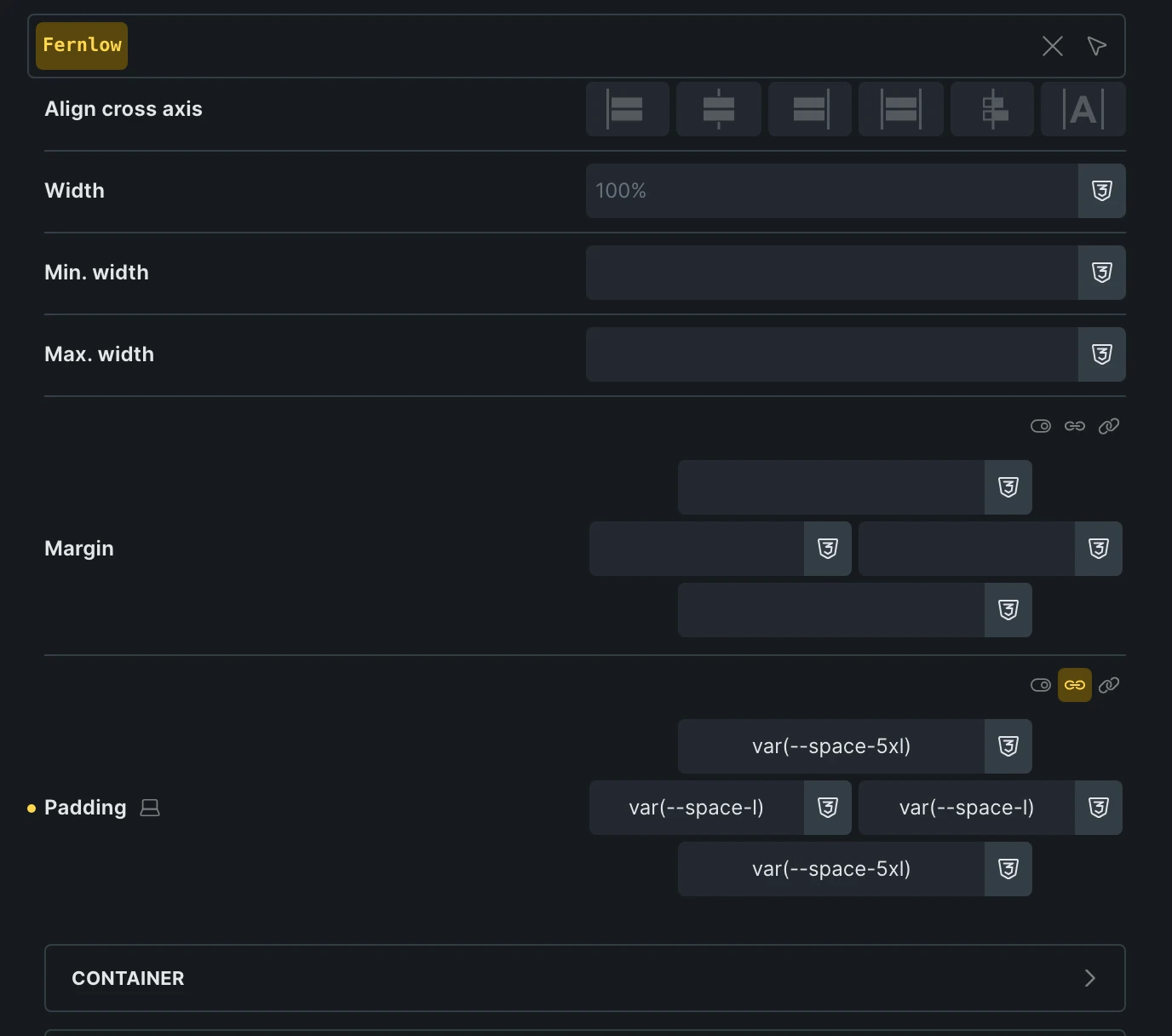
To make a whole page tighter or roomier later, change the step in the theme style, for example from var(--space-5xl) to var(--space-4xl). Every section that follows the theme style updates on every page.
Clearing padding on elements
Section titled “Clearing padding on elements”Padding set directly on an element, including padding set on a breakpoint, takes precedence over the theme style. Clear it on the sections that should follow the theme style.
To clear several sections at once, select them in the Structure panel. Click the first section, then Shift-click the last one to select all sections in between, or hold CMD (macOS) or CTRL (Windows/Linux) and click to add single elements. The panel switches to Bulk edit and shows how many elements are selected. Clearing a field clears it on all of them. If the sections have their own padding on a breakpoint, switch to that breakpoint and clear it there as well.
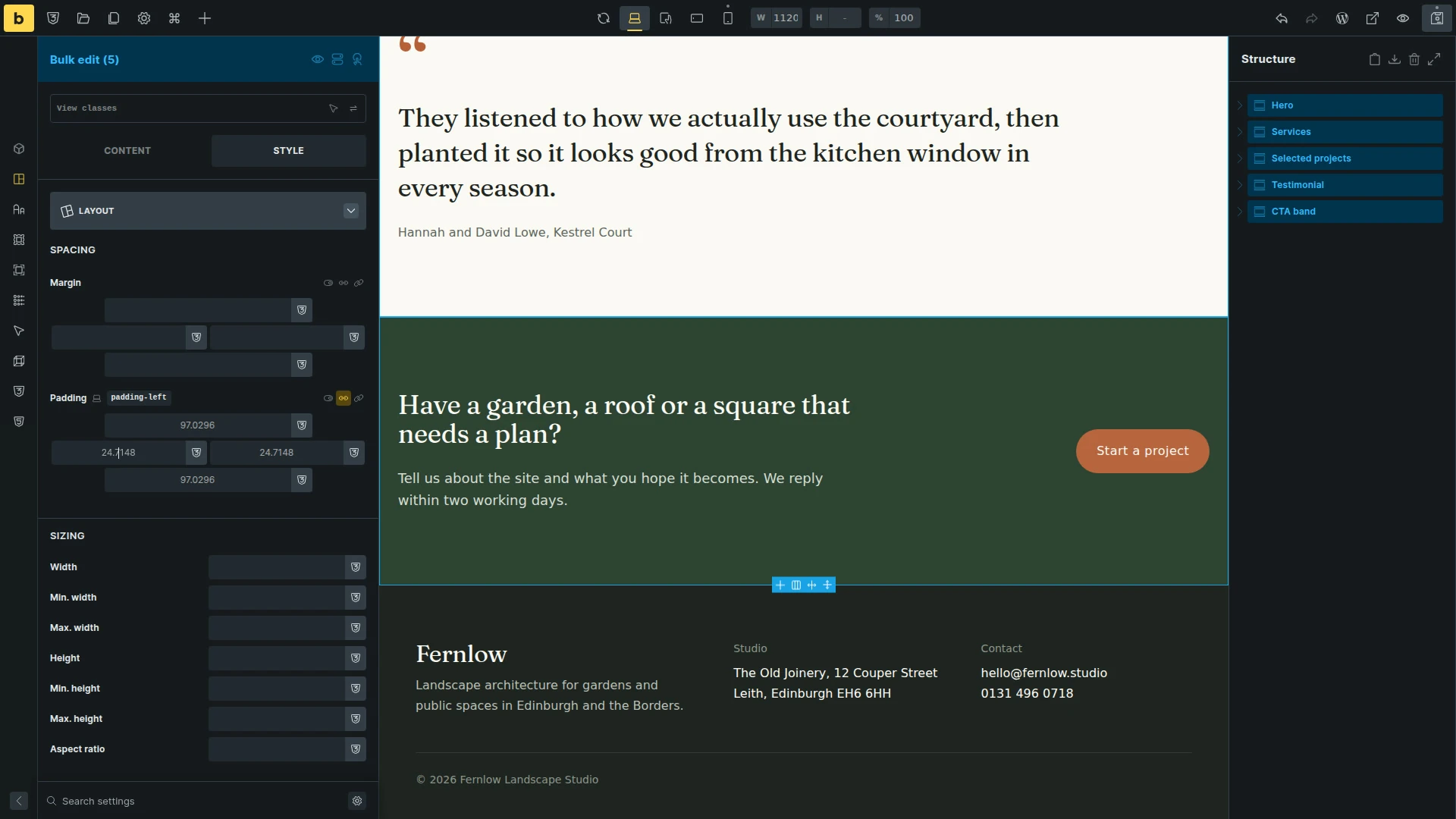
For an element that should deliberately differ, pick another step of the same scale instead of typing a value.
Utility classes
Section titled “Utility classes”Below the list, the spacing scale can generate utility classes such as gap-m or p-l. Only generate the classes you actually use.
Was this helpful?
A quick vote and short notes help us improve these docs faster.
Leave a note for us
Please do not include passwords, license keys, or personal data. We store submitted notes to improve the docs.
Thanks for sharing feedback. We're using it to improve these docs.