
Global Filters & Filter Manager
Starting with Bricks 2.5, Global Filters let several filter elements share one saved configuration. Use them for desktop sidebar and mobile Offcanvas filters that should filter the same listing and show the same selections.
The Filter manager creates, edits, organizes, imports, and exports global filters. Each linked element keeps its own Target query, styling, and presentation.
Enable Query Filters before setting up filter elements. Creating and editing global filters requires the Access filter manager builder permission.
How Global Filters Work
Section titled “How Global Filters Work”A global filter stores shared behavior, such as the source, taxonomy, comparison, URL parameter, and when to apply the filter. An element links to that configuration through its Global filter control.
| Setup | Behavior |
|---|---|
| Two elements use the same global filter and target the same query | Selections synchronize, and Bricks applies the filter once to that query. |
| Two elements use the same global filter and target different queries | Settings are shared. Each query keeps its own selections and results. |
| Two elements have matching settings but no shared global filter | They remain independent filters. Matching URL parameter names do not link them. |
Global filters are specific to an element type. A Checkbox global filter can be selected by other Checkbox elements, but not by Radio or Select elements.
Supported types are Checkbox, Radio, Select, Range, Search, Datepicker, Geolocation, Submit/Reset, and Active Filters. Pagination is configured separately through its own Query setting.
Global Filters do not require a Global Query. A Global Query shares a loop’s query settings. A Global Filter shares a filter’s settings. Each filter element still targets the particular loop it should control.
Create From an Existing Filter
Section titled “Create From an Existing Filter”- Select a configured filter element in the builder.
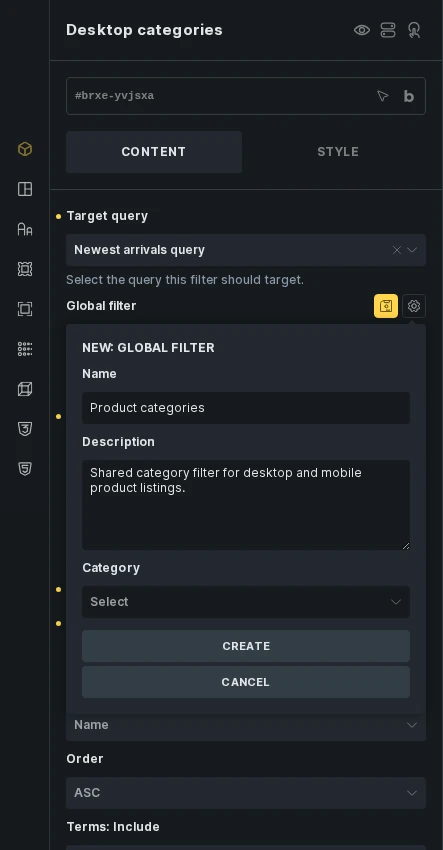
- Click the save icon beside Global filter to open Create global filter.
- Enter a name, such as “Product categories”.
- Optionally add a description and category.
- Click Create.
- Save the builder.
Bricks moves the supported shared settings into the global filter and links the element to it. The element keeps its target query and presentation settings.
Create in Filter Manager
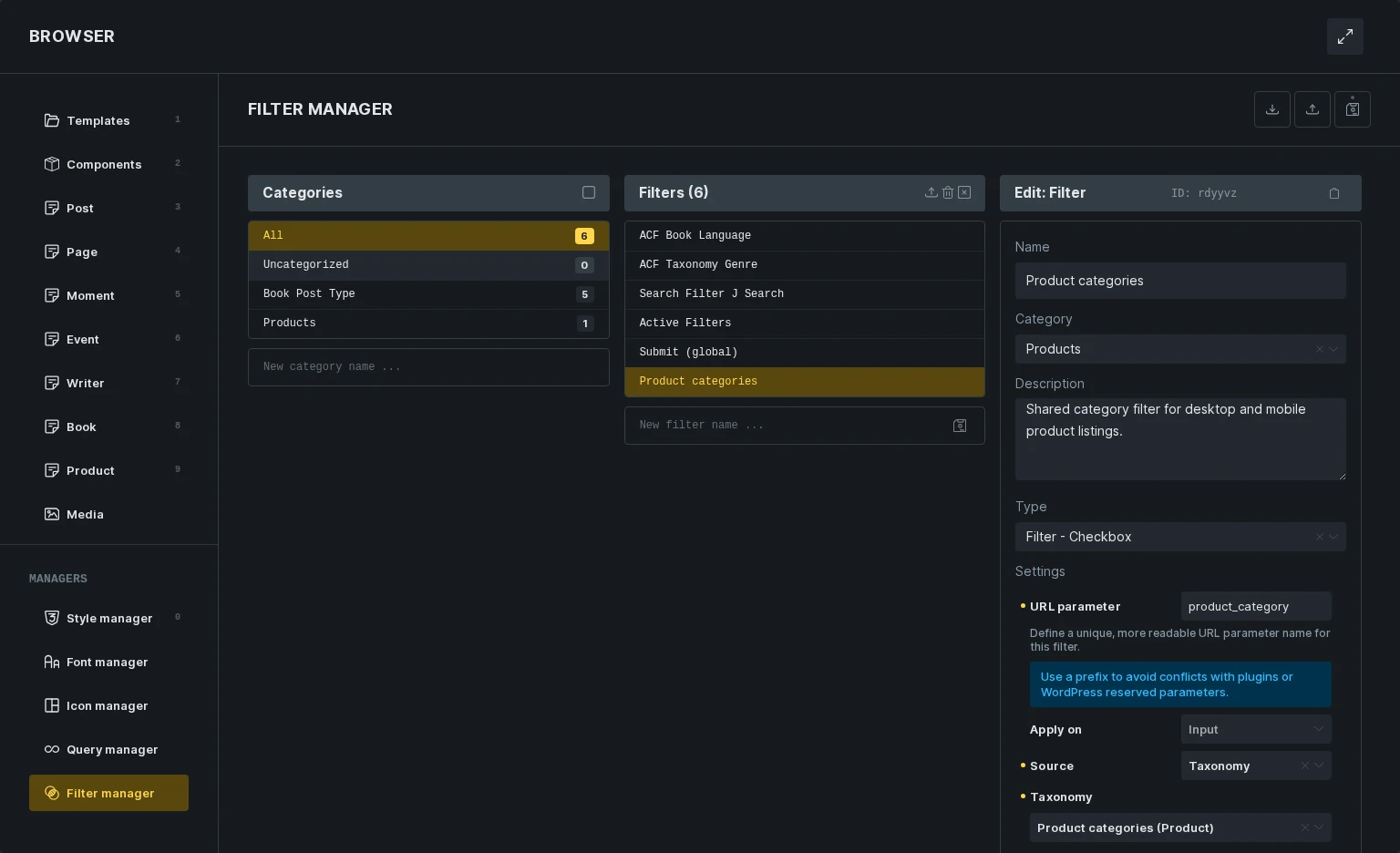
Section titled “Create in Filter Manager”Open Browser from the builder toolbar and select Filter manager. The settings icon beside an element’s Global filter control opens the manager directly.
- Enter a name in the new-filter field below the filter list.
- Click the save icon or press Enter.
- In the editor, choose the Type. New filters start as Checkbox filters.
- Set the source and other shared behavior.
- Optionally assign a category and description.
- Save the builder.
Creating a global filter in the manager does not add an element to the page. Add a matching filter element and select the saved global filter to use it.
Link and Edit Filter Elements
Section titled “Link and Edit Filter Elements”Select a filter element, choose a compatible entry under Global filter, and set Target query for that element. The dropdown only lists global filters of the same element type.
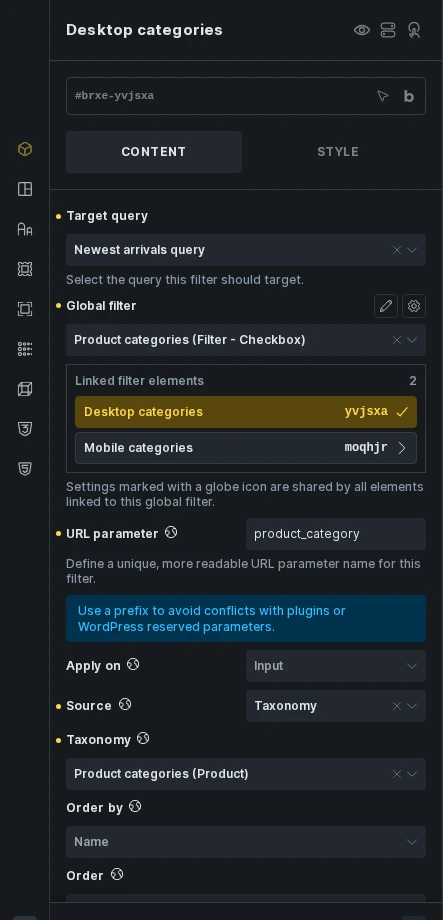
On a linked element, settings marked with a globe icon belong to the global filter. Editing them updates the shared configuration for every linked element, including elements on other pages. Use the edit icon beside Global filter to open that configuration in Filter manager.
| Shared settings | Settings kept on each element |
|---|---|
| Source, field mapping, comparison, taxonomy restrictions and ordering | Target query |
| Hierarchical display, Auto toggle child terms, and Count: Include children | Expand/collapse controls, initial expansion, icons, and indentation |
| Filter, sort, or results-per-page action and its options | Styling, classes, layout, and button-style display |
| URL parameter and Apply on | Labels, placeholders, icons, and accessibility group labels |
| Search criteria, debounce, minimum characters, and Enter behavior | Show more/less limits and presentation |
| Range and date behavior, including Datepicker’s End date meta key | Choices dropdown/search presentation |
| Default values, range/date endpoints, and Geolocation default location | Geolocation map connection and appearance |
| Reset exclusions and active-filter prefix, suffix, and title | The element’s current selection, scoped to its target query |
The available settings depend on the filter type. The globe icon identifies shared controls on the selected element.
Default filter values belong to the global filter. Linked copies targeting the same query start with one shared selection. Copies targeting different queries resolve their defaults independently in the page context. Clearing a shared default leaves linked elements without that default; an older local default is not used instead.
For a Datepicker with separate start and end fields, the provider, field type, and both field selections belong to the global filter. Native metadata and supported ACF, Meta Box, and JetEngine date fields work on posts, terms, and users. Linked elements share those settings and one index. Source, provider, or field-type changes clear the retained end field; select a compatible replacement. If you link an element to a global filter without an End date meta key, it uses one-field behavior. An older local end key is not used, including after unlinking.
For a hierarchical Checkbox filter, linked desktop and mobile copies share selections while keeping their own expanded branches and Show more/less state. For example, enable Show expanded on the desktop copy and leave it off on the mobile copy. Count: Include children uses the shared index. Edit it on the global filter to update every linked copy. See taxonomy child counts for an example.
When several elements in the current editing context use the same global filter, Linked filter elements lists them below the control. Click an entry to select it. Matching rows are highlighted in Structure. This list does not show every use across the site.
Example: Desktop and Mobile Product Filters
Section titled “Example: Desktop and Mobile Product Filters”- Create a product Query Loop and a Checkbox filter that targets it.
- Set the Checkbox source to Taxonomy and choose the product category taxonomy.
- Create a global filter from this element named “Product categories”.
- Add a second Checkbox filter inside an Offcanvas.
- Select “Product categories” under Global filter and target the same product query.
- Style the sidebar and Offcanvas copies separately, then save the builder.
Selecting a category in either copy updates the other copy. Both control one category selection for the product query. Test the selection after an AJAX update and after reloading a filtered URL.
Apply on is shared. If it is set to Submit, both copies wait for a Submit button targeting that query. A desktop copy using Input and a mobile copy using Submit cannot share one global filter configuration.
URL Parameters and Separate Queries
Section titled “URL Parameters and Separate Queries”For one target query, the default parameter uses the global filter ID:
?brx_glob01=shirtsA custom URL parameter, such as product_category, uses that name instead. Duplicate controls for one query and reuse on separate pages retain this format.
When the same global filter targets multiple URL-enabled queries on one page, Bricks adds each target query ID to keep their selections separate:
?brx_glob01_querya=shirts&brx_glob01_queryb=shoesWith a custom parameter:
?product_category_querya=shirts&product_category_queryb=shoesThese IDs are examples. Component queries use their rendered instance IDs. Array-valued filters retain the [] URL format.
Bricks derives the suffixes automatically. Reloads, resets, active-filter removal, submit/search redirects, and browser back/forward use the same query ownership. Existing unscoped links remain supported; an explicit query-scoped value takes precedence for that query.
Unlink, Delete, or Change Type
Section titled “Unlink, Delete, or Change Type”Clear Global filter on an element to unlink it. Bricks copies the current shared settings into that element, preserving its target query and presentation. Save the builder. Future edits on that element are independent.
Bricks blocks deleting a global filter or changing its type while saved content still references it. Unlink the affected elements and save those changes first. References in saved templates, components, legacy global elements, and trashed posts can also prevent removal.
The manager’s linked-element list is local to the current editing context, so an empty list there does not prove the global filter is unused elsewhere.
If a save reports that global filters changed since the builder loaded, preserve any work you need, reload the builder, and reapply the changes against the current configuration. Bricks rejects stale global-filter saves to prevent overwriting another saved edit.
Import and Export
Section titled “Import and Export”Filter manager’s header exports the global filters and categories as JSON. To export only specific filters, select them and use the export icon in the filter-list toolbar. That export includes categories used by the selected filters.
The manager accepts supported JSON and ZIP imports. Imported filters stay unsaved until you save the builder. An imported filter with an existing ID replaces that definition when its type matches. A same-ID filter with a different type is skipped.
For a ZIP package with item selection and Keep existing or Replace conflict review, use Global Import / Export. Global filters appear as Filters. This import applies selected changes through the bundle importer.
Global filter definitions can move between sites. Elements that still link to a global filter cannot be transferred through cross-site clipboard or template/component imports. Unlink the elements on the source site and save before copying or exporting them. After import, select the destination site’s global filter on each matching element and check its target query. Same-site clipboard reuse can retain the link.
Check that the destination has the required taxonomies, custom fields, and plugin data. Importing a definition does not create that content model or transfer generated filter indexes.
Indexing
Section titled “Indexing”Indexable global filters share one index owned by the global filter ID. Adding another linked element does not create a second copy of that index. Counts still reflect each element’s target query.
Checkbox, Datepicker, Radio, Select, and Range global filters using the Filter action can own value indexes. Search, Submit/Reset, Active Filters, sorting, and results-per-page behavior do not generate their own value indexes.
Source and behavior changes can queue indexing work. Renaming a global filter, changing its category, or editing only its default selections does not rebuild its index. Default-only edits preserve existing index data and indexing progress. Use the existing indexing tools to regenerate indexes or continue pending jobs.
Permissions and Compatibility
Section titled “Permissions and Compatibility”- Access filter manager controls creation, shared-setting edits, organization, deletion, and definition import/export. Users without it can select an existing compatible global filter and edit local settings.
- Existing unlinked filter elements stay independent. Bricks does not automatically convert them into global filters.
- Query Filter elements still cannot be placed inside components. Filters outside a component can target its query loops, including supported slot queries. Select the actual rendered loop instance as the target.
- WPML and Polylang do not register global filter settings as translatable strings. Use separate definitions for languages that need different shared labels, values, or term restrictions, and link translated elements to the matching definition.
- On multisite, definitions and categories follow their respective main-site sharing settings. Generated indexes remain separate for each site’s content. Shared definition changes synchronize index ownership on each site’s next applicable request, rather than immediately rebuilding every site’s index.
Was this helpful?
A quick vote and short notes help us improve these docs faster.
Leave a note for us
Please do not include passwords, license keys, or personal data. We store submitted notes to improve the docs.
Thanks for sharing feedback. We're using it to improve these docs.