
Generate Classes
Starting in Bricks 2.5, Generate classes creates global CSS classes from element labels or types. Use it to name a section and its children consistently, move reusable styles into classes, or review class names after changing your structure.
Open the class generator
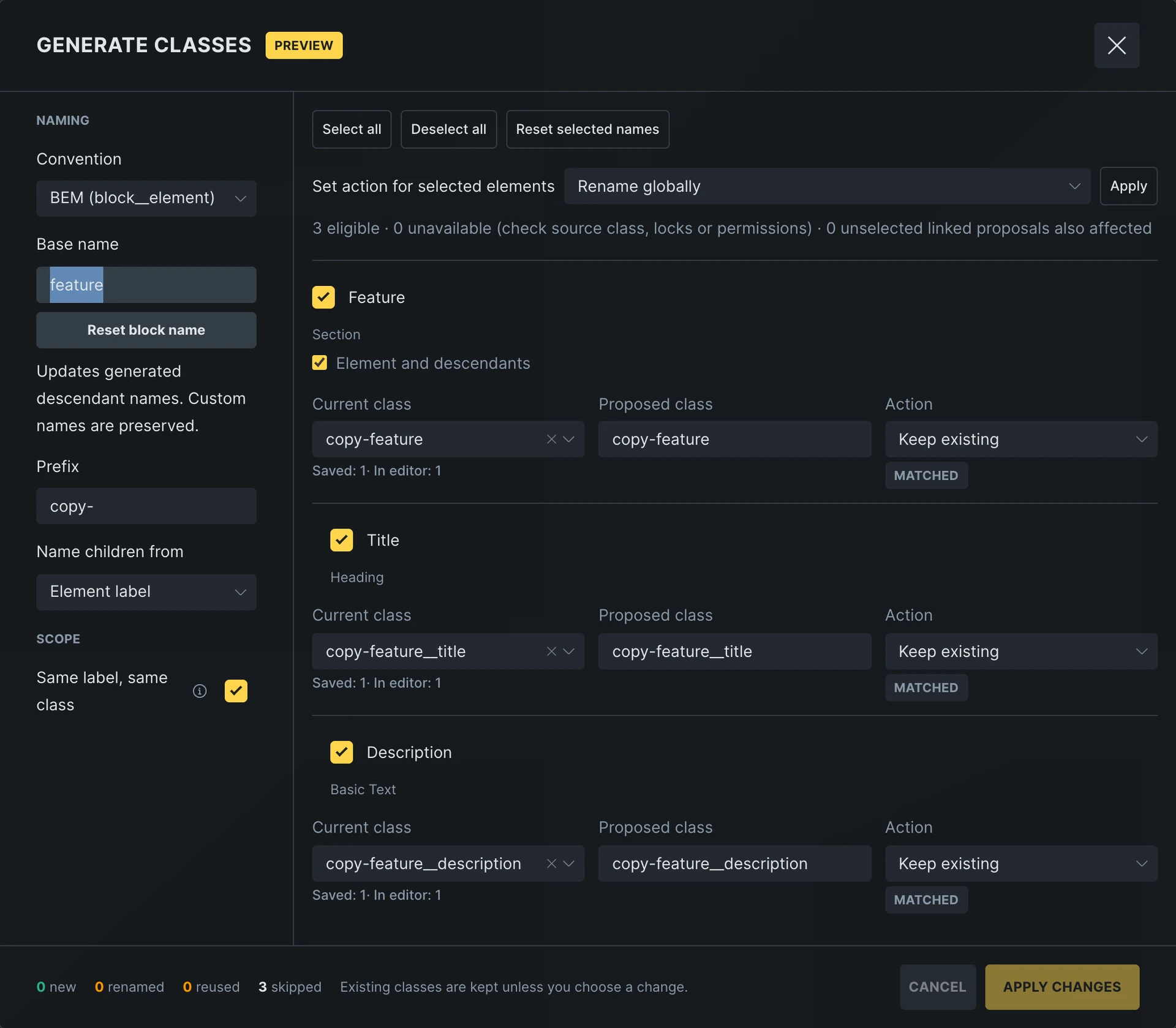
Section titled “Open the class generator”In the Structure panel, right-click the parent element and select Generate classes. The popup lists that element and its descendants, with their current classes, proposed names, and actions.
Existing classes default to Keep existing. Elements without a class default to Add class. Opening or cancelling the popup does not change your classes.
Choose the names
Section titled “Choose the names”The Base name starts from the parent element’s label. Name children from uses either Element label or Element type for the descendants. Descriptive labels such as Title, Description, and Button make the proposed names easier to recognize.
Choose a Convention that matches your existing classes:
| Convention | Parent class | Child labeled Title |
|---|---|---|
| BEM | feature | feature__title |
| BEMIT | c-feature | c-feature__title |
| SUIT CSS | Feature | Feature-title |
| SMACSS | feature | feature-title |
| Custom | Your chosen format | Your chosen format |
Custom exposes Element separator, Block case, and Element case. Prefix is available with every convention. Names use the same base throughout the selected structure: a deeply nested Title still becomes feature__title, rather than including every parent label.
Edit a Proposed class directly to give it a custom name. Custom names survive changes to naming options. Use Reset name or Reset selected names to return to generated proposals. Reset block name restores the base from the parent label and updates generated child names while preserving custom names.
Repeated labels
Section titled “Repeated labels”Same label, same class lets elements with identical labels share a class when adding classes. With type-based naming, the control becomes Same type, same class. Turn it off to give repeated names numbered suffixes such as feature__button-2.
This option does not merge different existing classes.
Select elements and actions
Section titled “Select elements and actions”Use each row’s checkbox to include or skip an element. Select all and Deselect all control the whole list. The Element and descendants checkbox selects a parent and its subtree, including the parent itself.
| Action | What happens |
|---|---|
| Keep existing | Leaves the current class and its assignment unchanged. |
| Add class | Creates and assigns the proposed class, or reuses an existing class with that name. Other assigned classes stay in place. |
| Rename globally | Renames the current class everywhere it is assigned, including outside this structure. Its styles and class ID are preserved. |
| Duplicate and replace | Copies the current class under a new name and replaces its assignment on the selected elements. Other uses keep the original class. |
If an element has several classes and Bricks has no saved generator binding for it, choose the Current class you want to work with. With one assigned class, Bricks selects it automatically. Utility classes unrelated to the chosen source remain assigned.
To set several actions together, choose Set action for selected elements and click the adjacent Apply button. This updates the proposals; the footer’s Apply changes button applies them to your classes.
Shared classes and copies
Section titled “Shared classes and copies”Rows using the same source class can have linked name and action proposals. The popup identifies these connections, including linked rows that are unchecked. Review the highlighted rows when changing a shared proposal.
A global rename affects every assignment even if some rows are unchecked. Duplicate and replace changes only the selected assignments. The copy retains the source class’s styles, responsive and state styles, custom selectors, and category.
A copy needs a different name from the original, even if the original has only one assignment. It also cannot take another existing class’s name. Resolve conflicts or use Use unique names before applying. Copies share one new class only when both their source class and proposed name match.
Move element styles into classes
Section titled “Move element styles into classes”When adding classes, Move ID styles into class controls what happens to styles currently set on the elements:
| Option | Behavior |
|---|---|
| Keep styles on elements | The default. Assigns classes without moving ID styles. |
| Move styles to new classes only | Moves styles only when creating a new class. Existing class styles are preserved. |
| Move styles to new and existing classes | Can also move styles into a reused class. Review changes that affect its other uses. |
Moved styles are removed from the element ID. Content such as text, links, and images stays on the element. If several elements receive the same new class, only their matching style settings move into it; individual differences remain on each element.
For example, two buttons with the same padding but different background colors can share the padding through a generated class while keeping their colors on their element IDs.
Style transfer applies to Add class, not to renaming or duplicating a class. Use New classes in to select or create a category for newly added classes. Duplicated classes retain their original category.
Review and apply
Section titled “Review and apply”Before changing shared class names or existing class styles, open Review changes. Check the old and new names, affected elements, and style changes. Select a class in the overview for its details.
The usage counts describe different sets of assignments:
- Saved counts assignments stored across the site, including component definitions.
- In editor counts assignments in the current Builder, including unsaved changes.
The same assignment can appear in both counts, so do not add them together. Click the counts to inspect the locations.
Saved usage does not count repeated rendered instances or literal class references in CSS and JavaScript. The review reports when permissions limit coverage or the location list is truncated. Global renaming requires a successful usage check; a loading or failed check blocks it.
Confirm that you reviewed the listed changes, then click Apply changes. Changing a proposal or its usage evidence requires a fresh review. Save in the Builder to persist the result. A generator run is grouped into one undo step.
Revisit a structure
Section titled “Revisit a structure”After changing element labels or adding children, open Generate classes again on the same parent. Bricks restores the structure’s saved naming options and updates label-derived proposals. Deliberate custom names remain intact.
Class names do not automatically follow label changes. Existing classes still default to Keep existing, so choose whether to rename globally, duplicate and replace, or leave each class as it is. New children can receive classes in the same run.
For example, if a shared feature__title should become feature__heading throughout the site, choose Rename globally and review its usage. If only this structure needs a differently styled heading, choose Duplicate and replace, give the copy a unique name, and edit the copied class afterward.
Availability and boundaries
Section titled “Availability and boundaries”The generator respects your permissions to assign, create, and edit global classes. Global renaming also requires access to the Global Class Manager, and locked classes cannot be renamed.
Component instances inside the selected structure are included without traversing their shared internal elements. To work on those internal elements, edit the component itself. A component instance cannot be the root used to open the generator.
If Generate classes is missing, check Bricks > Settings > General > Miscellaneous > Disable class generator, your class permissions, and whether you are selecting a single regular element rather than a component instance or a bulk selection.
Was this helpful?
A quick vote and short notes help us improve these docs faster.
Leave a note for us
Please do not include passwords, license keys, or personal data. We store submitted notes to improve the docs.
Thanks for sharing feedback. We're using it to improve these docs.