
Drafts
Bricks 2.5 drafts let you save changes to an existing page and its templates before making them live. Use a page draft for one page, or a named site version when work spans several pages.
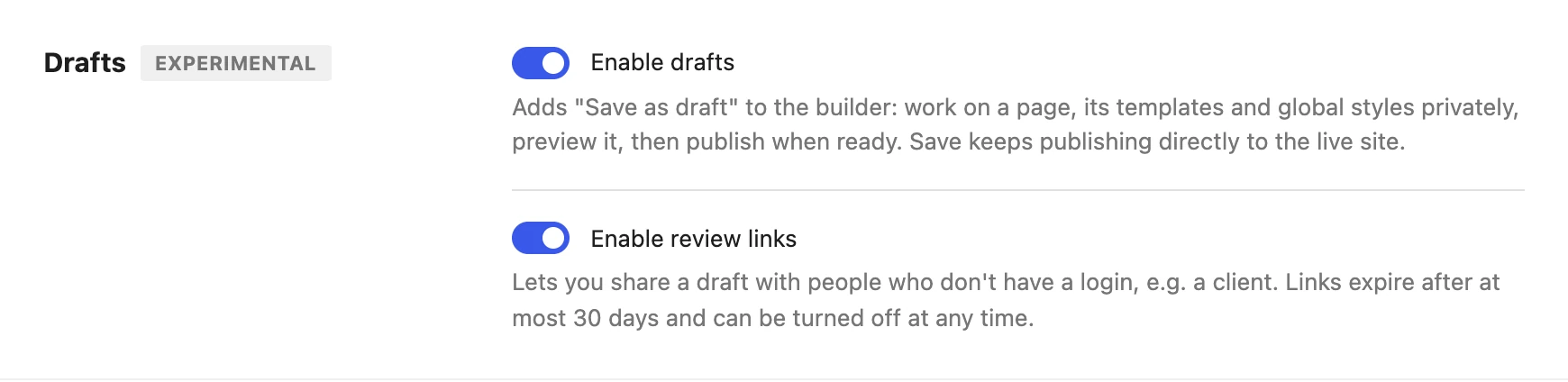
Drafts are experimental and disabled by default.
Enable drafts
Section titled “Enable drafts”- In WordPress, open Bricks > Settings > Builder.
- Under Drafts, select Enable drafts and save the settings.
- Reload the Builder.
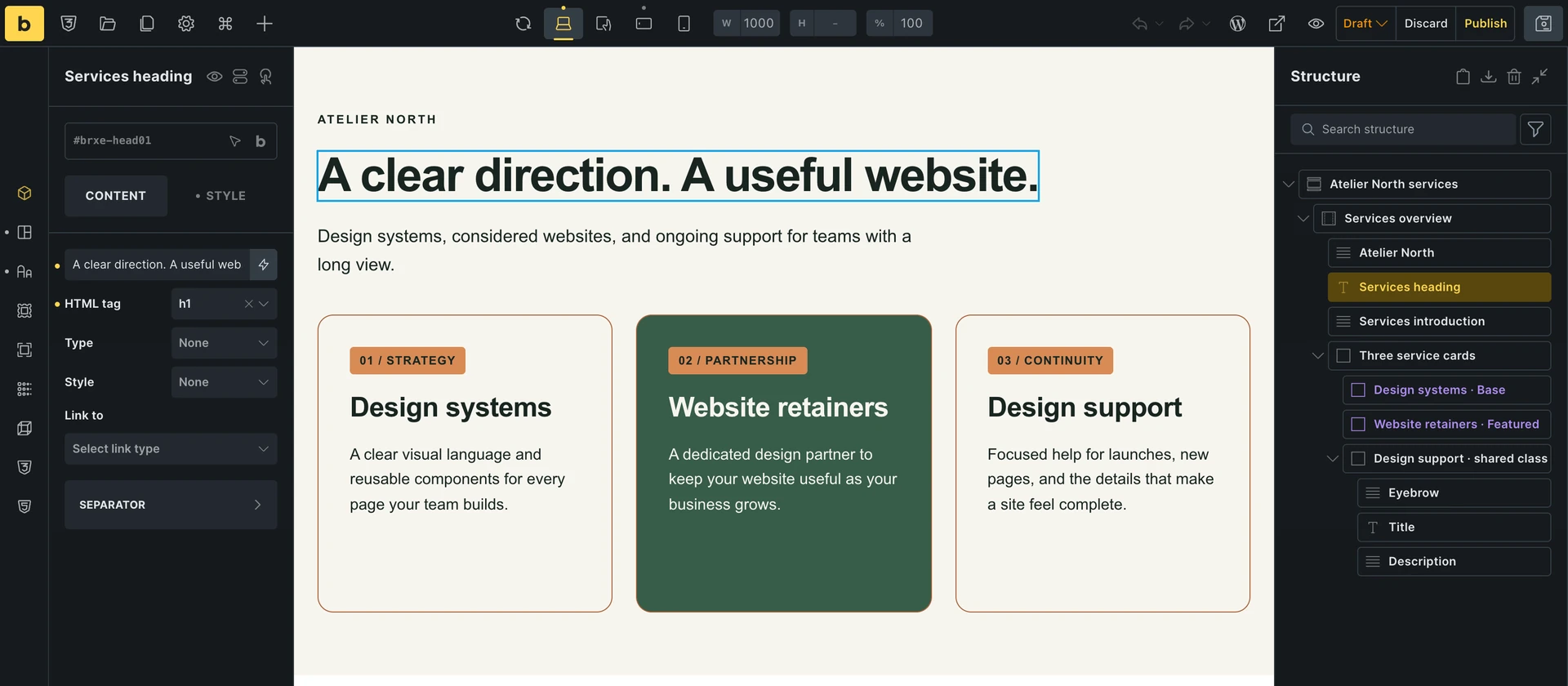
A version switcher appears just before Save in the toolbar. It shows Live when you are editing the live version, Draft for a page draft, or the name of an open site version.
Save a page as a draft
Section titled “Save a page as a draft”- Open the page in Bricks. You can make your edits before creating the draft.
- Open the Live menu next to Save.
- Select Save page as draft. The label follows the post type, such as Save post as draft or Save template as draft.
- Bricks switches to Draft and saves your unsaved changes into it. Continue editing and use Save as usual.
There is one active page draft per page. If the page already has a draft, select Draft in the version menu to continue working on it.
What Save does
Section titled “What Save does”| Current version | Save behavior |
|---|---|
| Live | Saves directly to the page and shared data, using the normal conflict checks. Changes to a published page can appear to visitors immediately. |
| Draft | Saves the page’s pending changes into its Bricks draft, subject to the shared-data rules below. |
| A named site version | Saves into that version, which can include several pages. |
Enabling drafts does not change Live saves into draft saves. Check the version switcher before saving.
A Bricks page draft is separate from a WordPress draft post. The former holds pending Bricks changes; the latter is a post whose publication status is Draft. Creating a Bricks draft does not change the WordPress post’s status.
What stays in the draft
Section titled “What stays in the draft”When you create a new class in a draft using the style controls, it becomes available immediately in the site’s class library. You can use it on other pages and templates as you work. Adding the class to the library does not apply it to existing live pages.
For example, create a .service-card class for a card in your page draft. You can immediately assign it to a card on another page or template, without publishing the first page’s draft.
If you edit a class that live pages already use, its changes stay in the draft until you publish. Saving those changes directly to the shared class would also change the pages visitors see. Your draft shows the edited class; live pages keep its published styles.
Bricks checks whether an item affects live content. Edits to an existing class that no live content uses are shared immediately too.
| Change | Behavior |
|---|---|
| Page content, page settings, and templates edited within the draft | Held until you publish the draft. Publishing a template change affects every page where that template applies. |
| Theme Styles, breakpoints, and Style Manager settings | Held until you publish, because these can affect the site without an individual page reference. |
| Classes, components, variables, palettes, queries, filters, icons, or fonts already used on the live site | Changes are held until you publish. |
| Reusable items that do not affect live content, including new classes and components | Saved immediately to the site’s shared library, ready to use on other pages and templates. |
Classes containing custom CSS that targets elements outside the class stay in the draft even when the class is new or unused. That CSS could change live pages without the class being assigned to them.
If Bricks cannot establish that sharing an item is safe, it keeps the change in the draft. Private and scheduled content also counts when checking usage. The save notice tells you which items were shared immediately and which stayed in the draft.
A draft keeps the changes you make, rather than freezing the whole site. Items you have not changed continue to follow the live site. A later live update can therefore appear in your draft preview.
Boundaries
Section titled “Boundaries”Drafts cover supported Bricks design changes. They are not a copy of the WordPress installation or database:
- Media uploads and changes to the Media Library are shared. Uploading a file while working in a draft does not make that file private.
- New WordPress posts and changes made outside the draft’s Bricks workflow are not staged by the page draft. This includes block editor edits, plugin settings, and external systems.
- Builder preferences, such as pinned elements and favorite fonts, are not pending design changes.
- An action that Bricks cannot support in a draft is refused with a message asking you to open the live version.
Preview and compare
Section titled “Preview and compare”Save the draft, then open its version menu and choose Compare with live. This opens the draft and live page together. See Explore and compare for comparison controls and alternatives.
A normal draft preview requires a logged-in user with permission to edit that draft. To show it to someone without a login, enable and create a review link. Copying the Builder or preview URL alone does not grant access.
Publish a draft
Section titled “Publish a draft”- While editing Draft, click Publish beside the version switcher.
- Review Pages and templates and Shared styles. Bricks saves any remaining unsaved draft edits before loading this review.
- Resolve any conflicts, then click Publish draft.
- Wait for confirmation. The Builder returns to Live and the page draft closes.
On narrower screens, Publish draft… and Discard draft… move into the version menu. At smaller widths, the switcher shows a version icon instead of its text label; its tooltip still identifies the current context.
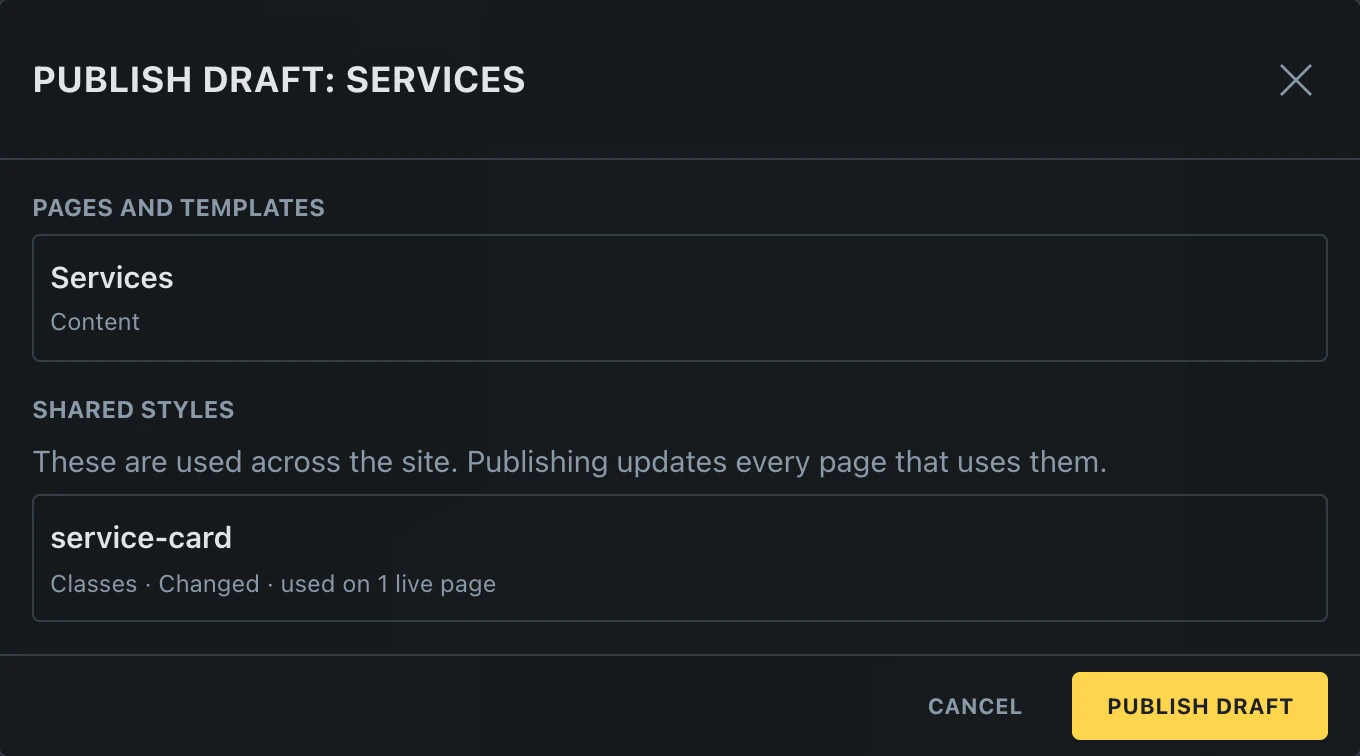
Shared styles can affect more than the page you are editing. Review them before publishing: a component, class, or Theme Style may be used throughout the site.
If live changed while you worked
Section titled “If live changed while you worked”Bricks compares the pending changes with the current live site. When both sides changed an item differently, choose Your draft or The live version for that conflict. When page content can be combined, the dialog asks only about conflicting elements and combines the other changes.
Publishing stays blocked until the conflicts have choices. If the draft or live data changes again during review, Bricks can require another review. Keeping the live version leaves that item as it is on the live site.
These publish decisions are separate from conflicts while saving shared data between open Builder sessions.
Undo a publish
Section titled “Undo a publish”When a publish changes live data, Bricks keeps the values it replaced. Click Undo in the published confirmation, or open Manage versions… and find the recent entry under Undo a publish.
Undo restores those replaced values; it is not a restore of the entire site. If someone changed those values again, undo can stop with a conflict instead of replacing their later work. Save or discard any unsaved Live edits before undoing.
For one class, variable, component, or another supported shared item, Global data history offers a separate way to restore an earlier value.
Discard a draft
Section titled “Discard a draft”Click Discard beside the version switcher and confirm. Bricks removes the draft’s pending changes and opens the live page.
If the draft created shared items that are still unused, Bricks offers Discard, keep them or Discard and delete them. It checks for usage before deleting them, including references from other open drafts.
Discarding does not undo edits to existing unused shared items that were already saved live. Those changes were outside the draft’s pending changes.
Return later or move to another page
Section titled “Return later or move to another page”Opening a page with an active page draft automatically opens that draft for users who can edit it. Select Live in the version menu when you deliberately want to work on the live page. That explicit choice is kept when the Builder reloads the same live context.
A page draft stays with its page and the templates you edit within it. Navigating to an unrelated page leaves that page draft; the destination opens in its own context, including its own draft if present. Use a site version when those pages need to share the same pending changes.
Before switching versions or navigating away, Bricks saves unsaved draft edits and stops the switch if saving fails. Switching from Live with unsaved changes asks for confirmation before replacing them, so save those edits first if you need them.
Access and availability
Section titled “Access and availability”A page draft is not restricted to its creator. Other logged-in users who can edit the page and use Bricks on it can open the same draft. Their existing Builder permissions still control which changes they may make.
Publishing also checks the permissions needed for every included change, such as page settings, templates, shared styles, and executable code. If the draft contains changes you cannot publish, ask someone with those permissions to publish it. See Builder access.
Active drafts remain available until published or discarded. Finished draft records and publish undo points are removed after 30 days by default, measured from their last update. Developers can adjust this period with bricks/drafts/keep_days.
Turning off Enable drafts makes draft contexts unavailable; a save from an already open draft is refused instead of becoming a Live save. Open Live to continue, or re-enable drafts to resume the pending work.
Was this helpful?
A quick vote and short notes help us improve these docs faster.
Leave a note for us
Please do not include passwords, license keys, or personal data. We store submitted notes to improve the docs.
Thanks for sharing feedback. We're using it to improve these docs.