
Review Links
Review links let a client or teammate view a saved page draft or site version without a WordPress login. They can browse the design, but cannot edit it, publish it, submit forms, or leave comments inside Bricks.
Available since Bricks 2.5. Review links require the experimental Drafts feature and are disabled by default.
Enable review links
Section titled “Enable review links”In Bricks > Settings > Builder > Drafts, enable Enable drafts, then Enable review links, and save the settings.
To create a link, you must be allowed to edit the draft or site version you are sharing. A link does not give the recipient Builder access.
Create and copy a link
Section titled “Create and copy a link”- Open the draft or site version in the Builder and save the changes you want reviewed.
- Open the version menu before Save, then choose Review links…. Bricks opens Versions with that version selected. Alternatively, use Manage versions… and select it from the list on the left.
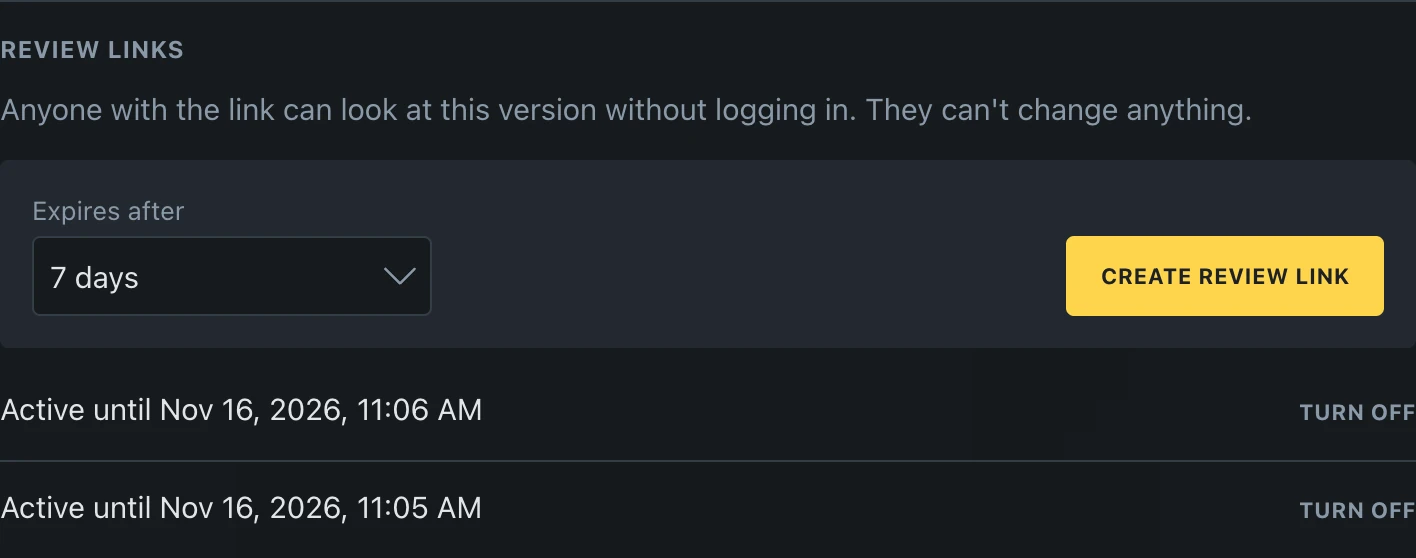
- In Review links on the right, set Expires after to 1 day, 7 days, 14 days, or 30 days. The default is 7 days.
- Click Create review link.
- Click Copy and send the generated link to your reviewer.
Copy the link while it is shown. Bricks displays the full link only once; the list retains its expiry and active/inactive status. If you did not keep the link, create another one.
Anyone who receives the link can use it until it expires or is turned off. Share it only with the people who should see the work.
A link opens the saved version, not unsaved canvas edits. Further saves to that version appear when the reviewer reloads or revisits it. Use a separate named site version if another round of edits must stay separate from the work already under review.
What the reviewer sees
Section titled “What the reviewer sees”The link opens the frontend without the WordPress admin bar. A small Review panel shows the version name and Available until date. Hide collapses it; Show review panel opens it again.
The reviewer can follow links on the same site while staying in the review. A page-draft link starts on that page; a site-version link starts at the site’s homepage. A page draft can be reviewed before its page is published, but the link does not unlock unrelated private or unpublished posts.
Leave review returns to the corresponding live URL. An unpublished page may have no public live page to show.
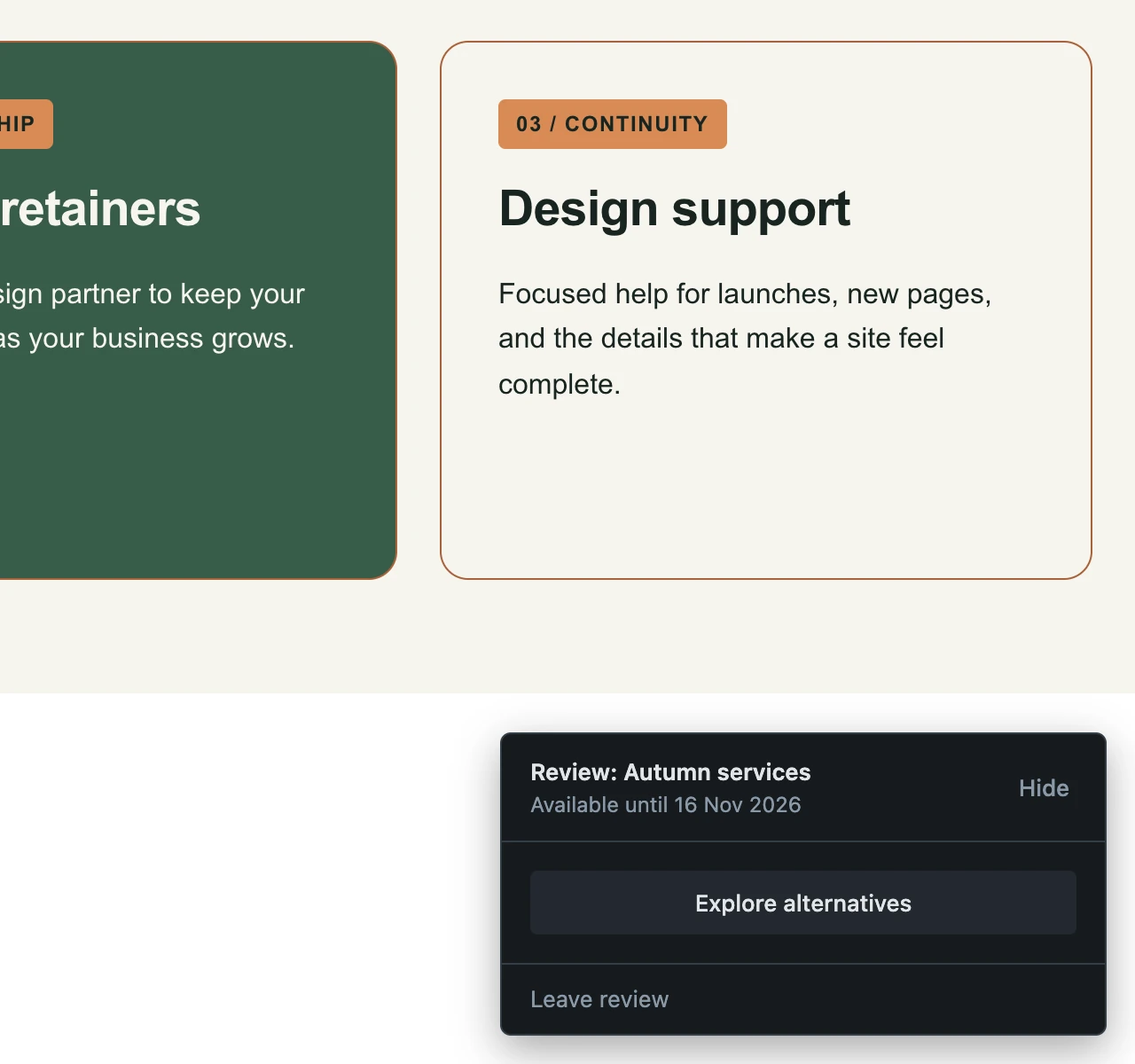
If the version contains alternatives, the panel offers Explore alternatives. The reviewer can inspect different combinations and comparisons, but cannot apply one to the draft or record a preferred choice in Bricks. See Explore Alternatives and Compare.
Review links are view-only, including when opened by a logged-in editor. They do not provide comments, an approval button, or a “choose this version” submission. Collect feedback through your usual email or project conversation. Forms in a review do not submit.
Expiry and turning links off
Section titled “Expiry and turning links off”Open Versions, select the shared draft or version, then find its Review links list. Active until shows the expiry. Click Turn off to stop a link before that date.
The person who created a link, or an administrator who retains access to its version, can turn it off. Create a new link when you need a later expiry; the existing link is not extended.
A link stops working when:
- Its expiry is reached or it is turned off.
- The draft or version is discarded.
- A publish succeeds, including publishing a site version that remains open for further work.
- Its creator loses permission to edit that draft or version.
- Drafts or review links are disabled in Bricks settings.
The recipient then sees Review link unavailable and can request a new link. After publishing a site version, create a fresh link for the next review so the old one cannot expose later work.
Was this helpful?
A quick vote and short notes help us improve these docs faster.
Leave a note for us
Please do not include passwords, license keys, or personal data. We store submitted notes to improve the docs.
Thanks for sharing feedback. We're using it to improve these docs.