
Explore Alternatives and Compare
Explore lets you try prepared alternatives, such as two headlines or several accent colors, on a draft. Compare shows up to four views of the same page so you can inspect different combinations, page drafts, site versions, or the live site together.
Requirements
Section titled “Requirements”Explore and Compare are available in Bricks 2.5 with Enable drafts turned on under Bricks → Settings → Builder. Drafts are experimental and disabled by default.
You need an active draft or site version that your account can edit. The Explore alternatives entry appears only when that version already contains alternatives. Compare with live works without alternatives.
Alternative groups are currently created through Bricks abilities, for example by a connected AI assistant using bricks/create-alternatives. The Builder provides the interface for previewing and applying those groups; it does not have controls for creating groups or writing their choices manually.
Prepare alternatives
Section titled “Prepare alternatives”Each group represents one decision, such as Headline or Accent color. Each choice contains proposed changes to existing element settings, global class settings, or variable values. You can select one choice per group and combine choices from different groups.
For example, ask a connected assistant:
In the page’s draft, prepare two headline alternatives and two accent-color alternatives. Keep the existing elements. Put headlines and colors in separate groups so I can mix them, and give me the Explore and Compare links.
The assistant can use an existing page draft, create one if needed, or work in a specified site version. Preparing alternatives saves the options for review without applying their proposed changes.
Open Explore or Compare
Section titled “Open Explore or Compare”While editing a draft or site version, open the version menu beside Save:
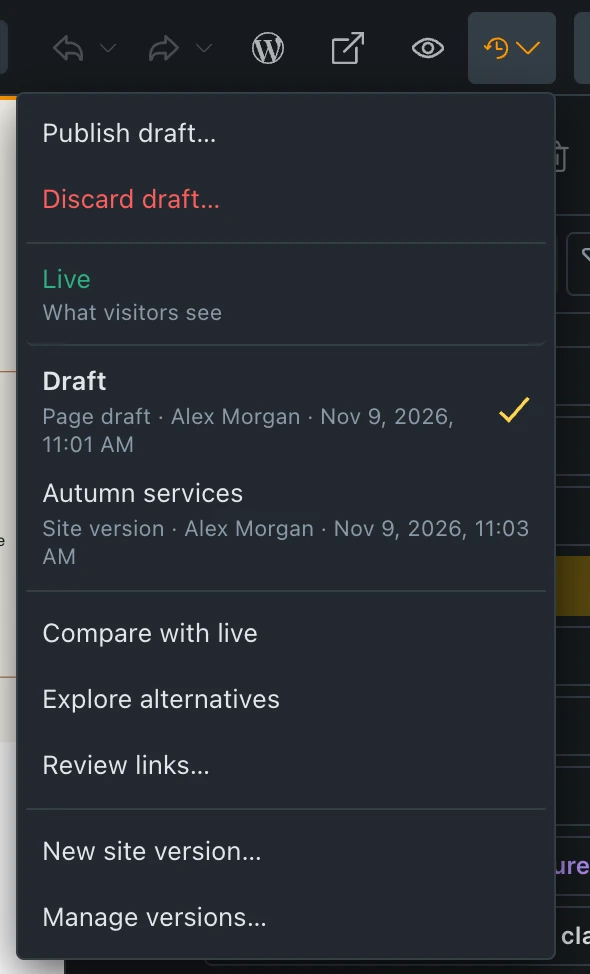
- Choose Explore alternatives to preview its groups in one view.
- Choose Compare with live to open the version and live page together.
These views open over the Builder. If the current draft has unsaved edits, Bricks saves them into the draft before opening the view. Click Close to return to editing.
In Manage versions, select a version and click Compare. An editor can also open an Explore or Compare link returned by the connected assistant. These editor links require a login and permission to edit the version; use a review link for someone without an account.
Try a combination
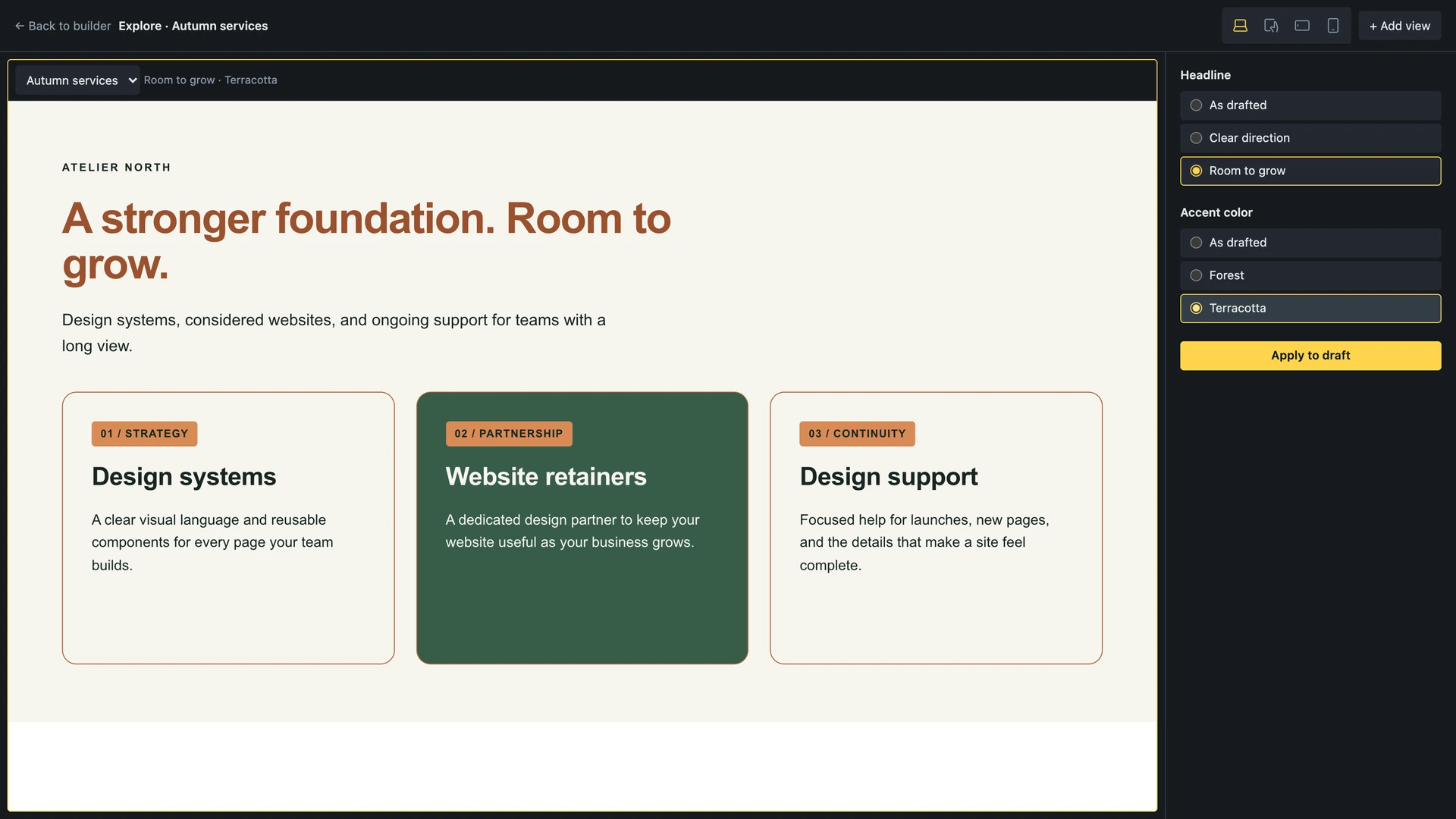
Section titled “Try a combination”The options panel shows the active view’s groups. Select a choice under each group you want to change. Choose As drafted to show that group’s current saved draft values without an alternative applied.
For example, select the second Headline and the first Accent color. The page preview shows that combination. Switching choices previews their effect without saving those choices to the draft or publishing them.
If a view has no alternative groups, the options panel is hidden. You can still compare its page with another view.
Compare views
Section titled “Compare views”Click Add view to copy the active view and its current choices. Then use the version selector in each view’s header to choose the page’s Draft, an available named site version, or Live site.
Click a view’s header to make it active. Its border is highlighted, and the options panel changes to the groups belonging to that view’s version. Each view keeps its own combination. Changing one view’s version clears its previous alternative selections.
For example, compare:
| View | Version | Alternatives |
|---|---|---|
| 1 | Live site | Current published page |
| 2 | Autumn services | Clear direction headline, Forest accent |
| 3 | Autumn services | Room to grow headline, Terracotta accent |
The selectors offer drafts and site versions you can edit. A page draft belongs to its own page; another page’s draft is not offered for this comparison. Site versions show the current page within that version.
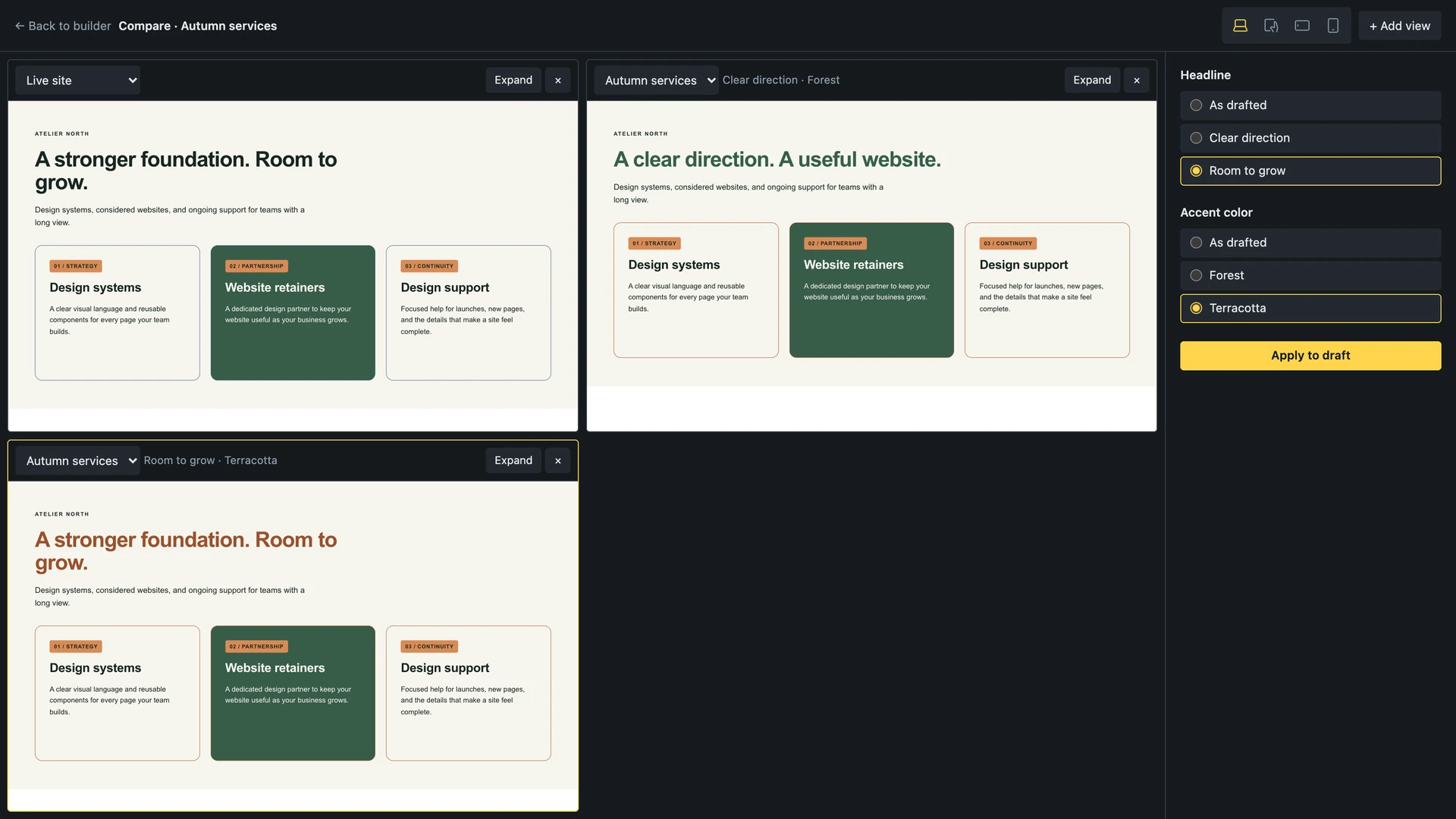
Up to four views are supported. Use Expand to inspect one at a larger size, then Show all views to return. The × button removes a view from the comparison without deleting its draft or site version.
Responsive previews and scrolling
Section titled “Responsive previews and scrolling”The breakpoint buttons use the site’s configured Bricks breakpoints. Choosing a width changes every view together. Each page renders at that width and scales down to fit its available space, so a desktop page can remain a desktop preview inside a narrow comparison pane.
Scroll one page view to move the others to the same vertical position. Switching alternative choices keeps the view’s scroll position where the new content allows it. Pages with different heights may not line up exactly.
Apply a combination
Section titled “Apply a combination”Select the view containing the combination you want, then click Apply to draft. Bricks applies that view’s selected choices to its own draft or site version. Groups left on As drafted keep their current values. Applying requires the same permissions as editing the affected page, classes, or variables directly.
Applying does not publish the page. Close the view to return to the Builder. If you applied choices to a different site version, select that version in the toolbar to continue editing it. Use the draft or site version’s publishing workflow when it is ready.
Shared classes and variables follow the drafts shared-data rules: changes affecting live content stay in the draft until publication. Updates that do not affect live content are shared across the site immediately, ready to use on other pages and templates. Applying alternatives uses the same rules.
After applying, As drafted shows the updated draft. Selecting it does not undo a combination you already applied. If Bricks reports that the alternatives changed since you opened them, reload the view and review the current choices before applying again.
Review links
Section titled “Review links”With review links enabled, you can share a draft or site version with someone who does not have a WordPress login. When it contains alternatives, the review panel includes Explore alternatives.
Reviewers can switch options and add views to inspect combinations within the shared version. Their view has no version selector and no Apply to draft button. They cannot publish, save a preferred combination, or submit comments through the review link. Ask them to send their feedback separately.
For recovering an earlier saved class, variable, component, or other shared item, use Global data history.
Was this helpful?
A quick vote and short notes help us improve these docs faster.
Leave a note for us
Please do not include passwords, license keys, or personal data. We store submitted notes to improve the docs.
Thanks for sharing feedback. We're using it to improve these docs.