
Lottie
The Lottie element, available in Bricks 2.5, displays vector animations from Lottie JSON or .lottie files. Use it for an animated illustration or a small interaction such as an icon that plays when a card receives hover or keyboard focus.
Add an animation
Section titled “Add an animation”- Add a Lottie element from the Media elements.
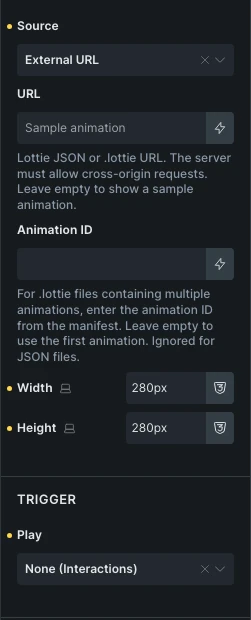
- Choose a Source:
- File: Select a Lottie JSON or
.lottieattachment. - External URL: Enter a public animation URL. The server must allow cross-origin requests. Leaving the URL empty shows the bundled sample animation.
- Dynamic data: Select media supplied by a dynamic-data tag.
- File: Select a Lottie JSON or
- Set Width and Height if the animation needs a specific size.
- Choose when it should play, then save and check the frontend.
For a .lottie file containing several animations, enter the manifest’s Animation ID. Leave it empty to use the first animation. The setting has no effect on JSON files.
Bricks enables JSON and .lottie uploads for users who can upload files in WordPress and have permission to add the Lottie element. Other site upload restrictions still apply. If an upload is rejected, check those permissions and the site’s allowed file types.
A remote URL must return the animation file itself, rather than a web page containing a player.
Choose when to play
Section titled “Choose when to play”Use Play to choose the trigger:
| Play setting | Behavior |
|---|---|
| On page load | Start after the animation loads. |
| When visible | Play when the element enters the viewport. Choose Reset and replay or Pause and resume under On leaving viewport. |
| On hover or focus | Play when the trigger receives pointer hover or keyboard focus. On mouse leave can reset, pause, reverse, or finish the current play. |
| On click | Choose Play and pause, Play from start, or Play forward, then reverse. |
| Sync with scroll | Advance through the animation as the element moves through the viewport. |
| None (Interactions) | Control playback through Bricks interactions. |
Delay (ms) postpones playback for On page load and When visible. The default is 0. With Pause and resume, the delay applies to the initial start, not resuming playback. Use Delay between loops to pause between repeats.
For When visible, enable Play once to disable looping and automatic replay after completion until the page reloads.
For hover and click, Trigger element can be Self, Parent, or CSS selector. A custom selector uses the closest matching ancestor first, then the first matching element on the page. Use Parent when an illustration should respond to its containing card.
Sync with scroll
Section titled “Sync with scroll”Start (%) controls where the element’s top edge starts playback, measured from the bottom of the viewport (0) to the top (100). End (%) controls where its bottom edge finishes playback. The defaults are 0 and 100.
Scroll playback follows scroll progress. Loop, loop count, loop delay, and speed controls do not apply in this mode.
Playback settings
Section titled “Playback settings”- Loop: Repeat playback. Enabled by default.
- Loop count: Number of plays. Leave empty for continuous looping.
- Delay between loops (ms): Pause between repeats.
- Speed: Playback multiplier, from
0.1to10. The default is1. - Direction: Play forward or in reverse.
- Start frame and End frame: Limit playback to a section of the animation. Leave empty to use its full length.
- Frame when stopped: Show the first or last frame before playback and after a reset.
- Lazy load: Load the animation near the viewport. Enabled by default. Global or page-level Disable lazy load settings override it.
Control playback with interactions
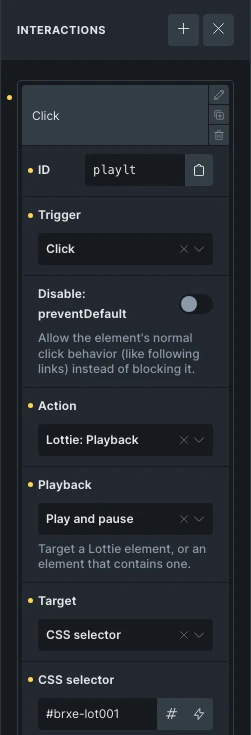
Section titled “Control playback with interactions”To play an animation from a separate Button:
- Set the Lottie element’s Play to None (Interactions).
- Add a Click interaction to the Button.
- Choose Lottie: Playback as the action.
- Choose Play, Pause, Play and pause, Stop, or Play from start.
- Target the Lottie element, or a wrapper containing it, through the interaction target controls.
- Save and test the Button on the frontend.
Use separate play and pause controls if visitors need to control a repeating animation. See Interactions for trigger and target setup.
Accessibility and reduced motion
Section titled “Accessibility and reduced motion”Add a Text alternative when the animation conveys information. Leave it empty for decorative animations. A Lottie element that uses itself as a hover or click trigger is keyboard focusable; give it a meaningful text alternative so its purpose is clear.
When a visitor prefers reduced motion, Bricks shows the selected Frame when stopped instead of playing the animation. Keep essential text and actions outside the animation so they remain available in that state.
Troubleshooting
Section titled “Troubleshooting”- Animation could not be loaded: Check that the URL returns a supported JSON or
.lottiefile and that a remote host permits cross-origin requests. - Wrong animation in a .lottie file: Check Animation ID against the file’s manifest.
- Animation starts only after scrolling: Check Lazy load and the selected Play trigger.
- A card does not trigger playback: Check Trigger element and the custom CSS selector. For a keyboard-triggered card, the card itself must be focusable.
Was this helpful?
A quick vote and short notes help us improve these docs faster.
Leave a note for us
Please do not include passwords, license keys, or personal data. We store submitted notes to improve the docs.
Thanks for sharing feedback. We're using it to improve these docs.