
Global Data Revisions
Global data revisions, available since Bricks 2.5, keep earlier versions of shared Builder items. Restore one component or class without replacing newer changes to the rest of your design system. It also lets you recover an item that was deleted.
Revisions are recorded by default. You do not need to enable experimental Drafts to use them.
Open the revisions
Section titled “Open the revisions”Open Manage > Global data revisions in the Builder toolbar. The dialog lists these data types in its sidebar: Theme styles, Classes, Variables, Colors, Components, Queries, and Query filters. Type shortcuts 1 to 9 select a type, and Bricks remembers your last type and sort order.
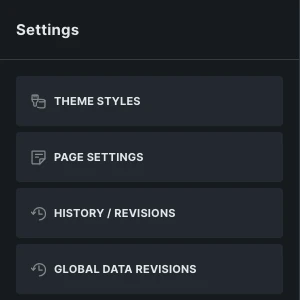
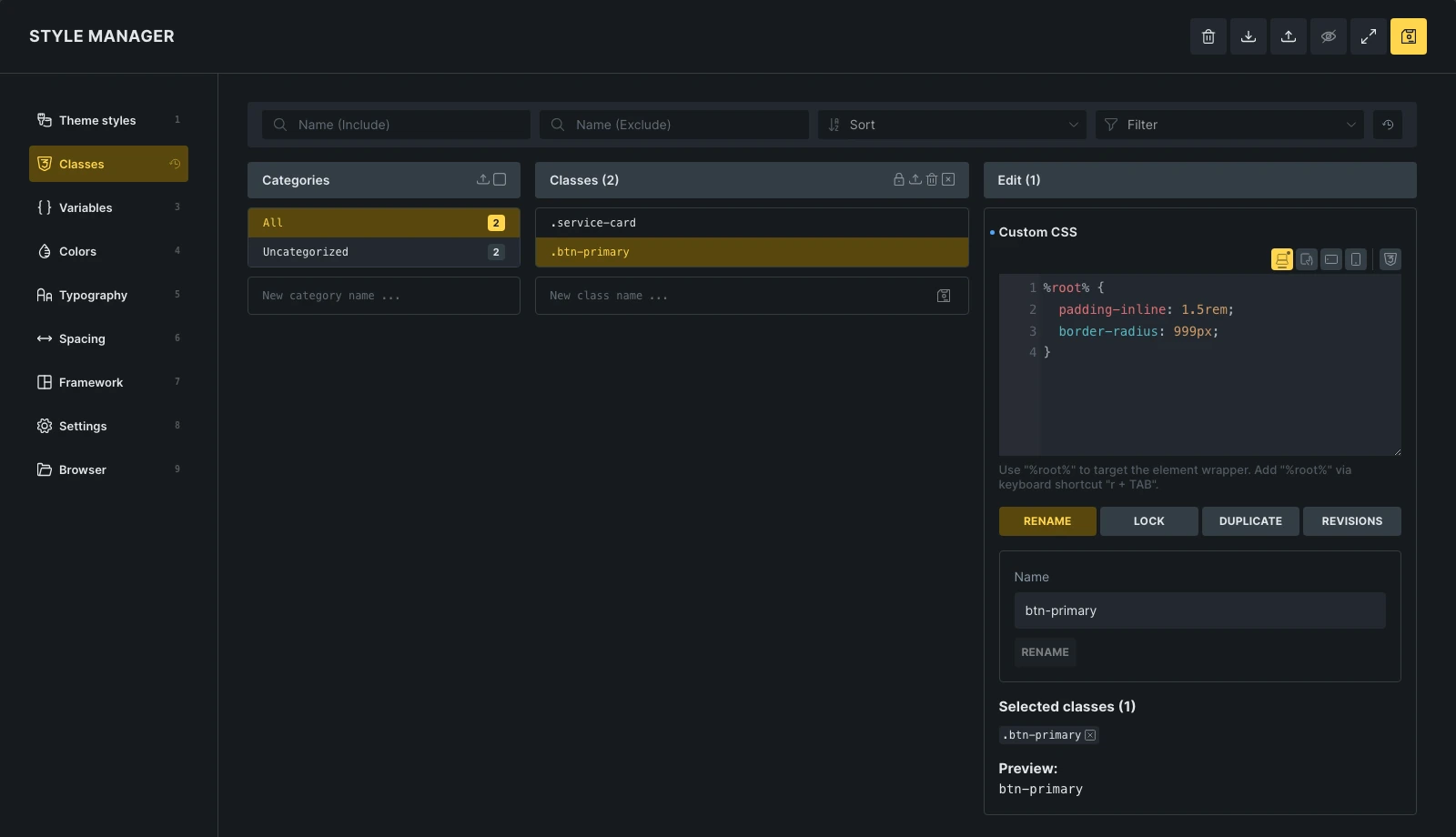
You can also open the revisions of one data type from where you edit it. Each opens the dialog on that type:
- Style manager: the revisions icon on the selected Theme styles, Classes, Variables, or Colors item.
- Class and variable editors: the Revisions button.
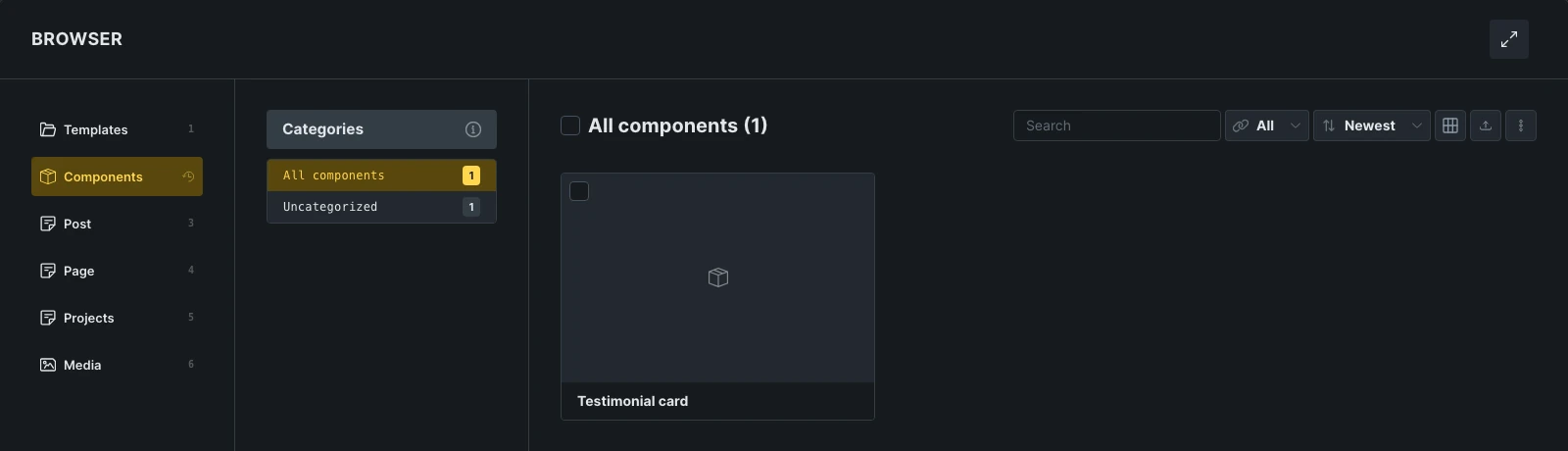
- Browser: the revisions icon on Components, Query manager, or Filter manager. A component’s own Revisions icon in the Browser, or on its row in the Components panel, opens that component directly.
Browse an item’s revisions
Section titled “Browse an item’s revisions”- Select a data type in the sidebar.
- Find an item with the search field, which also searches deleted items, or sort the list. Classes, variables, components, queries, and filters also have a categories column, as in their managers.
- Select an item. Click it again to deselect it.
Theme styles open directly on the active style. Use the style switcher to pick another one. Colors are listed one by one, and each palette appears as a category. A color’s revisions come from the revisions of its palette.
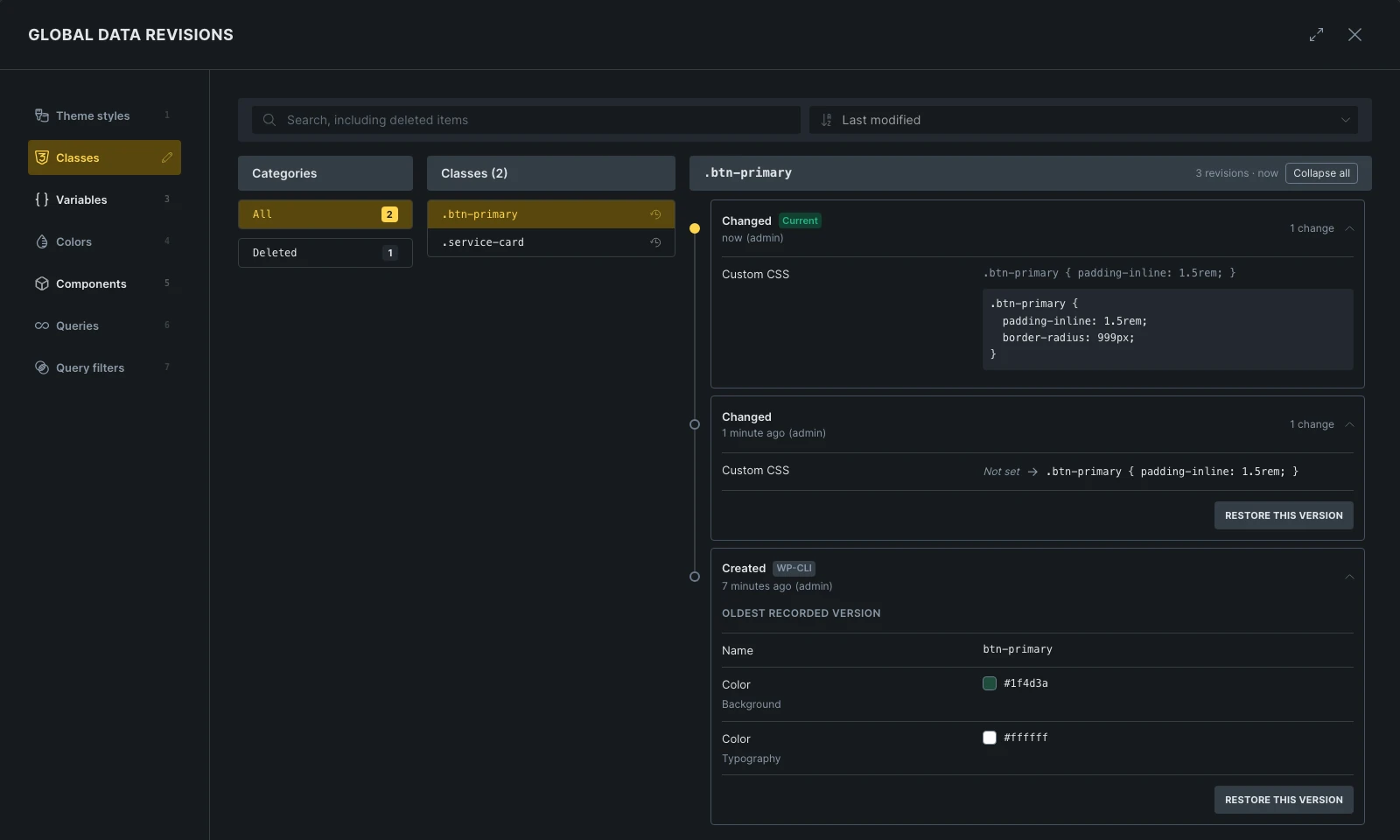
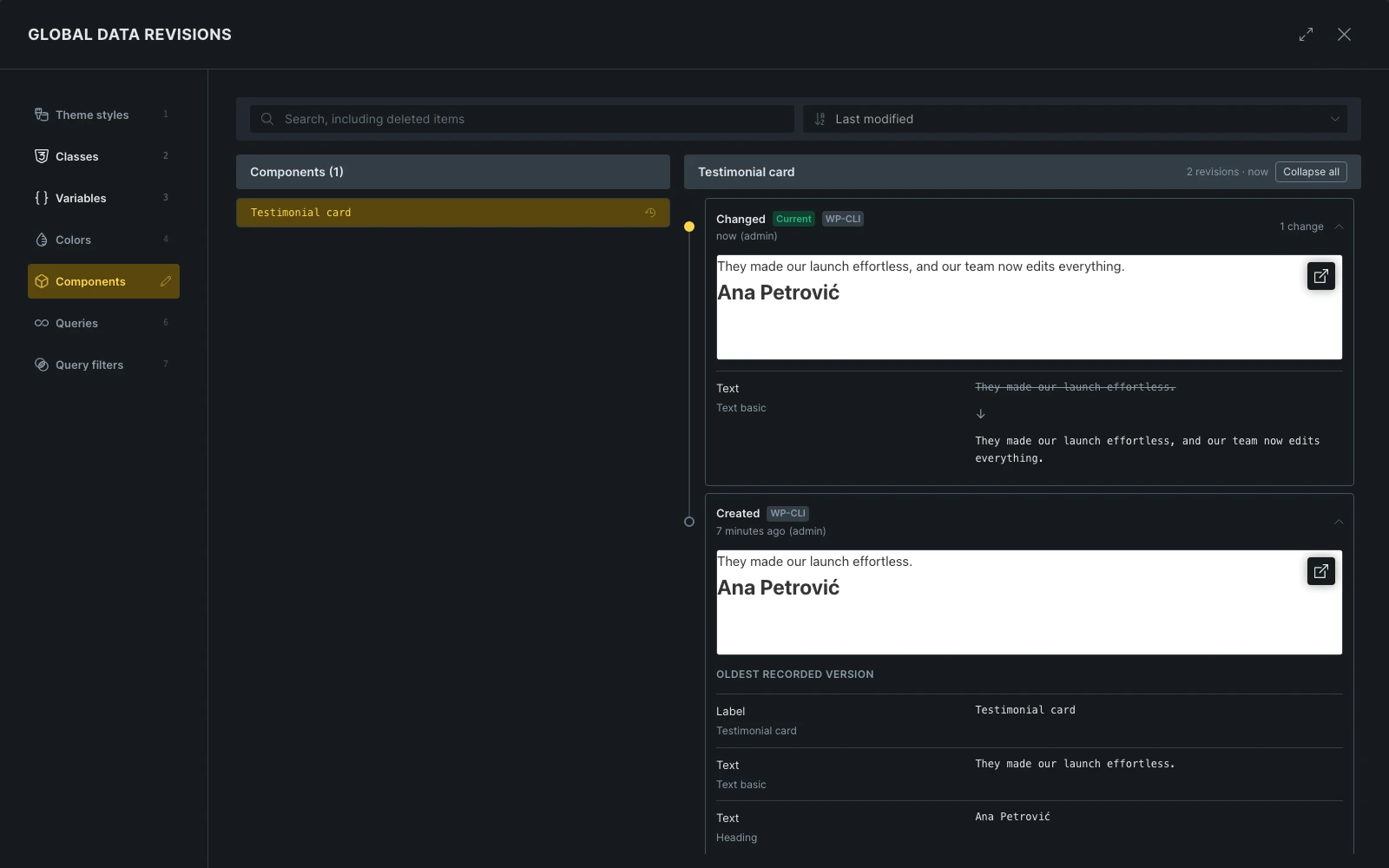
An item’s revisions form a timeline of cards, newest first. The newest card opens with the item. Select a card to expand or collapse it, or use Expand all and Collapse all in the item header. The header shows the number of revisions and when the item last changed.
Each card shows the action, such as Created, Changed, or Deleted, along with tags and when and by whom the change was made. A Current tag marks the version the site uses now. Source tags such as AI agent, WP-CLI, Import, Published draft, or From a draft show where a change came from. A change made by hand in the Builder has no source tag. A Restored tag marks a revision created by a restore.
An open card lists its changes, one setting per row. Each row shows the setting name with its section underneath, then the old value, an arrow, and the new value. Empty values read Not set, colors appear as swatches, and multi-line values such as custom CSS appear as code blocks with the old value dimmed above the new one. The oldest card lists its values under Oldest recorded version, because it has no earlier version to compare with. Labels come from the matching Theme styles and settings controls.
Components also show a rendered preview in each card, and internal component fields are left out of the changes. The preview uses the site’s styles. It does not restore the global classes, fonts, or other resources that the component used at that earlier time. Use Open in new tab to inspect the preview separately.
Custom fonts, breakpoints, font favorites, pinned elements, and class locks are not included in global data revisions.
Restore an item
Section titled “Restore an item”Each card ends with its own restore button. The current revision has none.
- Expand the revision you want to recover.
- Review its values and component preview, if available.
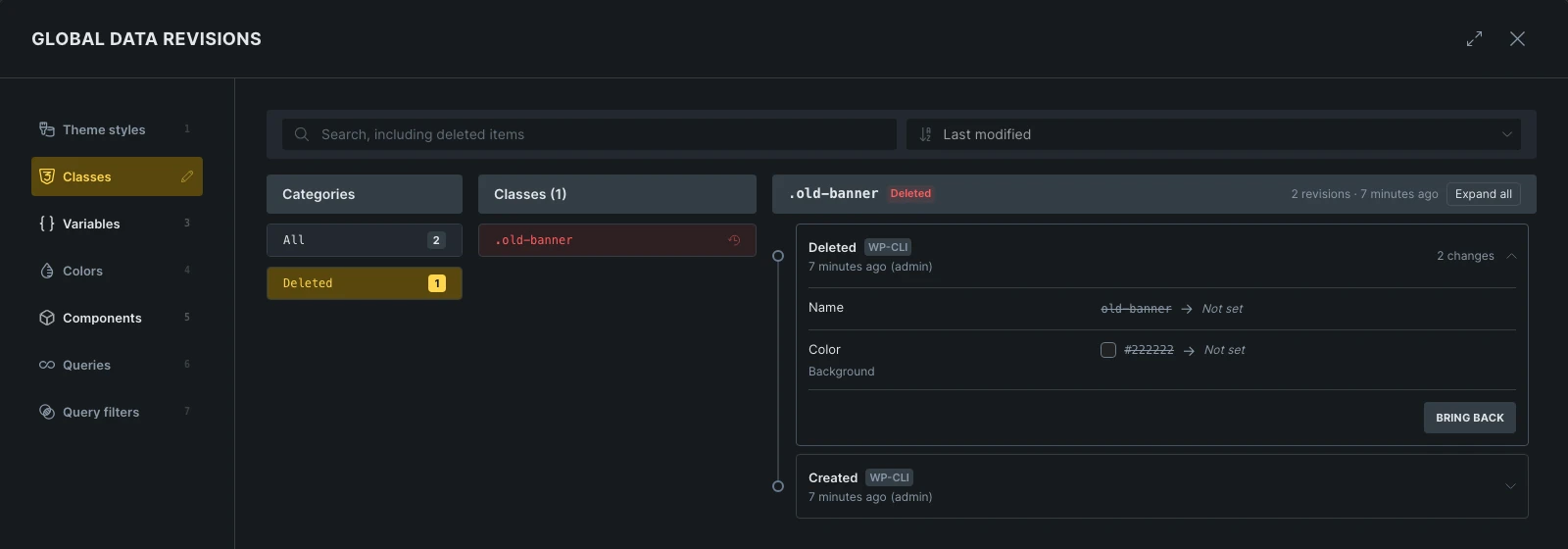
- Click Restore this version. For a color, the button says Restore this palette version. For a deleted item, it says Bring back.
If you have unsaved changes to that type of global data, the button reads Save and restore (or Save and bring back) and saves them first.
Restoring saves the selected item’s earlier value and updates the Builder. Other items keep their current values. Each restore is recorded as another revision, so you can return to the previous value through the same dialog.
An item’s only revision is its recorded starting point and is titled Current version.
Recover deleted items
Section titled “Recover deleted items”An item that was deleted or moved to the trash is listed only under Deleted, in its own box below the categories, and not in All or its category. Select the item and click Bring back to return it to use. The item then appears under All again. If you open the dialog on a deleted item, it starts in Deleted.
Restore inside drafts and site versions
Section titled “Restore inside drafts and site versions”When you are editing a draft or a site version, the dialog shows a notice that the revisions are the live site’s history. The newest revision is tagged Live instead of Current, and you can restore it into the draft, because a draft does not record its own saves and may hold something else. Restored changes follow the shared-data rules. Changes affecting live content stay held until publication. Restored items that do not affect live content are shared across the site immediately. A change held in a draft enters global data revisions when it is published.
Your account needs Builder access and the relevant resource permissions. Restoring a component containing executable code also requires code execution permission.
Retention and storage
Section titled “Retention and storage”By default, each item keeps its latest 20 versions, plus all versions recorded in the last 90 days. An item can therefore have more than 20 revisions. These limits are separate from the number of WordPress revisions kept for a page. Developers can adjust them with bricks/global_history/keep_latest and bricks/global_history/keep_days.
Under Bricks > Settings > Builder > Global data revisions, you can:
- Enable Disable global data revisions to stop recording new changes.
- View the storage used by recorded revisions.
- Use Delete revisions to remove the stored revisions. This leaves your current global data in place, but the deleted revisions can no longer be restored.
Revisions cannot recover versions that were never recorded. Keep site backups for a complete recovery of WordPress content, media, settings, and files.
Undo history, revisions, and drafts
Section titled “Undo history, revisions, and drafts”| Tool | Use it for |
|---|---|
| History in Manage > History / Revisions | Undo and redo steps from the current editing session. |
| Revisions | Recover earlier page or template elements and page settings. |
| Global data revisions | Recover one recorded shared item, including a deleted item. |
| Drafts and site versions | Hold changes affecting visitors until you choose to publish them. |
For agent workflows, the bricks/list-global-revisions and bricks/restore-global-revision abilities provide the same per-item recovery. Pass target: "active" to bricks/restore-global-revision to bring a deleted item back into use. See Bricks AI abilities and skills.
Was this helpful?
A quick vote and short notes help us improve these docs faster.
Leave a note for us
Please do not include passwords, license keys, or personal data. We store submitted notes to improve the docs.
Thanks for sharing feedback. We're using it to improve these docs.