
Site Versions
A site version holds a named set of changes across several pages, templates, and shared styles. Use one for work such as a new service offering that changes the homepage, service pages, and their shared components.
Site versions are available in Bricks 2.5 through the experimental Drafts feature. Enable Bricks > Settings > Builder > Drafts > Enable drafts first. It is disabled by default.
You need Builder access and the WordPress permission to edit other users’ posts to create and edit site versions. Your permissions for individual pages, templates, and global resources still apply.
Create a site version
Section titled “Create a site version”- Open a page in the Builder.
- Open the version menu just before Save. It shows Live, Draft, or the name of the site version you are editing.
- Choose New site version….
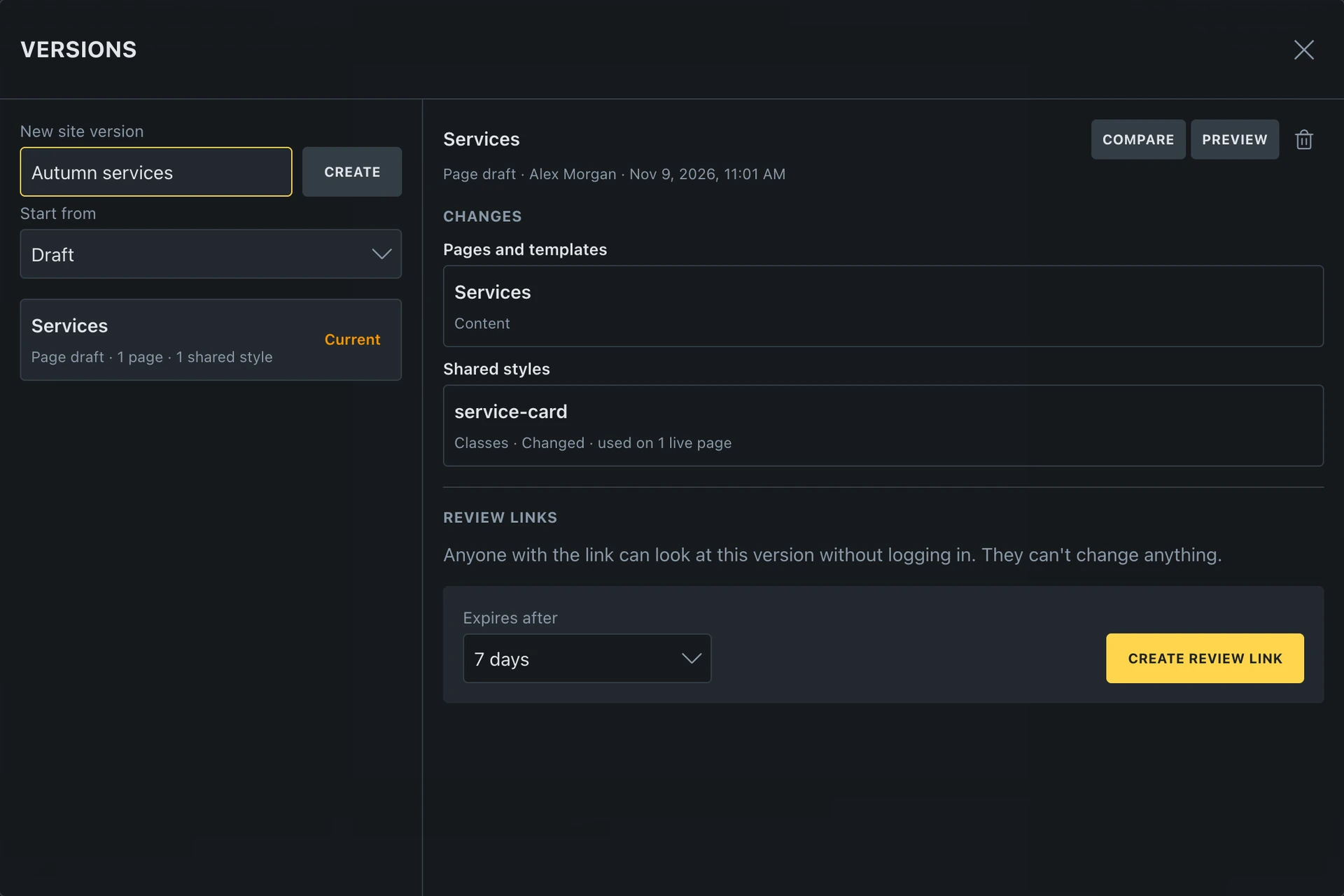
- Enter a name, such as
Autumn services. - If you have a draft or site version open, use Start from to keep that source or choose Live.
- Click Create. Bricks opens the new site version on the current page.
When starting from the open draft or version, Bricks saves its pending edits before copying its saved changes. Starting from Live uses saved live data. It does not include unsaved edits on the live canvas. Save those edits first, or put them in a page draft and create the site version from that draft.
A new version can start with no changes. It does not copy and freeze the whole site: items you have not changed continue to follow live data.
Work across pages
Section titled “Work across pages”The toolbar shows the site’s version name while you edit it. Save writes changes in that context. Open another page through the Builder’s page navigation to continue in the same site version. Pending edits are saved before leaving the current page.
Use the version menu to switch between Live, this page’s Draft when one exists, and the available site versions. The checkmark marks the version open in the Builder. Switching from a draft or version saves pending changes first; switching away from unsaved live edits asks for confirmation.
A page draft belongs to one page and its templates. A site version can hold changes from several pages. See Drafts for the shared editing rules.
What stays in the version
Section titled “What stays in the version”Page and template changes stay in the version until you publish them. Changes to shared items already used by live content, such as a card component or a global class, also stay there. Theme Styles, breakpoints, and Style Manager changes are held for publishing.
Reusable items that do not affect live content become available across the site immediately. For example, a new class is available on other pages and templates as you work, without publishing the version. Changes to a class already used by live pages stay in the version until publication. See the shared-data rules for details, including custom CSS that affects other elements.
Media Library changes and personal Builder preferences remain shared too. Save notices identify items shared immediately; the version’s Changes list shows work still held for publication.
Untouched items keep following the live site. If someone updates a different component while you work, that update remains visible in your version. Publishing a shared style updates every live page using it, including pages you did not edit in this version.
Manage versions
Section titled “Manage versions”Open the version menu and choose Manage versions…. The Versions dialog also lists page drafts that you have permission to edit.
The left side contains the creation form and the version list, with page/shared-change counts. Select a name to inspect it on the right. Selecting a row does not switch the Builder into that version, and does not change the source used by Start from when creating another version.
The right side contains the selected version’s name, owner, update time, actions, Changes, and Review links when enabled. Save your current work before checking this overview; it lists saved changes.
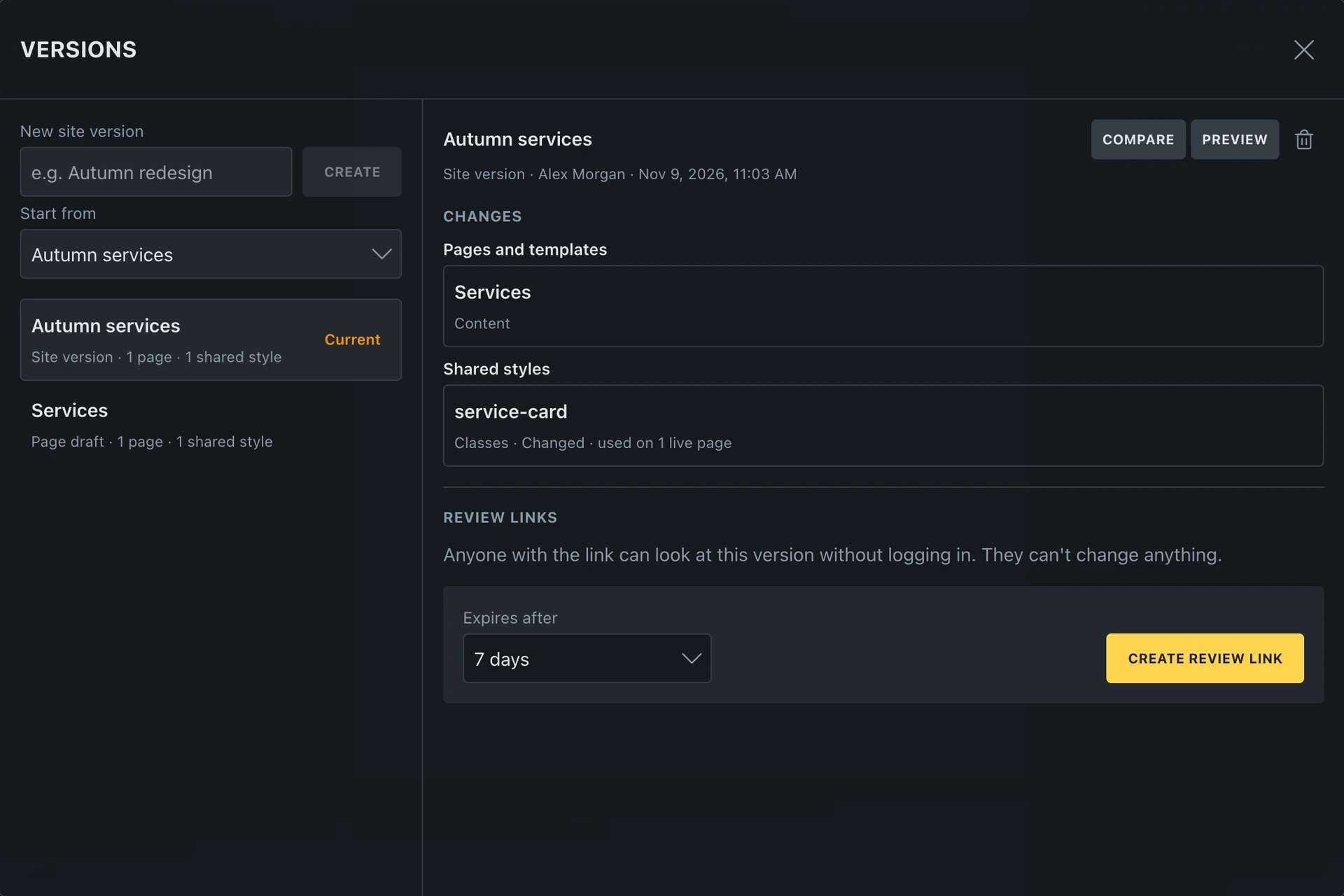
| Action | What it does |
|---|---|
| Rename (pencil) | Edit the selected version’s name. Press Enter or leave the field to save; Escape cancels. |
| Open | Edit the selected version. A site version opens on the page currently in the Builder. A page draft for another page opens that page. |
| Compare | Open a comparison with live over the Builder. For the page you’re editing, use Compare with live in its version menu. |
| Preview | Open the saved version’s frontend preview in a new tab. An editor needs permission to view it; use a review link for someone without a login. |
| Discard version (trash) | Confirm deletion of the selected version’s unpublished changes. It does not undo changes that already went live. |
Open is available when the selected version is not already open in the Builder.
Changes groups the work under Pages and templates and Shared styles. It includes available before/after values, such as color swatches. Longer groups show eight changes initially; use Show all to expand them. Items already matching live are omitted.
For comparisons, responsive preview widths, and trying several designs, see Explore Alternatives and Compare.
Publish a site version
Section titled “Publish a site version”Open the site version you want to publish, then click Publish beside the version menu. On narrower screens, choose Publish version… from the menu instead.
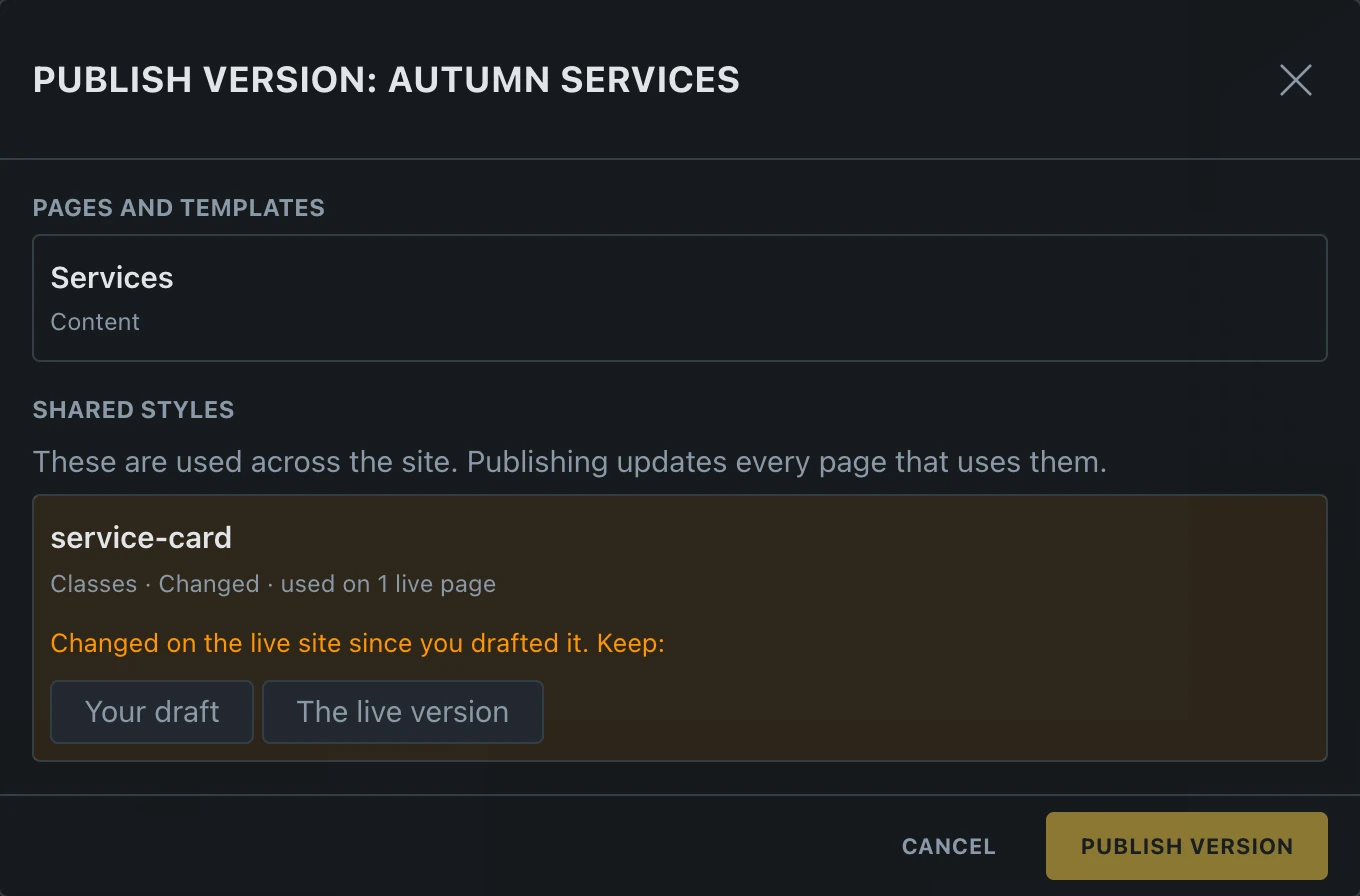
- Bricks saves pending changes into the version and opens the publish review.
- Review Pages and templates and Shared styles. Check the reach of shared changes before continuing.
- If live content also changed, resolve each conflict with Your draft or The live version. Page-content conflicts can offer choices for individual elements; independent element changes can be combined.
- Click Publish version and wait for confirmation.
If the version changes again after you review it, Bricks asks you to review the updated work before publishing.
After publishing, the Builder returns to Live. The named site version remains available for more work; changes that were published or settled by keeping live are removed from it. Open it again from the version menu to continue. Existing review links are turned off when publishing succeeds, so create fresh links for any later review.
Undo a publish
Section titled “Undo a publish”When a publish changes live content, Bricks creates an undo point. Click Undo in the published message, or open Manage versions… > Undo a publish and confirm Undo for the relevant publish. Save or discard unsaved live edits before undoing.
Undo points are kept for 30 days by default. This cleanup period can be changed with bricks/drafts/keep_days. Active editable versions are not removed by that age limit.
Undo points restore the affected live data from before that publish. They are separate from editable site versions. For recovering one shared item without undoing a whole publish, use Global Data History.
Discard a version
Section titled “Discard a version”Open the version and click Discard, or select it under Manage versions… and use the trash icon. Confirm Discard version. If it was open in the Builder, Bricks returns you to Live.
Discarding removes the version’s unpublished work and stops its review links. It keeps changes already shared live. When discarding from the toolbar, Bricks can offer Discard, keep them or Discard and delete them for new shared items that no page, live style, or other open draft uses.
Was this helpful?
A quick vote and short notes help us improve these docs faster.
Leave a note for us
Please do not include passwords, license keys, or personal data. We store submitted notes to improve the docs.
Thanks for sharing feedback. We're using it to improve these docs.